
Welcome back! In part one (click here), I’ve introduced Azure Sql Copilot. In this second part, I’m going to take you along in the Azure portal experience. I’ll write about my personal experiences, opinions and the different angles you can use to connect with your database.
Let’s dig in!
For this first part, I’m putting myself in the role of a support engineer. This person has a ticket about something in an Azure environment that is covered by a Service Level Agreement. But, the database is new to this person. And that’s perfectly fine, it’s impossible to know all the details of every client. The first logical question could be: “what am a looking at?!”. Usually this involves asking co-workers who have been there before about the environment and getting a bit of information before digging in. But the co-workers have to be there, they need to be available for questions etc. In other words, it takes time and effort to get the basic knowledge you need and then some. This may seem easy but relies heavily on peoples memories and the state of documentation. Easy as it may seem, keeping documentation up-to-date isn’t an easy feat!
I’ve been testing Copilot in my own Azure tenant with a database that has a normalised model and a data warehouse datamodel. The database is around 90 GB on my local machine and has been transferred ‘as is’ to the Azure Sql DB. The database has a lot of flight information from 2000 to 2008, all about registered flights within the USA.
Finding Copilot in the Azure portal
Let’s start the copilot by clicking on the icon in the Azure main bar.

You need to know that Copilot is context-aware, which means that it knows what resource it should talk to; the pane that’s open determines what specialism of Copilot will start running. This is a little tricky as I’ve found that you need to have the resource in the pane before you click on the Copilot button. If you don’t, it can revert to the general Azure Copilot that has little to no knowledge about Azure Sql. The second thing is that the behaviour differs between browsers. For instance when using Firefox, Copilot remains in general Azure mode. When using Edge, it detects the resource that’s open and picks the correct Copilot.
First question
Having found Copilot, it’s very easy to write one question into a chat screen and get a response. Something like ‘what can you tell me about this database?’. And after some thinking, you’ll get a reply that shows you information on the database.
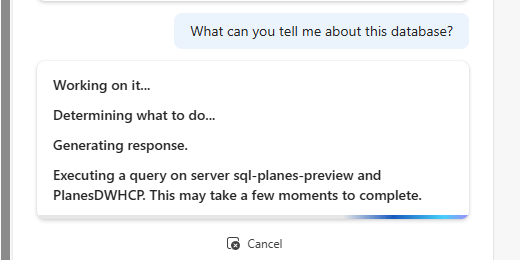

If your database is in the paused state, it will recognise this and even wait for the database to resume, be available and then fire off some queries. I like this as it doesn’t throw me an angry error but patiently waits until the database is online.
Another important point is this; it doesn’t just look at some metadata stored somewhere to generate an answer, it actually uses queries to get the actual data from the system.
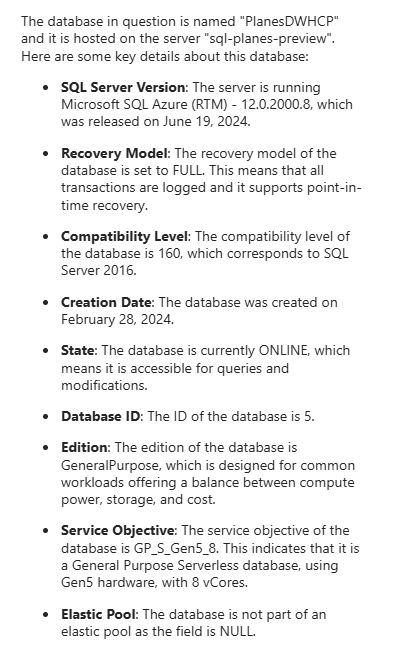
This info is a good starting point, even though not entirely correct. The compatibility level (160) points towards SQL Server 2022; SQL Server 2016 has compatibility level 130. All the rest is just correct, although the state might be an open door.
Query to knowledge
What did it base this information on?
SELECT
  @@SERVERNAME AS Server,
  @@VERSION AS SQLServerVersion,
  d.name AS DBName,
  d.recovery_model_Desc AS RecoveryModel,
  d.Compatibility_level AS CompatiblityLevel,
  d.create_date,
  d.state_desc,
  slo.*
FROM sys.databases AS d
INNER JOIN sys.database_service_objectives AS slo
  ON d.database_id = slo.database_id;
If you click to show the query, it doesn’t just print the query, but you get redirected to the Query editor where you need to log into the instance.
Security!
This is a nice segway to look at security. Because we don’t want just anyone to get information on this database. When I’m logged in as a user that has no permissions on the SQL Instance other than reader, this happens:”
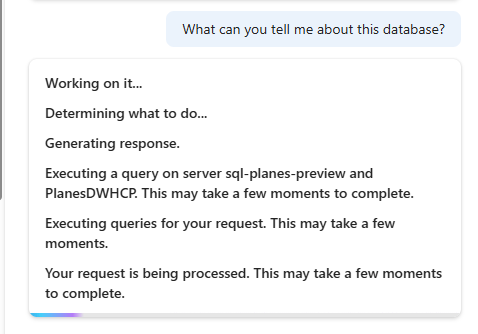

The message tells me I need to provide a login to the database to enter and get data from it.
When I cancel out of the sign-in process, Copilot will run for some time and will eventually stop trying.
This means that if you want to do anything with Copilot, you need to be able to connect to the database and retrieve information, even if you could just as easily read it from the different portal pages.
I do like that for the simple reason that if you’re a good enough prompt engineer, there might be a way to get information from the database that you wouldn’t get using your granted permissions.
Coming back to the support engineer who needs to know about the database; you need to have some permissions on the resource. More importantly, you need permissions on the meta data inside the resource. In general, having access to the system tables (sys schema) will be sufficient for the more general inquiries. If you want to dig deeper, you’ll need more permissions. More on that in part three of this series where I’ll dig into the query editor part of things.
Back to the portal experience
Now that we’ve established that not everyone can just dig into the data, let’s see what we can get from the database when using nothing but the portal experience.
Data model
One key element of a database is its design. In my daily work, I connect to OLTP databases to extract information and write it into a data warehouse database. But let’s see if Copilot can detect this.

It’s not a perfect answer but, my database is far from perfect. It does contain a star schema (nod to Koen Verbeeck) but also a lot of unhinged tables. The database was created for training purposes and is badly designed by design. I half expected it to go “it’s a mess, go clean up first!”
What else can it do?
Let’s ask it a general question.

The answer.

OK, these are clear limitations. You could argue a lot about what it should and shouldn’t be able to do. I like it when the boundaries are clear. As I’ve noted in part one, this Copilot is in preview and things are changing constantly. If you can, go and try stuff out for yourself.
Let’s get some more info on the database. This is something that you could read from the portal but some extra information is always welcome.

We can get the size of the database and the largest tables, some context and the query used to check for ourselves if we can get something more that we need. Again you can check out the query it used for yourself and save it for later.
Performance
Something very interesting is resource intensive queries. I’ve been running some silly stuff against my data, just to see what happens. The question sent to Copilot is what the most resource intensive query is. Now resource intensive is a bit of a generalisation because what does it mean? CPU, Memory, IO or all of these? Let’s see.
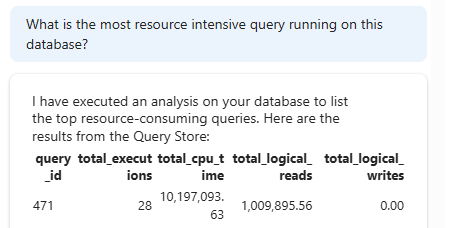
I get some abstract information in return where I can see CPU time and Logical reads. There’s an analysis of the data:

Aha, so it checks on CPU load. Good to know. Then it also checks for IO. Finally, we get a very helpful hint as it gives me the query to get data from Query Store!

With this query, I can dig into Query Store and find out what’s been happening. For that, I need to connect to the database. But, the top of the suggestions?

Let’s try the top one as this is what I want to know. Which madman created a query using so much CPU and IO?
The result:
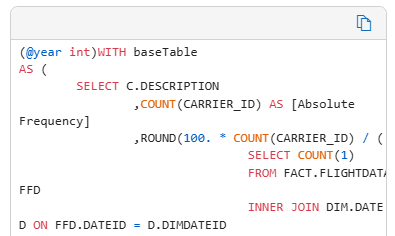
That would be me. Now, if you encounter a query like this and you have no clue what’s going on? Fear not, there’s an explanation:
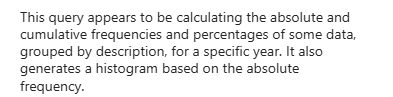
I haven’t tested many queries so your mileage may vary. Now, let’s see what it thinks about optimising it.
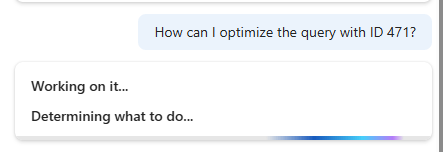
It took about 20 to 30 seconds and then came up with the following (output has been redacted to the main points).
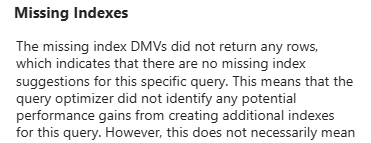


Right, so Copilot checks on missing indexes, query anti-patterns and then suggests to check on recent changes. Valid suggestions but I was hoping for a suggestion on rewriting the query. Let’s see what happens when I ask for that directly.

Again after about 20-30 seconds, it returns the following.

Now this raises some questions. Is Copilot unable to rewrite queries, or is it impossible from this specific Copilot. As you noticed at the top of this blog, Copilot in the Azure portal has a limited number of options it can go through; for instance it can’t touch your data. I’ll revisit this question in the next blogpost. Let’s try and find out what it can do with the data in your database.
Let’s dig into the data itself
I was wondering where the limits are of what Copilot can on the data side of things. Let’s start with some metadata of my database and find out what the largest table actually is.

Cool, now can we get a level deeper. What I’m looking for are the column names and the data types. In my terminology also called the table schema.
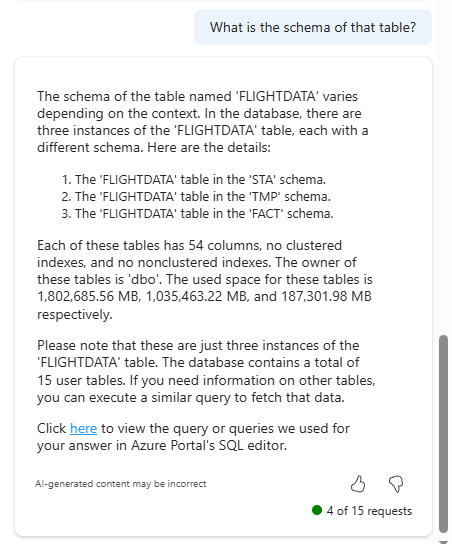
This request shows some more information on the database; I’ve got multiple schema’s and with some knowledge I can determine that this is a data warehouse database. But I was looking for the table schema, so let’s see if I can get that using a different prompt.
The first question got busted.

Fair enough, so let’s see if it can show me the data types used in this database.

This shows us that while you can get a lot of meta data from the database, you can’t really get to the data itself. Not even metadata of the data. That’s redacted. And that’s perfectly fine, I like this. Because if your role is only on the surface of the database (like an Azure administrator), this is all you need to know. If you’re a performance DBA or a production DBA and you need the data, you won’t be doing all that much in the portal; you’ll be using things like the query editor.
So, maybe it can show me the number of rows?
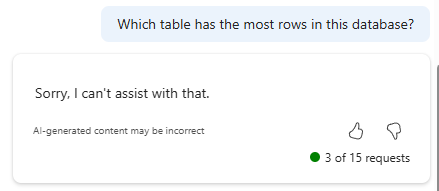
Asking it directly gets you nowhere, but if you scroll up a little bit you can see that asking for the largest table will get you a row count. It might not be the table with the most rows though.
Performance advice
Now, let’s get to the last part. There were some hints on performance, like statistics and index recommendations. Let’s see what it can do there.

It seems that my database is fine. I just wanted to check on how Copilot decided that my stats were fine.

The query that’s being used will help you on your way but might not completely cover what you’re looking for. So again, don’t take the output for granted but think about it. Run the query for yourself to validate the output and make sure it aligns with your goals.
Finally, I decided to check if there are any missing indexes.

And yes, there were. The best thing is, it doesn’t give me a query text to copy and paste like SSMS does. It does this.
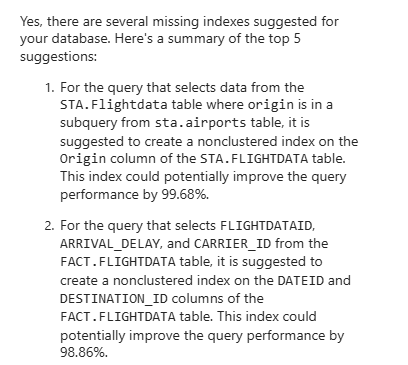
To evaluate the suggestions, we need to know the current state of the table. So let’s start with STA.FLIGHTDATA.
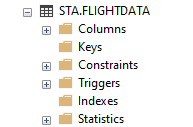
This table is a heap and adding an index could certainly help. Maybe a primary key would have helped as well.
The second suggestion is more interesting as it touches on my data warehouse model where some indexing has taken place.

I’ve had many different experiences with adding non-clustered indexes on top of clustered columnstore indexes. But this isn’t Copilots ‘fault’, it checks for missing indexes and returns a result. When you check the query it used, it will go to the missing indexes dynamic management view among a number of Query Store tables.

It even tells you this at the end of the suggestions. You can run the query it used to generate the recommendations yourself to see what it did there. That’s also where you can get the full create index text next to the query it was based on. But this is where your expertise comes in to determine if this is a useful index, useless for any reason or a variation on an index that already exists and can be modified.
Concluding
The portal experience has a number of benefits.
- Ask a question in your own language
- Get a reply that has context and offers some explanation
- It gives you the query or queries it used to create the answer
- It’s honest about performance feedback; review and test before you deploy it
There are some things it might improve
- Sometimes it doesn’t dig as deep as it could
- There are some obvious glitches like the compatibility level we saw earlier in this blog
- Whenever it can’t do stuff, it would be nice to get a suggestion to where it might be possible to do that. Now, you might go to your DBA and bother them.
In general, especially as this feature is still in preview, I’m impressed on what it can do. I think it can help in reducing load on support teams. Users can check for some easy fixes themselves before running to support. And yes, you still need to know what you’re doing. It’s still not a good idea to give everyone SA ;).
The next blog will focus on the inline query editor experience, where things get really interesting! In the mean time, I’d love to hear about your experiences!
 Reitse's blog
2 thoughts on “Sql Server and Copilot. What the query it this? Part 2, portal experience”