
Very recently, Microsoft announced the public preview of the Microsoft Fabric Copy Job. This blog will give an explanation of what a Copy Job is, how to create one and why it can be an enormous help in speeding up your data ingestion.
What it is
The copy job is essentially an abstraction of a pipeline reading data from the source system and writing the data into either a Lakehouse or a Warehouse. It really is ingesting data and nothing else. In my opinion that what copy data flows are meant to do and are very good at too.
The big challenge we all keep facing is how to create incremental loads. We have to build some sort of metadata database where we keep the latest ID, data or other column we use to discern the increment on. In our flow, we need to get that value, compare it against the source system and get the differences. The biggest task is to find out if records are deleted.
With the Copy Job, a large part of this task is taken out of your hands. The Copy Job has a configuration GUI (or wizard) that helps you out quite quickly. So let’s not waste anymore characters and dig in!
How to create a job
When you’re logged in and have chosen a workspace, you can create a new item:

When you click it, you get the hardest question of all, because of naming conventions:

When you click on Create, you get the wizard experience to create your job.
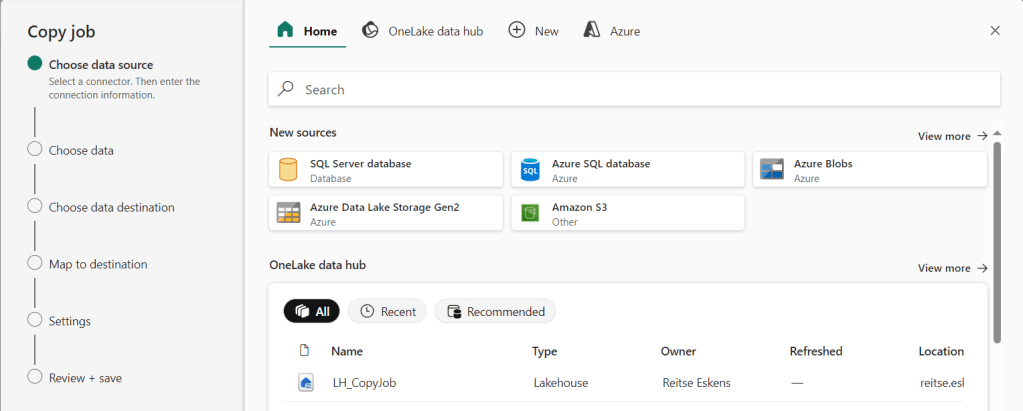
The first step is to choose your data source, in my case a VM running SQL Server with a number of databases.

You can drop down to see the list of databases you’ve given permission to when creating the connection in the data hub. In this case, I’ve gone overboard and given all the permissions which is only, ONLY, suitable for blog posts like this. In this case, I’m going to choose the F1 database and move to the next step.
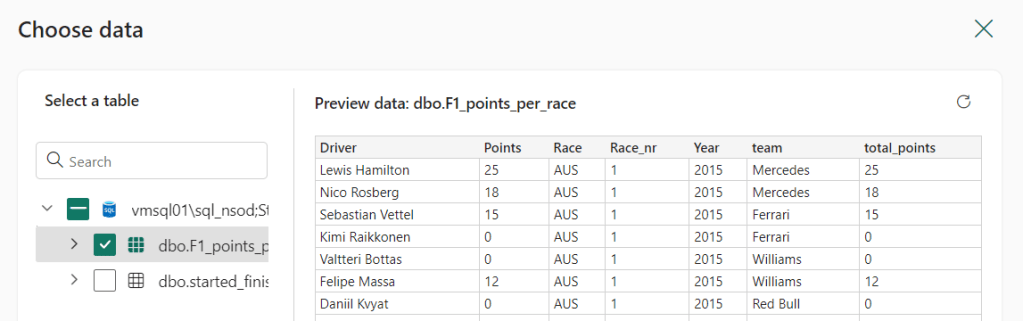
Choose data will help me select the tables to ingest. I can select them all or just a subset. I can also get a preview of the tables to check the content.
One thing I was wondering about is whether or not the Copy job would allow me to load tables without indexes. We lovingly call them heaps by the way. To show you the answer to this question, this is what the tables look like in SQL Server Management Studio.

No keys detected, just two heaps.
I’m selecting both tables and move on to the next step, the data destination. I’ve selected my Lakehouse as a destination (you can create a new one if you like)

I can edit the destination to my liking; the table names can be changed just like the column mappings. Remember that a Lakehouse with parquet files can’t work with every funny data type in SQL Server; if you know there is something special going on, check it before you run into errors.

The mappings look good, on to the next step!
This is where you get the choice between Full copy and Incremental.
Full copy

Let’s see what happens with the Full copy.
Nothing, the wizard moves forward to the review and save screen where you can save the job and run it.
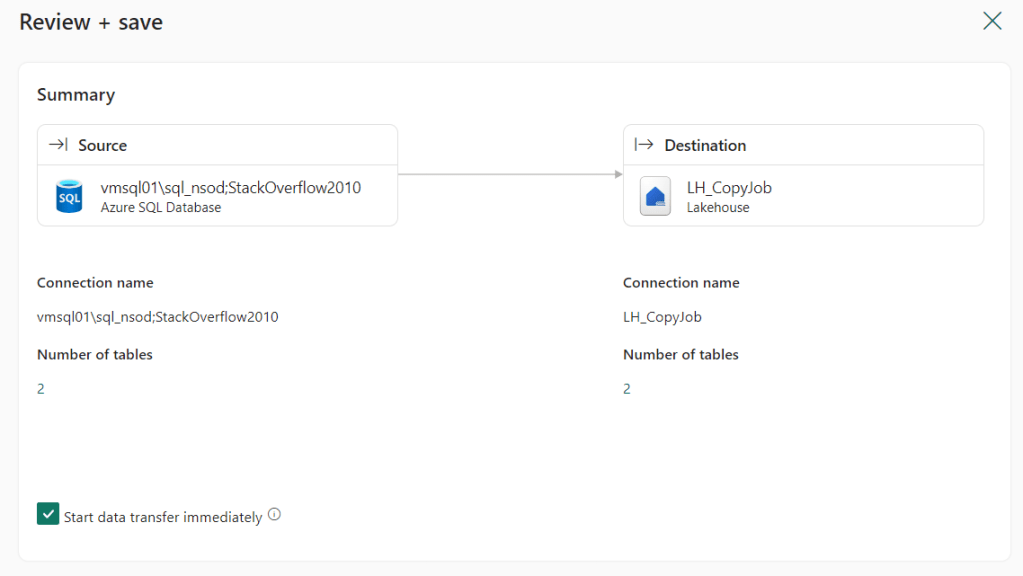
This job will run, copy the tables into your Lakehouse and then go to sleep until you start it again or run it on a schedule.
Incremental copy
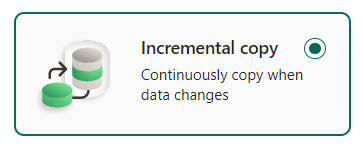
Because full loading can be useful for smaller tables, the big ones might benefit from an incremental load. Let’s see what happens when we select this option.
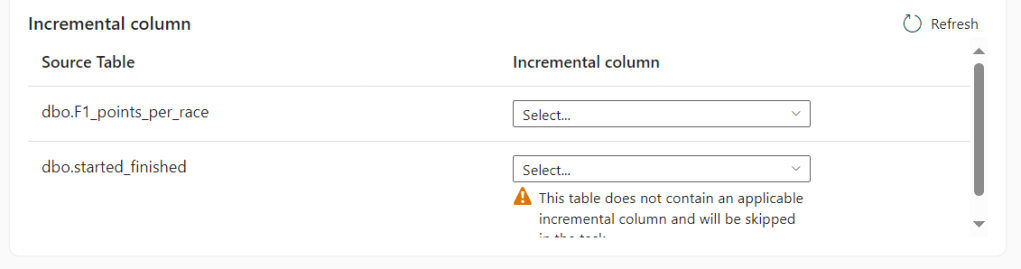
In this case, all selected tables appear in a list and it’s up to you as the end user to select the column the Copy job should use to detect changes.
The first table has the following definition:
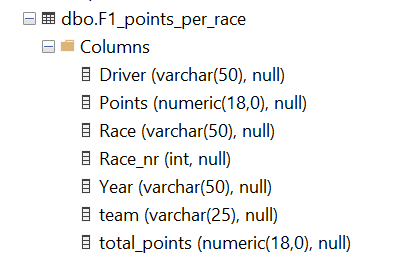
Columns with text, two with a numeric (or decimal) value and one column with an integer. This is what the Copy job can work with:

It can only use the integer column. Something good to be aware of!
The second table shows a warning:
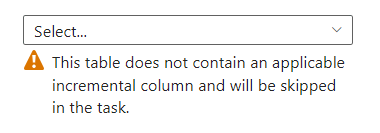
This table has the following tables:

If you need to wash out your eyes because of the data types used, go ahead, I’ll wait for you. But what happens when I add a datetime column?
ALTER TABLE dbo.started_finished
ADD ChangeDate DATETIME2 DEFAULT SYSDATETIME()

If you’re the owner of the database, it’s very easy to do this and fix the issue. When you’re dealing with a vendor system, things may be very different.

Click Save + Run and this shows up.
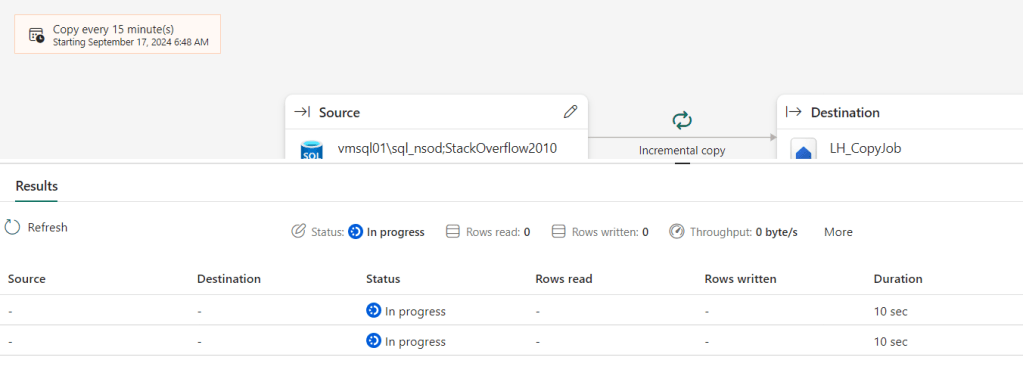
And when done, some details too:

Refreshes
Refreshes are triggered by a schedule. You can set the refresh interval but please remember that a refresh will cost you capacity units on your Fabric environment and it will read data on your source system. This means it will hurt on both sides and, unless you have a very specific use case, you do not want it to refresh every minute. In my line of work, incremental refreshes of 95% of the tables is fine to do once a day. The 5% that need to be refreshed more often are hopefully nicely indexed and therefore lightweight in their reads.
If you want, you can change the refresh schedule with a few clicks.
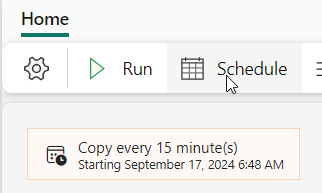
Click on the Schedule button.
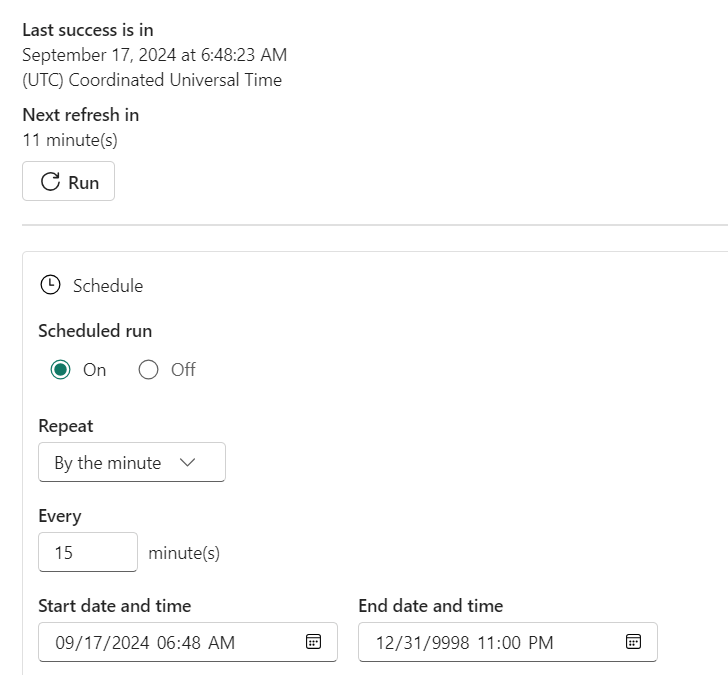
Change to whatever interval you need.
What’s happening at the source
In essence, Fabric is running a query where the watermark column needs to be in a certain range; above the max value in Fabric and below or equal to the max value in the database. Records in that range are copied out. I’ve caught these queries using query store to see what’s happening. In this case, I was using another database on the same VM.
-- Get the MAX Value of watermark column from the table
SELECT lastCopiedCheckPointValue_Posts = FORMAT(MAX(CAST([LastEditDate] AS DATETIME)), 'yyyyMMddHHmmss.fffff')
FROM [dbo].[Posts]

 -- Set variables to the MAX value of the Lakehouse (lowerBound) and the table (upperBound)
DECLARE @lowerBound NVARCHAR(MAX) = '20180902051942.18000';
DECLARE @upperBound NVARCHAR(MAX) = '20240910200242.13700';

-- Select the differences; the rows that fall between the lowerBound and upperBound
IF (@lowerBound = 'null')
	SELECT *
	FROM [dbo].[Posts]
	WHERE CAST(FORMAT(CAST([LastEditDate] AS DATETIME), 'yyyyMMddHHmmss.fffff') AS FLOAT) <= CAST(@upperBound AS FLOAT);
ELSE
	SELECT *
	FROM [dbo].[Posts]
	WHERE CAST(FORMAT(CAST([LastEditDate] AS DATETIME), 'yyyyMMddHHmmss.fffff') AS FLOAT) <= CAST(@upperBound AS FLOAT)
		AND CAST(FORMAT(CAST([LastEditDate] AS DATETIME), 'yyyyMMddHHmmss.fffff') AS FLOAT) > CAST(@lowerBound AS FLOAT);
Changed records will appear as both the original and the changed one. You could almost call it an SCD-2 table, but it lacks the Active column, or the create/change/delete date columns. But you could easily add those yourself in your process.
Limitations
At the time of writing, there are a few limitations.
- Your table needs an integer or date(time) column to leverage incremental copy
- User defined data types are not supported (but this is the case for regular copy dataflows as well)
Concluding
The Fabric Copy Job is a helpful tool that will make loading 80 percent of the data very easy. The other 20% will take much more time, but that’s the 80/20 rule for you. It won’t be a great fit in every scenario, but you will always have the option to create your own full load script or your incremental load.
It has, in my opinion some work to do on how it’s interacting with the source database, but when that’s sorted it will be an amazing extra tool in our engineering tool belt!
 Reitse's blog
3 thoughts on “Microsoft Fabric Copy Job: Simplifying Data Ingestion”