
I had an interesting question lately where I was requested to show all the network traffic within an Azure landing zone. Specifically source and target IP, protocol and port. From the aspect of Zero Trust, it’s important to show both successful and failed connections in your network. To be able to answer this question I had prepared myself by enabling the so-called flow logs on the Network Security Groups (NSG). NSG’s are used to control traffic on the IP and port level between resources. There’s no packet inspection, just a check if IP 1 is allowed to connect to IP 2 on port 3. In this specific case, it also had to do with a migration to Azure Firewall where all the NSG rules had to be validated.
But getting the data is one thing, finding out what is in it is something else. In this blogpost I’ll drag you along the steps I took to get the raw JSON data into a SQL table and analyse the data.
Collecting the data
To get the data, I had to take a few steps. First, enable the NSG flowlogs in the NSG settings.
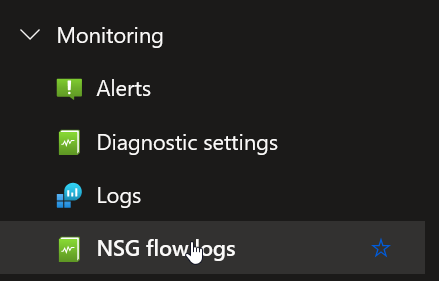
Click on the option and add a flowlog. Make sure you write to a storage account if you like to extract the data locally and work with it.
When the flowlog has been collecting data, connect your Azure Storage Explorer to the storage account and download the json files onto your system or in an Azure VM to keep the data secure within the landing zone.
Cleaning the data
When you open a flowlog file, you’ll get a lot of data that you don’t need. It has value but for these purpose there’s a lot of overhead there.
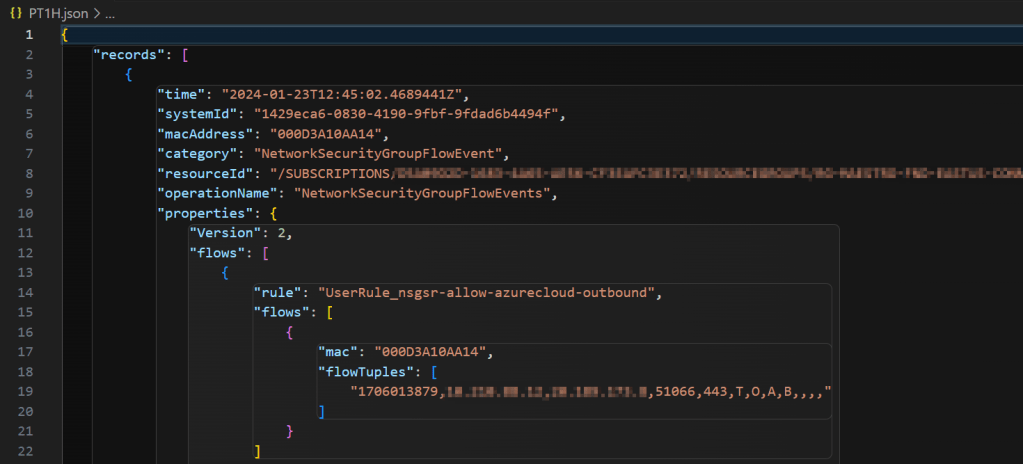
So my first step was to convert the JSON to CSV where I’m dropping a lot of overhead.
PowerShell
I deeply love PowerShell for all it’s power and cool options and it just makes life easier.
$Month = "10"
$path = "YourPathToYourFiles\y=2024\m=$Month"  # Change this to your source directory

Get-ChildItem -Path $path -Recurse -File |
ForEach-Object {
    $jsonContent = Get-Content -Path $_.FullName -Raw | ConvertFrom-Json
    # Extract specific properties from the JSON content
    $specificProperty1 = $jsonContent.records | ForEach-Object {
    $_.properties.flows.flows.flowTuples | ForEach-Object {
        $_}
    }

    # Output or process the specific properties as needed
    $output = [PSCustomObject]@{
        Property1 = $specificProperty1 | Out-String
    }
    $output | Export-Csv -Path "D:\Temp\SO Flowlogs\output$Month.csv" -Append
    [PSCustomObject]@{
        Property1 = $specificProperty1
    }
}
In this script, I’m setting the month manually to prevent the creation of one massive file and be able to dump data where needed. Next I’m reading all the files in the specific directories and collect the data. For each record found in the file, I want the flowTuples as that’s where the interesting data lives. I’m writing out the data to a CSV file and, because I can, also to my screen to see what’s happening.
A sample of the output:

SQL Server
Now, let’s ingest this data into SQL Server.
CREATE TABLE dbo.flowlogs (
	  UnixTimeStamp BIGINT
	, SourceIP VARCHAR(20)
	, DestinationIP VARCHAR(20)
	, SourcePort INT
	, DestinationPort INT
	, Protocol CHAR(1)
	, TrafficDirection CHAR(1)
	, TrafficDecision CHAR(1)
	, FlowState CHAR(1)
	, PacketsSent INT
	, BytesSent BIGINT
	, PacketsReceived INT
	, BytesReceived BIGINT
);
I started out with creating a table to store the data. You can discuss the data types yourselves, this is what I went with.
Ingestion
Next step, ingest the data
*
	Insert the data from the prepared CSV file(s)
*/
BULK INSERT dbo.flowlogs
FROM 'YourCsvDirectory\output10.csv'
WITH
(
	FIRSTROW = 2,
	FIELDTERMINATOR = ',',
	ROWTERMINATOR = '\n'
);
This script does nothing more than reading the CSV file and writing all the records into my table. Nice and easy.
Exploration
Let’s explore the data.
SELECT TOP 10
	DATEADD(s,UnixTimeStamp,'1970-01-01') AS RegistrationDate
	, SourceIP
	, DestinationIP
	, SourcePort
	, DestinationPort
	, CASE Protocol WHEN 'T' THEN 'TCP' WHEN 'U' THEN 'UDP' ELSE 'UNKNOWN' END AS Protocol
    , CASE TrafficDirection WHEN 'I' THEN 'INBOUND' WHEN 'O' THEN 'OUTBOUND'  ELSE 'UNKNOWN' END AS Direction
    , CASE TrafficDecision WHEN 'A' THEN 'ALLOW' WHEN 'D' THEN 'DENY'  ELSE 'UNKNOWN' END AS Decision
    , CASE FlowState WHEN 'B' THEN 'BEGINNING' WHEN 'C' THEN 'CONTINUING' WHEN 'E' THEN 'ENDING' ELSE 'UNKNOWN' END AS FlowState
    , PacketsSent
    ,  BytesSent
    ,  PacketsReceived
    ,  BytesReceived
FROM dbo.flowlogs
This script will show you the first records including the ‘decoding’ of the values in the different columns making sure it all makes sense when you look at the data.
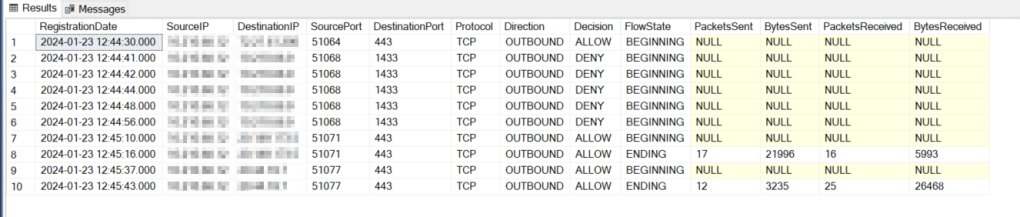
This is very cool and works. The next part of the analysis is up to you, depending on your use case.
Adding Azure Service Tag information
When I was browsing through the data, I was wondering if some IP addresses belong to the Azure Services. To check that, you can download the Azure Service Tag json. This is all fun and games but I’d like to add it to my database and join it to the data in my flowlog table.
Ingesting into SQL Server
Ingesting JSON isn’t really rocket science, you just need to know which fields to select. When reading the Json, I found that by default, I got three rows from the OPENJSON function, where I only need one. The trick is to select all the data from the OPEN ROWSET function and check which type or row you need to proceed. In my case, I needed the row with type 4 in it.
SELECT *
FROM OPENROWSET(BULK 'YourDirectory\ServiceTags_Public_20240708.json', SINGLE_CLOB) AS j
CROSS APPLY OPENJSON(BulkColumn)

This led to the following code
DECLARE @jason NVARCHAR(max);
SET @jason = (
SELECT value
FROM OPENROWSET(BULK 'YourDirectory\ServiceTags_Public_20240708.json', SINGLE_CLOB) AS j
CROSS APPLY OPENJSON(BulkColumn)
WHERE type = 4)

SELECT JSON_VALUE(value,'$.name') AS ServiceName,
	JSON_QUERY(value, '$.properties.addressPrefixes') AS IPAddress
	INTO #TempServicetags
FROM OPENJSON(@jason)
Cleaning up the data
This script will read the data from disk into a variable. When the variable is filled with data, I’m going to locate the name of the service and it’s list of IP addresses.
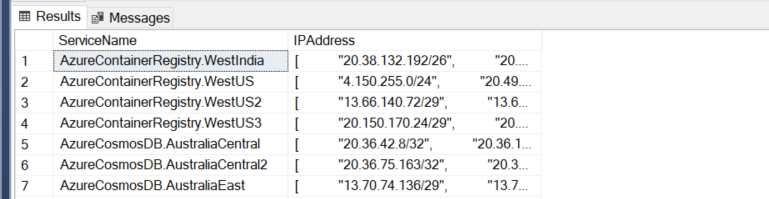
The thing is, the list is horribly formatted, I needed to change it from one row per service name with an array of IP addresses to a large number of rows with every row having the service name and just one IP address.
SELECT ServiceName,
		cs.value
INTO #ServiceTagList
FROM #TempServicetags
CROSS APPLY STRING_SPLIT(REPLACE(REPLACE(REPLACE(REPLACE(REPLACE(REPLACE(IPAddress, ' ', ''),'"',''),'[',''),']',''), CHAR(10),''), CHAR(13),''), ',') cs
I’m reading the data from my first temp table into a second one where I’m splitting the comma separated string into rows using the STRING_SPLIT function. But before splitting, I’m removing a lot of unwanted characters like spaces, double quotes, carriage return, linefeed and the square brackets.
Exploration (again)
This leaves me with a clean set of IP’s.
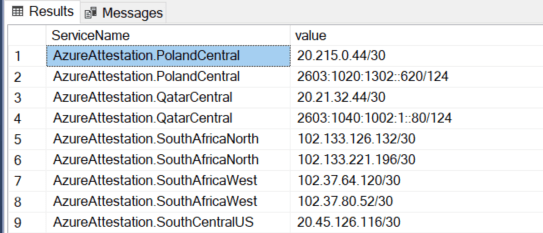
But, these addresses have CIDR ranges in them, meaning they show the base address but not all the other options.
Expanding the ranges
To expand these ranges, I created a script that drops the data into a separate table.
The table script:
DROP TABLE IF EXISTS dbo.ExpandedCidr;
CREATE TABLE dbo.ExpandedCidr (
	ServiceName VARCHAR(50) NOT NULL,
	IPAddresses VARCHAR(30) NOT NULL
	)
And the procedure to expand the ranges.
/*
    RANGE DECODING
    /23 = 512 Addresses This one splits out over multiple ranges as a CIDR Range runs from 0 to 255
    /24 = 256 Addresses
    /25 = 128 Addresses
    /26 = 64 Addresses
    /27 = 32 Addresses
    /28 = 16 Addresses
    /29 = 8 Addresses
    /30 = 4 Addresses
    /31 = 2 Addresses
    /32 = 1 Address
*/

/*
    This script builds a dynamic sql statement, based on the input variables.
    It uses a recursive CTE to create all the IP adresses and writes the result into a table that's created outside this procedure


*/
CREATE OR ALTER PROCEDURE dbo.proc_expandCidr
    @CIDR VARCHAR(30),
    @ServiceName VARCHAR(50)
AS
/*
    Check if the target table exists
*/
BEGIN TRY
    SELECT TOP 1 *
      FROM dbo.ExpandedCidr;

    /*
        Declare the variables
    */
    DECLARE @RANGE INT = (SELECT RIGHT(@CIDR, LEN(@CIDR) - CHARINDEX('/', @CIDR)));
    DECLARE @DynSQL NVARCHAR(MAX);
    /*
        Split out the work as the /23 has a different run compared to the rest
    */
    IF @RANGE = 23
        SET @DynSQL
            = CONCAT(
                  '
		DECLARE @CIDR VARCHAR(30) = ''',
                  @CIDR,
                  '''
	DECLARE @RANGE INT = (SELECT RIGHT(@CIDR,LEN(@CIDR) - CHARINDEX(''/'',@CIDR)))
	DECLARE @LOOP INT = (
		SELECT CASE @RANGE
			WHEN 32 THEN 1
			WHEN 31 THEN 2
			WHEN 30 THEN 4
			WHEN 29 THEN 8
			WHEN 28 THEN 16
			WHEN 27 THEN 32
			WHEN 26 THEN 64
			WHEN 25 THEN 128
			WHEN 24 THEN 255
			WHEN 23 THEN 255
			END)

DECLARE @IP VARCHAR(30) = (SELECT SUBSTRING(@CIDR,0, CHARINDEX(''/'', @CIDR)-1))
DECLARE @BASEIP VARCHAR(30) = (SELECT LEFT(SUBSTRING(@IP, 0,LEN(@IP)), LEN(@IP) - CHARINDEX(''.'',@IP)-1))
DECLARE @OCT3 INT = (SELECT REPLACE(SUBSTRING(SUBSTRING(@IP,0,LEN(@IP)),LEN( SUBSTRING(@IP,0,LEN(@IP))) - CHARINDEX(''.'', REVERSE( SUBSTRING(@IP,0,LEN(@IP)))) +1,4),''.'',''''))


	;WITH rec AS
(
	SELECT 0 AS BASE
	UNION ALL
	SELECT BASE + 1
	FROM rec
	WHERE BASE + 1 <= @LOOP
)
	SELECT ',
                  @ServiceName,
                  ' AS ServiceName, CONCAT(@BASEIP, @OCT3,''.'', BASE) AS IPAddresses
	FROM rec
	UNION
	SELECT ' + @ServiceName
                  + ' AS ServiceName, CONCAT(@BASEIP, @OCT3+1,''.'', BASE) AS IPAddresses
		INTO dbo.ExpandedCidr
	FROM rec
	OPTION(MAXRECURSION 256)');

    ELSE
        SET @DynSQL
            = CONCAT(
                  '

		DECLARE @CIDR VARCHAR(30) = ''',
                  @CIDR,
                  ''' -- Input Variable
	DECLARE @RANGE INT = (SELECT RIGHT(@CIDR,LEN(@CIDR) - CHARINDEX(''/'',@CIDR)))
	DECLARE @LOOP INT = (
		SELECT CASE @RANGE
			WHEN 32 THEN 1
			WHEN 31 THEN 2
			WHEN 30 THEN 4
			WHEN 29 THEN 8
			WHEN 28 THEN 16
			WHEN 27 THEN 32
			WHEN 26 THEN 64
			WHEN 25 THEN 128
			WHEN 24 THEN 255
			WHEN 23 THEN 255
			END)

DECLARE @IP VARCHAR(30) = (SELECT SUBSTRING(@CIDR,0, CHARINDEX(''/'', @CIDR)-1))
DECLARE @BASEIP VARCHAR(30) = (SELECT LEFT(SUBSTRING(@IP, 0,LEN(@IP)), LEN(@IP) - CHARINDEX(''.'',@IP)-1))

	;WITH rec AS
(
	SELECT 0 AS BASE
	UNION ALL
	SELECT BASE + 1
	FROM rec
	WHERE BASE + 1 <= @LOOP
)
INSERT INTO dbo.ExpandedCidr
SELECT ''',
                  @ServiceName,
                  ''' AS ServiceName, CONCAT(@IP, BASE) AS IPAddresses
FROM rec
OPTION(MAXRECURSION 256)');


    EXEC sys.sp_executesql @DynSQL;
END TRY
BEGIN CATCH
    DECLARE @ErrorMessage NVARCHAR(4000);
    DECLARE @ErrorSeverity INT;
    DECLARE @ErrorState INT;

    SELECT @ErrorMessage = ERROR_MESSAGE(),
           @ErrorSeverity = ERROR_SEVERITY(),
           @ErrorState = ERROR_STATE();

    -- Use RAISERROR inside the CATCH block to return error
    -- information about the original error that caused
    -- execution to jump to the CATCH block.
    RAISERROR(@ErrorMessage, -- Message text.
              @ErrorSeverity, -- Severity.
              @ErrorState -- State.
    );
END CATCH;
To call this procedure, I wrote the following code.
DROP TABLE IF EXISTS #TempServicetags;
DROP TABLE IF EXISTS #FilteredCidrSet;
DROP TABLE IF EXISTS dbo.ExpandedCidr;
CREATE TABLE dbo.ExpandedCidr (ServiceName VARCHAR(50) NOT NULL,
                               IPAddresses VARCHAR(30) NOT NULL);

DECLARE @jsonInput NVARCHAR(MAX);
SET @jsonInput = (   SELECT       Value
                   FROM
                              OPENROWSET(BULK 'D:\GIT\Azure\Powershell\ServiceTags_Public_20240708.json', SINGLE_CLOB)
                              AS j
                  CROSS APPLY OPENJSON(BulkColumn)
                  WHERE       type = 4);

SELECT JSON_VALUE(value, '$.name') AS ServiceName,
       JSON_QUERY(value, '$.properties.addressPrefixes') AS IPAddress
  INTO #TempServicetags
  FROM OPENJSON(@jsonInput);

WITH prep
  AS (SELECT       ServiceName,
                   cs.value AS FullRange
        FROM       #TempServicetags
       CROSS APPLY STRING_SPLIT(REPLACE(
                                    REPLACE(
                                        REPLACE(
                                            REPLACE(REPLACE(REPLACE(IPAddress, ' ', ''), '"', ''), '[', ''), ']', ''),
                                        CHAR(10),
                                        ''),
                                    CHAR(13),
                                    ''), ',') cs),
     IM
  AS (SELECT       prep.ServiceName,
                   prep.FullRange,
                   value AS CIDR
        FROM       prep
       CROSS APPLY STRING_SPLIT(FullRange, '/'))
SELECT IM.ServiceName,
       IM.FullRange,
       IM.CIDR
  INTO #FilteredCidrSet
  FROM IM
 WHERE LEN(CIDR) = 2
   AND IM.ServiceName NOT LIKE 'AzureCloud%'
 ORDER BY CIDR ASC;

DECLARE @ServiceName VARCHAR(50),
        @IPRange     VARCHAR(30);
DECLARE readData CURSOR FOR
SELECT FullRange,
       ServiceName
  FROM #FilteredCidrSet;

OPEN readData;
FETCH NEXT FROM readData
 INTO @IPRange,
      @ServiceName;
WHILE @@FETCH_STATUS = 0
BEGIN
    EXEC dbo.proc_expandCidr @IPRange, @ServiceName;

    FETCH NEXT FROM readData
     INTO @IPRange,
          @ServiceName;
END;
CLOSE readData;
DEALLOCATE readData;
What is does is process the Json file, through different temp tables and then, Row by Agonising Row, process it through the stored procedure. As this RBAR process does nothing other than fire off the next row into my proc, I’m OK with this one. If you want to optimise this process, feel free to do so, it’s good enough for me.
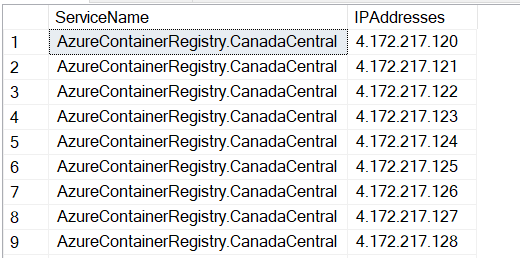
When it’s finished (it takes about 2 minutes on my machine) the output looks like this:
Bringing it all together
Now I can bring it all together..
/*
Bring it all together!
*/

SELECT DISTINCT ISNULL(CS.ServiceName,SourceIP) AS SourceDefinition
	, ISNULL(CD.ServiceName,DestinationIP) AS DestinationDefinition
	, SourcePort
	, DestinationPort
	, CASE Protocol WHEN 'T' THEN 'TCP' WHEN 'U' THEN 'UDP' ELSE 'UNKNOWN' END AS Protocol
    , CASE TrafficDirection WHEN 'I' THEN 'INBOUND' WHEN 'O' THEN 'OUTBOUND'  ELSE 'UNKNOWN' END AS Direction
    , CASE TrafficDecision WHEN 'A' THEN 'ALLOW' WHEN 'D' THEN 'DENY'  ELSE 'UNKNOWN' END AS Decision
FROM dbo.flowlogs fl
LEFT OUTER JOIN dbo.ExpandedCidr CS ON fl.SourceIP = CS.IPAddresses
LEFT OUTER JOIN dbo.ExpandedCidr CD ON fl.DestinationIP = CD.IPAddresses
ORDER BY ISNULL(CS.ServiceName,SourceIP) ASC,ISNULL(CD.ServiceName,DestinationIP),  Decision ASC
The join is bad but at some point I ran out of time and every IP in the service tags list has a CIDR (Classless Inter-Domain Routing) range indicator, anywhere between /24 and /32. This is one thing that needs fixing; expanding the IP list further to get every possible IP address in the list of service tags to get a full match. As this part is a nice to have, I haven’t worked in this yet; if you have the time to build it, please share it.
Finally
Now you know how to ingest NSG Flowlogs and Azure Service Tag Json data into SQL Server and work with it. It’s never perfect but at some point good enough. I hope this will help you in some dark night when you need to find out if some traffic is allowed or not.
The alternative is to write the flow logs to Log Analytics and work with KQL to get your results. I’ve never done that but it would be a nice experiment to see if you can get the same results.
 Reitse's blog
One thought on “Analyze Azure NSG Flow Logs in SQL Server: Step-by-Step Guide”