
It’s been a long time coming, but all of a sudden there were a number of posts from Microsoft announcing the first preview of SQL Server Management Studio 21. This is big as it’s quite the overhaul from the SQL Server Management Studio we’re used to.
To give you some idea, here are my first impressions.
Download and install
When you go to this link, you can find the installer download. It’s a much smaller download compared to earlier versions and that has to do with the new setup. Microsoft now uses the Visual Studio Installer, which means the actual download is not immediate, but only after selecting SQL Server Management Studio.
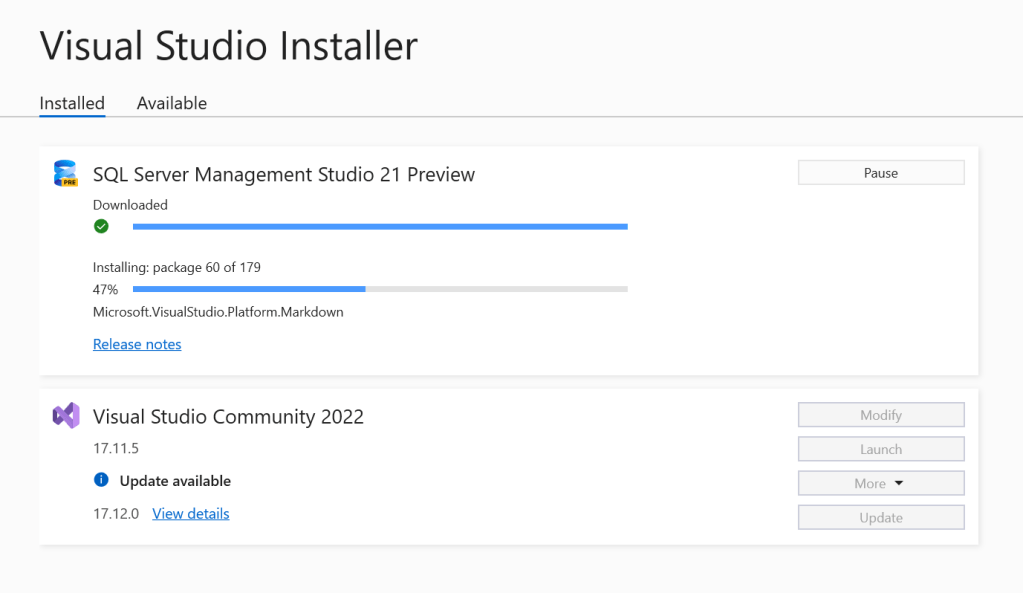
Depending on your environment, installing can take some time, my machine got stuck for some time on one part of the installer (not the one pictured) but after about 10 minutes it finished.
And that’s it for installing, it just runs and finishes. Done.
Run
Now, let’s open it and see.

The first start is promising, a new splash screen with fresh colours. Of course it shouldn’t matter for functionality but it is very nice to see.
Next window allows you to sign in with an account and share settings across devices.

You can skip it, use a personal email, company one or Github. When I first tried this out, it looked like it was getting connection strings from the connected account but I was fooled by myself; it’s not transferring connection strings but it’s sharing settings across devices. The connection strings can be imported from existing installations of SQL Server Management Studio. Nothing new there, earlier versions offer this service as well.
Main experience
After logging in, you get the same experience as you’re used to. But how much time does it take to start SQL Server Management Studio? On my machine it takes almost 18 seconds between clicking on the new icon and the appearance of the login screen for the instance. SQL Server Management Studio 20.1 takes 24 seconds. It is faster but I do hope the following updates reduce startup time to around 10 seconds or less. We’ll see.
GIT!
The first thing I noticed in the main menu bar is this.
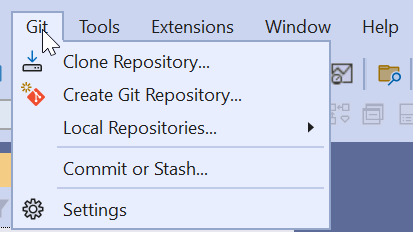
And it makes me really happy to see Git integration in this new release. This was my first genuine YES moment. I like it when I can use all the Git goodies from within a tool.
Dark mode
Yes, it arrived and a lot of people will be happy about that.

So now we can give our eyes some rest.

It looks good and there is enough contrast to make everything readable. Good job.
Preview options
The last thing I found in the menu bar that really triggered me was this.

Preview options experience. The options will be shown in a tab on the right hand side in Management Studio instead of a separate window.

Compare the above with the ‘classic’ experience.

As this version of Management Studio is in preview, I’ll go with all the preview experiences just to check it all out and provide feedback.
Finally
My very first impressions are positive. The installer works, the program starts quickly and it looks good. There are a lot of things to try out further but I’d urge you to check it out for yourself and provide feedback to Microsoft. Tell them what you like and what you don’t like.
 Reitse's blog
2 thoughts on “SQL Server Management Studio 21: First Impressions & Features”