
In the previous blog, you read about the Spark settings within the workspace. This time it’s about the domain settings. So let’s dig into what domains are, what you can use them for and which settings there are.
What are domains?
If you read (and you should) the excellent book on data architectures by James Serra (click here for Amazon link) you will quickly find that the definition is vague. There’s no real definition of a domain as such, but one for domain ownership
The people in charge of the operational databases are always the owners of the analytical data, and they are responsible for managing and maintaining the data. Responsibility and ownership are decentralized and distributed to the people who are closest to the data, to support continuous change and scalability. These people are grouped according to business domain, such as manufacturing, sales or supplier; defining a company’s domains can be challenging. Each domain owns its operational and analytical data.
As I don’t want to dig into the data mesh itself, let’s assume that every source system has it’s own business domain and can be separated like that.
Domains and the data mesh architecture
In the data mesh architecture, you’ll see that every domain has it’s own set of hardware to extract, process and publish it’s analytical data. The data is owned by the domain owners and maintained by them, making sure the central IT department doesn’t have to worry about that part. All they need to do is make sure the domains have sufficient compute to process their loads. Even though this is an oversimplification of this architecture, it will suffice for now. Also remember that a ‘pure’ data mesh architecture is an enterprise approach.
It won’t surface quickly in the small and medium business use cases. Having said that, using domains to identify use cases or data ownership can have a lot of merit. But it will require some thorough thinking to make sure it’s all assigned correctly.
Domains in Microsoft Fabric
Now that there’s a better understanding of data mesh, let’s dig into where to find the domain options. To do that, let’s go outside the box and start in the admin portal of Microsoft Fabric.
When you open the admin portal, you’ll see the menu on the left where you can find the Domain menu option.
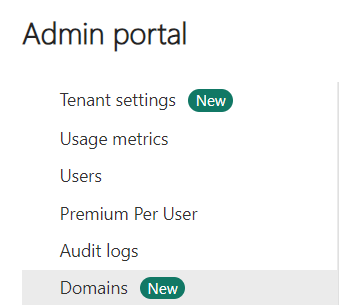
When you click on the item, the right side of the screen can show something like the following.
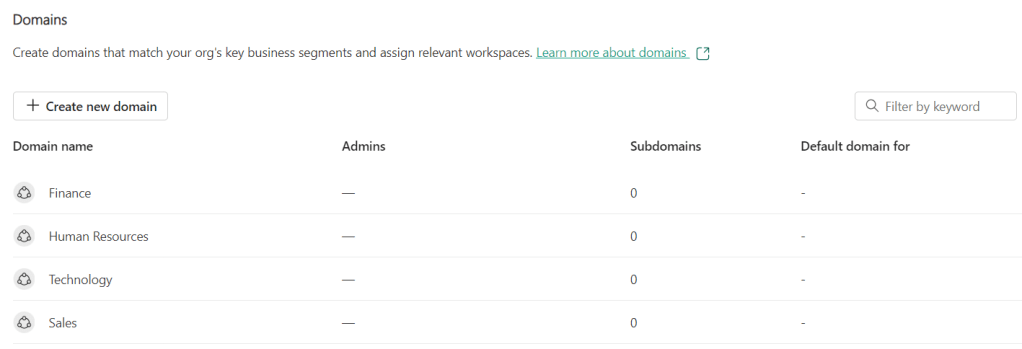
The link you can see can be clicked here. It will take you to the main settings and some related content. This link with the related content has some gems in it, let’s zoom in on them.
Domain roles
As a Fabric Administrator (end boss), you can do anything to domains you want to. Create, change and delete them as you please. Maybe not the best role for any user in the organisation. You can assign the domain administrator and domain contributor role to other users.
The domain administrator (ideally subject matter experts) who are familiar with the data and are aware of regulations and restrictions. The domain administrators can access the domains tab in the admin portal, but can only see the domains that they administer. They can change a lot of settings within the domain, except the name, they can’t delete the domain and can’t add or remove other administrators.
The domain contributor are workspace administrators who are able to assign a domain to a workspace. They can also change the domain a specific workspace has been assigned to. They can’t see the domains tab in de admin portal.
Setting the domain administrators and contributors
If you feel the irresistible urge to assign people the role of domain administrator and/or domain contributor, you need to click on the domain name in the admin portal. Then click on the domain settings button.
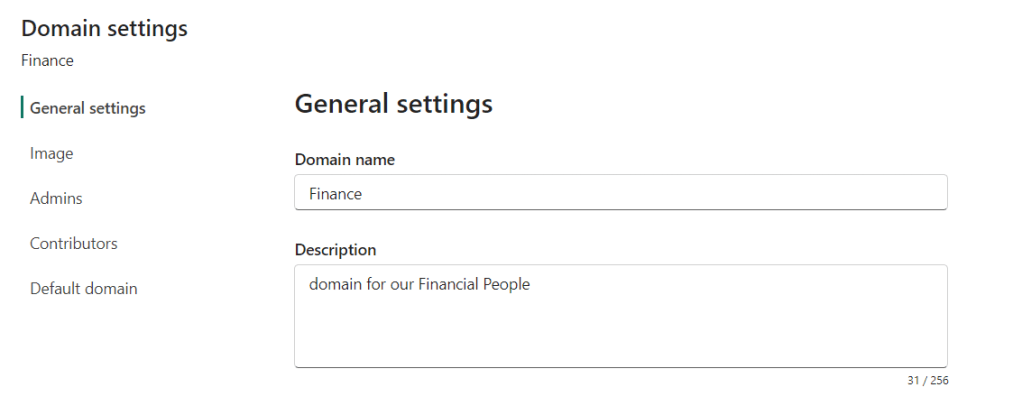
When you click the name, the above window will open, giving you all the domain settings you ever wished for, and maybe even more.
You can click on th image tab to add an image if you like, but let’s click on Admins.
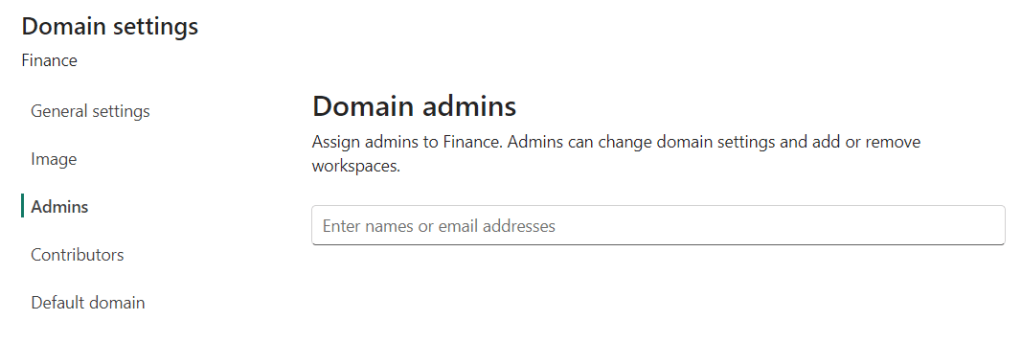
This opens the pane where you can set the domain admins, either by name or email address. I would have liked to see the option for a security group as well but alas. I do prefer to have central account management from Entra and no delegation within tools wherever possible. So let’s try it out if security groups can be added as a domain admin.
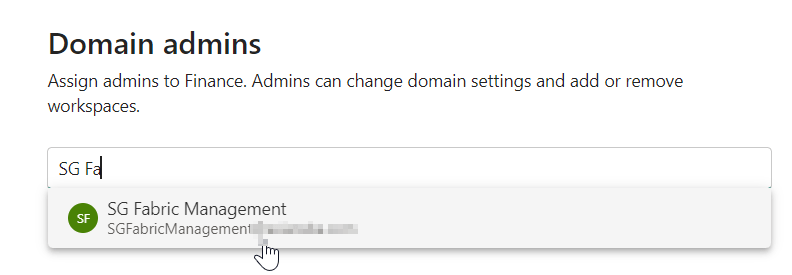
So yes, you can use security groups, even though it’s not explicitly mentioned.
Going one level lower, you can set the contributors.
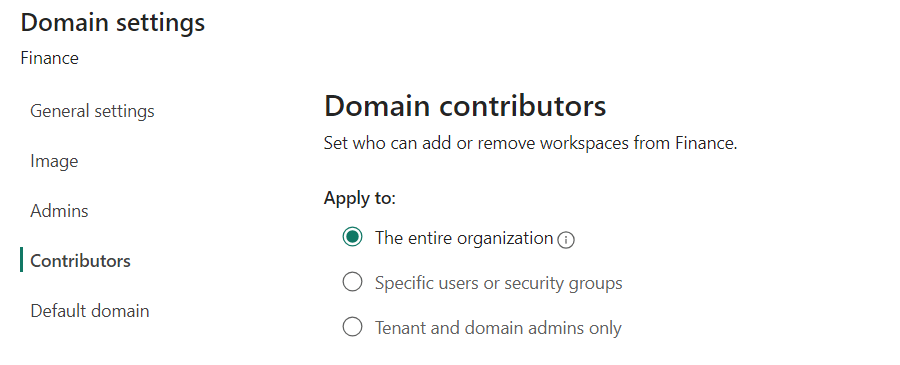
Here, you can set the contributor permission and you have three options to define domain contributors. Funnily enough the security groups are mentioned here.
The last option on screen is setting the default domain.
Default domain
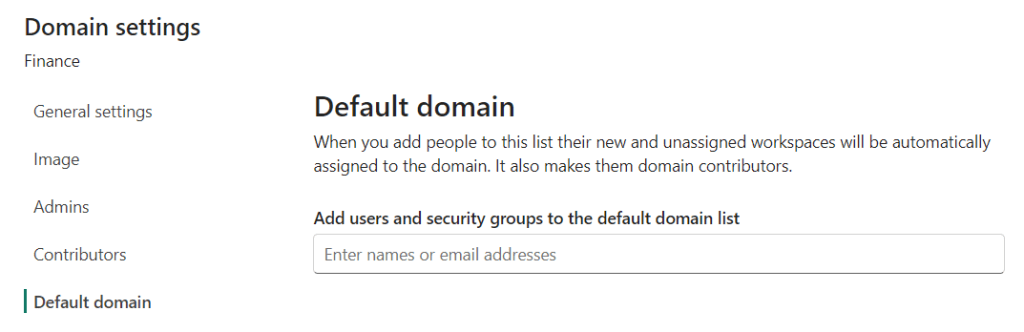
When you set the default domain, people who create a new workspace will be automatically assigned this domain. In this case the selection is on the Finance domain. This means that people (single users or security groups containing a list of people) who are listed here will automatically have their workspace assigned to the Finance domain. And they will be made domain contributors as well. You can read the impact of that a little higher in this blogpost.
Subdomains
If you really need to build out your structure, including subdomains; you can. In the domain view, you have the option to create a new subdomain. This can add an extra layer to your domains.
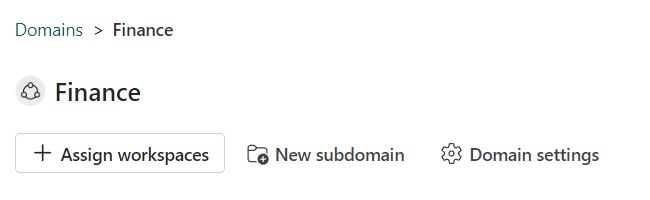
Click on New subdomain and a small windows is shown.
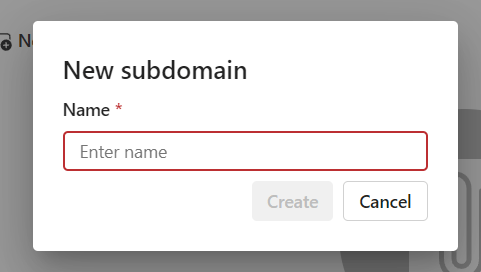
Give it a descriptive name.
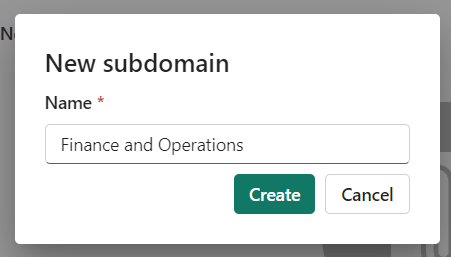
And then click create.
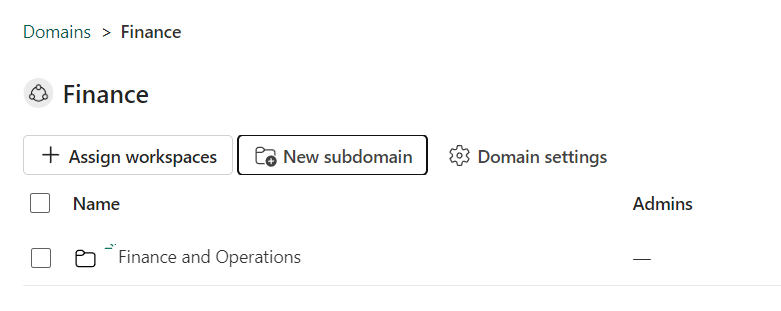
When you click on the Subdomain name, can assign workspaces and look at the settings.
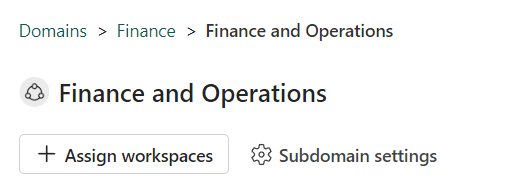
Let’s check out the settings.
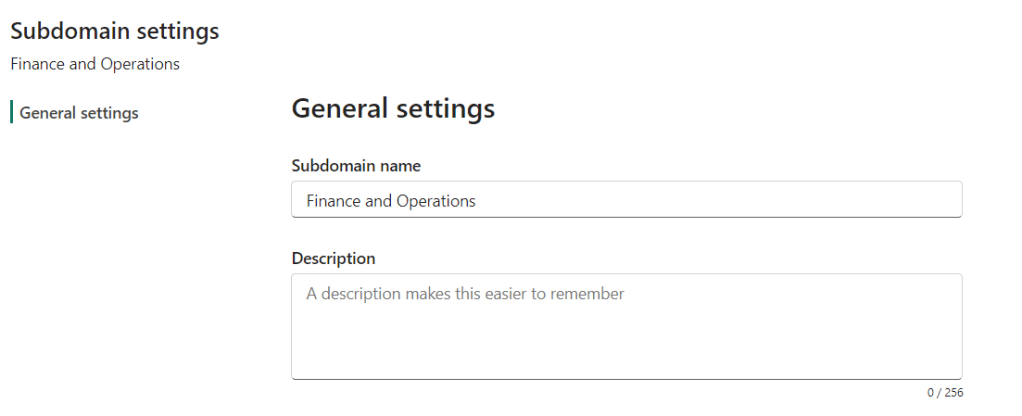
So all you can do is change the name and add the description. No permissions or automated assignments to be seen here.
Workspace level
So far, everything has been managed from the admin portal of Microsoft Fabric. But is there anything you can do if you’re on the workspace?
Workspace settings
When you open the workspace settings, you can find a domain setting.
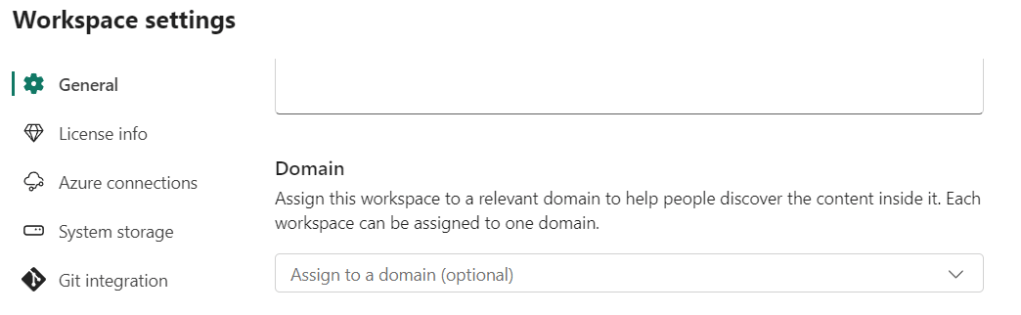
Clicking on the drop down menu will reveal the available domains. For instance, it can be connected to the finance and operations subdomain.

Click on the name and done. The workspace has now been assigned to the Finance and operations domain. When you look at the name in the list of workspaces, you can see it as well as it has an extra icon next to it.
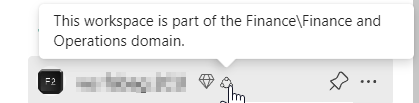
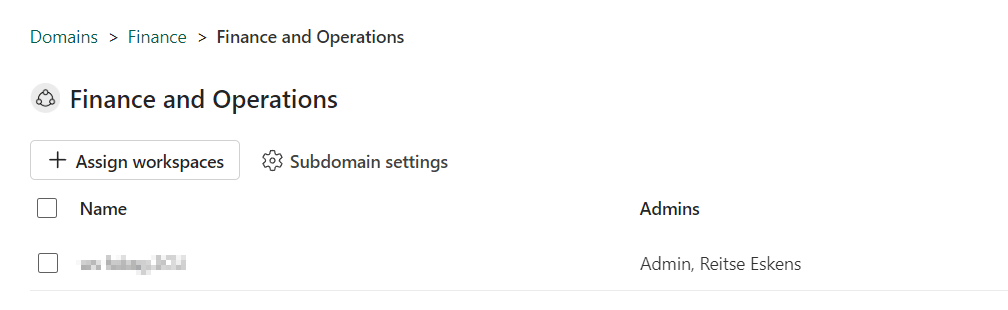
Going back to the Admin portal, you can see it as well as the domain now shows an associated workspace.
Video
As always, Valerie managed to create an amazing accompanying video you can check out here.
Concluding
Now you should have a better understanding on data mesh, domains and how they’re implemented in Microsoft Fabric. This blog and video won’t cover all the details, make sure to check out the official documentation links and Microsoft Learn path.
Finally, don’t forget to let us know how we’re doing in this series and make your suggestions know to us!
 Reitse's blog
One thought on “DP-700 exam training: Configure Domain workspace settings”