
OneLake, the OneDrive for all your data, the One Lake to rule them all or however you’ve heard it being described. Whatever you’ve heard, OneLake is the single storage on your tenant used to store all the data of your Fabric Capacities.
About OneLake
The core point to remember is that your tenant has just one, 1, a single, OneLake. Yes, it’s an abstraction over one or more Azure storage accounts but you will only see it as one OneLake.
Even when you have multiple Microsoft Fabric Capacities, there’s just one OneLake that those capacities connect to. The capacity is deployed in a region and that capacity defines the region where the data is stored. This means that if you have a capacity in west Europe, the Lakehouse and Warehouse data that are created using that capacity are storing their data in the west Europe region. If you create a second capacity in north Europe, items created using that capacity are storing their data in north Europe.
OneLake workspace settings
When you go to the workspace and look at the OneLake settings, there’s not all that much to see.

External links
The first link will take you to the Microsoft Learn page on OneLake.
The second one will help you download the OneLake File Explorer. This nice tool will give you access to the OneLake using your local Windows Explorer. It will show up like your OneDrive. Depending on your permissions, you can read what’s in there or upload your own files for further processing.
Shortcut caching
The final option for caching of shortcuts, for now, only applies to GCS, S3 and S3 compatible shortcuts. The idea is that you keep the data read from those non-Azure data sources in cache to prevent data transfer between providers every time the data is requested.
If you want to read the official documentation, follow this link.
Some things to keep in mind:
- Retention period of 24 hours
- Accessing a file resets the retention period
- If a file is updated, the cache will be refreshed after the more recent file has been loaded from the remote storage
- If a file isn’t accessed for 24 hours, it will be evicted from the cache
- Files larger than 1 GB will not be cached
You can see the retention period is 24 hours (or 1 day) when you enable the shortcut cache.
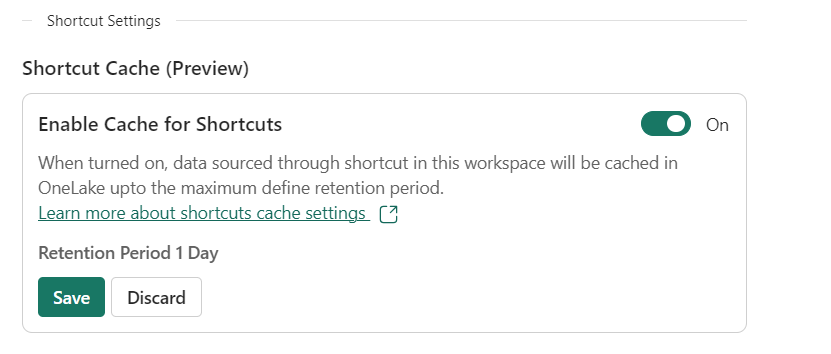
Turn it on and you can only save it. Done.
Is that it?
Well, basically yes. Then again, there are some settings on a general level that might interest you.
In the admin portal, there are some general OneLake settings. As we do have the time to get into these, let’s take a quick look.
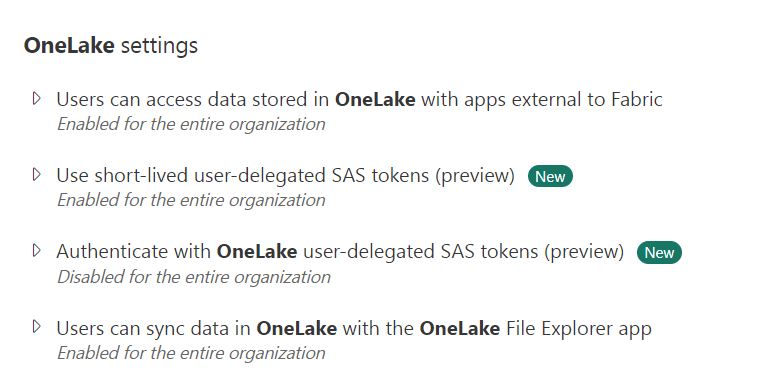
External app access
This is a security feature where you can either allow or decline external (meaning non-Fabric) apps to access the data in your OneLake. It’s either on or off for the entire organisation. This last one feels too binary for me, I’d like to see the option for specific user groups as well.
The SAS tokens are skipped (for now) as they are new and in preview and therefore not in the exam.
Data sync with OneLake File Explorer
It sounds really wild and impactful, but all this does is allow people to either use the OneLake file explorer or not. Again a setting that will work for the entire organisation or no-one at all.
Video time!
As always, the wonderful Valerie has created a video on this subject and you can watch that one here.
Concluding
It’s nice to have a subject that’s quite clear. Your OneLake is your Microsoft Fabric Storage and it has little configuration options. That does make it easier to work with and maintain.
As always, we love feedback on this series and like to hear from you through comments on this blog, on the video or at some event where we are present(ing).
 Reitse's blog
Your link to the Microsoft page on OneLake is broken.
LikeLike
Thanks Nick, link should work now.
LikeLike