
When you’re working with Microsoft Fabric, some people are allowed to do everything in your workspace, other people are less privileged and should have less permissions.
There are a lot of ways to make sure people don’t ruin your weekend, the best one being no access at all. But that also means that you’re always the one who has to do all the work.
So let’s see what we can do with access levels on the workspace.
Access levels
When you’re logged into Fabric and you’ve selected a workspace, you’ll find the following icons in the top right corner.
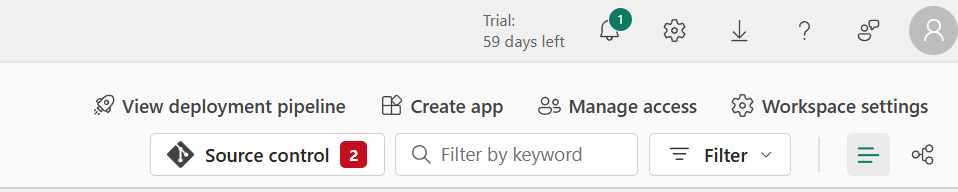
Click on the manage access to open the menu blade.
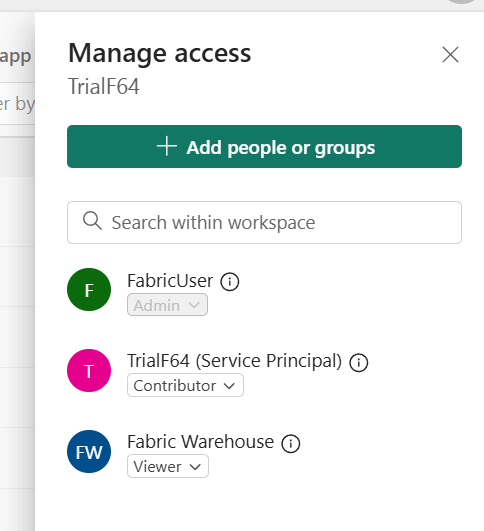
In this blade there are two options. You can add people or groups and you can change the access level users have.
Changing roles
If you click on the level of access a user has, you’ll have the following options.
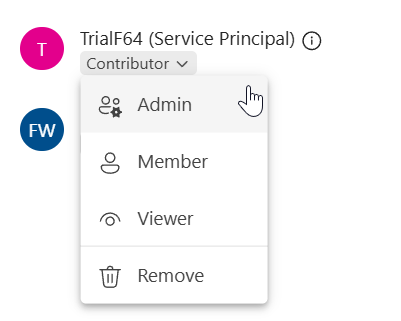
As you can see, the user is a contributor and you can change it to admin, member and viewer. I’ll get back to these roles later. You can also remove the user from the workspace. Yes, it will make your workspace safer but there will be complaints later.
Creating roles
The other option is to grant users permissions to your workspace, either from a security group or on a personal basis. In general I’d advise you to only use security groups. It will make management a lot easier in the long run.
Why? Well suppose an employee decides to leave your company. You’ll need to check this persons access on every workspace. If you’re working with security groups, removing this person from the groups will suffice. Not only does this sound easier, it really is.
When you click on the green button to add people or groups, a small blade will open.

In my case, I started typing the name of a security group and two came up. I can select the group and then assign a role.
Mega important, the difference between roles!
I’m not used to making something very important, but in this case I really, really want to have your attention.
If you’re coming from Azure and you’re reading the names of the roles, you will make assumptions on what a role can do.
- Admin: can do everything
- Contributor: can do everything except security assignments
- Members: unknown in Azure
- Viewers: why not call them a reader?
This was my mental list of permissions. When working on the blogpost on data masking, I found that member could still unmask data, even though it shouldn’t have those permissions. The thing is, roles are named differently!
Yes, I did fall for this one when testing. Learn from my mistakes please 🙂
You can find the different permissions for the four roles by clicking here.
Roles summary
Administrator or admin can do everything. It’s all in the name.
Member can do everything the admin can do, except remove the workspace, update the workspace, add people or remove people apart from contributors and viewers. This is close to what the contributor role in Azure does.
Contributor can view, read and execute everything, is limited in creating items and can’t do anything that has to do with roles and permissions.
Viewer can view items and content. Nothing else.
Again, this is a short summary. All the details can be found following this link.
Video!
Now that you’ve read my part, time to dig into the video by Valerie!
 Reitse's blog
One thought on “DP-700 training: Workspace access level controls”