
Some time ago, Microsoft announced the release of a new version of SQL Server. This made me happy, mainly because in the storm of everything Fabric, Copilot, and cloud, sturdy technology still has a place, and Microsoft hasn’t forgotten that. Companies still rely on on-premises systems that require databases. And running everything on-premises is still an option. Alternatively, organisations seeking complete control over their cloud database typically run a VM with SQL Server installed.
In my opinion, companies should have a backup plan in place when global politics take a turn and extend to cloud solutions. No one can see into the future, but as the adagium goes, “proper preparation prevents poor performance.” It makes sense to explore the latest developments in on-premises software, regardless of the progress being made in the cloud.
Most of my work involves business intelligence. This means I’m mainly used to working with data warehouses. In the ‘classic’ setup, databases are refreshed at night and used for reporting during the day. This still happens and is perfectly fine. In other scenarios, data is refreshed during the day (maybe once during lunch, maybe every hour, or sometimes even more), and reports are labelled ‘near-real-time’.
In this blog post, I’d like to take you through the features that make the most sense in my line of work, or that I can see use cases for. Other features that are not mentioned have use cases in different scenarios.
To be clear, my not mentioning a specific feature is in no way a qualification of that feature. To get a complete overview of all the new features and a link to the installation media, follow this link.
Let’s start with installing the new version. Screenshots are taken from the CTP chain. By the time you read this, a Release Candidate (RC) or maybe even the first Release To Market (RTM) may be available.
Installation CTP 2.1
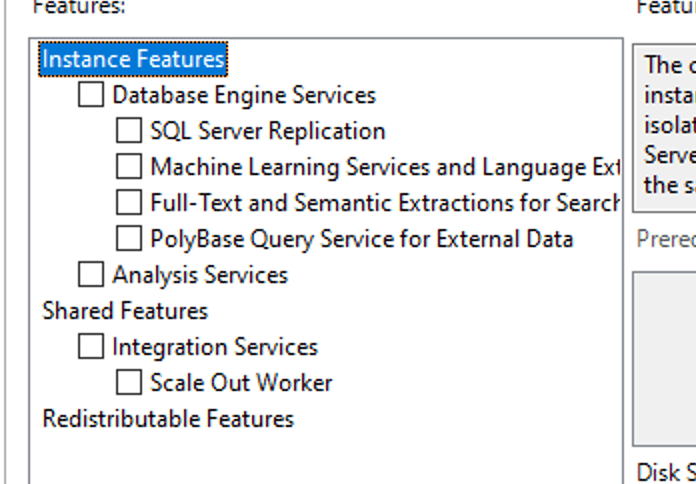
During my installations, the number of local features was not significantly different from other versions. You typically want the Database Engine Services. Replication is something I’ll leave to the experts, just like the machine learning services and full-text things. Polybase is something I wanted to explore a bit. As usual, check the checkbox, and the installer will add those features for you.
Choosing between different Developer Edition settings
The first thing you’ll (hopefully) notice when installing SQL Server 2025 is the option to choose between two different Developer Edition settings.
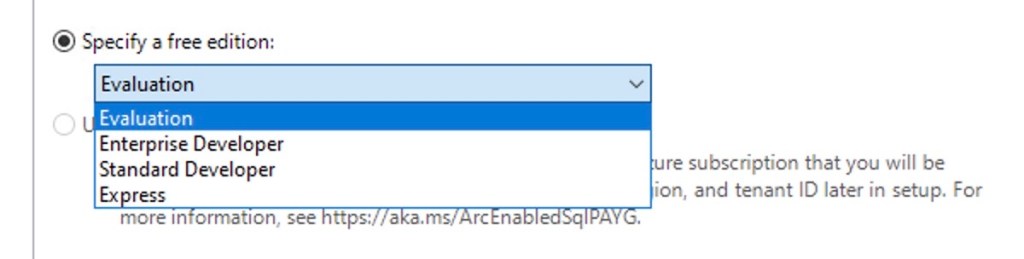
Now you have the option to align your Developer Edition with the rest of your SQL Server estate. The most crucial part is that if you only use the standard edition in your company, you can now ensure that your developers are developing on standard features only, including the limitations on CPU and Memory.
This feature has been a long-standing request, and we’re so happy that it’s finally here! This alone could be a valid reason to install SQL 2025, just to start developing within the limits of Standard Edition.
Real-Time
One feature that hasn’t been highlighted much in my feeds is change event streaming. When I started reading this, I first encountered the procedure to enable change event streaming. This looked quite promising, and I decided to dig a little deeper into the documentation.
When you read this, and remember that it is in preview and subject to change at the time of writing, you’ll notice that it is designed to publish real-time events rather than ingest them. You have changes in your database, and these changes can be published through an Azure Event Hub to any subscriber to that service. It’s akin to Change Data Capture (CDC), but the difference is that with CDC, you need to connect to the CDC endpoint in your database, whereas this is a service that publishes the changes. Only data changes at, no changes to table definitions, for example.
Currently, you must navigate several hurdles to configure this service, and it has several limitations. I hope that configuration will get easier over time, as these are usually the first hurdles DBAs stumble over.
Retrieving data from an API
Now here’s another feature that I really love: the ability to call an Application Programming Interface (API) Endpoint from the database. You can read the official documentation here.
The examples are always fun to read, but how does it work in real life? Suppose I’d like to read some data from an endpoint?
To try this out, I created an account on Rebrickable.com to connect to this API. The website has kindly provided an API key, allowing me to move to SQL Server. And a shoutout to Cathrine Wilhelmsen, who shows you this API in her blog posts.
Step 1: Enable usage of the stored procedure
Before you start happily coding, make sure you can use this functionality.
EXECUTE sp_configure 'external rest endpoint enabled', 1;

RECONFIGURE WITH OVERRIDE;
Step 2: Connect to the API
Every API has its own requirements and methods to authenticate and connect. In this specific case, the connection has a straightforward setup. I can include the key in the URL and move on. I’ve replaced my API key with the value 1234 to show you the effect without giving you my key.
DECLARE @returnValue NVARCHAR(max),
	@response NVARCHAR(max)
EXECUTE @returnValue = sp_invoke_external_rest_endpoint
   @url =  N'https://rebrickable.com/api/v3/lego/colors/?key=1234'
   , @method = 'GET'
   , @response = @response OUTPUT
The returnValue variable will return 0 when things are going well; otherwise, it will show the HTTP error code.
The response variable will contain the actual return value from the API, regardless of the returned data.
Next, I’m running the stored procedure with the parameters I need to supply. The URL with the authentication key, the method (I want to GET data), and I want to store the result in the response variable.
Finally, I want to show the data. Because when you run the above code, nothing will happen on the screen.
Step 3: deconstruct the returned Json
 SELECT @returnValue,
		ISJSON(@response) as IsValidJson,
		JSON_VALUE(@response, '$.response.status.http.code') as StatusCode,
		JSON_VALUE(@response, '$.response.headers.Date') as DateRetrieved,
		JSON_VALUE(@response, '$.result.count') AS NumRows,
		JSON_VALUE(@response, '$.result.next') AS NextPage,
		JSON_VALUE(@response, '$.result.results[28].name') AS ColourName
This code displays the output from the returnValue and utilises the ISJSON function (an inbuilt SQL Server function) to check if the result is indeed valid JSON. Next, I’m using the JSON_VALUE function to extract values from the JSON. I found it a bit tricky to get the correct mapping of the values in the result. I copied the raw JSON to Visual Studio Code and formatted the string to help me find the proper route in the JSON.
The status code is a nice-to-have extra check on the validity of the result. The date can be helpful when you want to use incremental loads later on. The number of rows can be used to extract all the values from the result set. As you can see, I’ve hardcoded a number in the results function to get 1 value. The results part is an array of multiple results that need to be extended. I’ll leave it as an exercise for you to create a process that extracts all the results. I’ve also included the next page identifier, a link you can use to page through all the results. Because most API’s don’t return all the results in one single run.
The result:

Use cases
In my line of work, data needed to fill the data warehouse doesn’t only come from databases anymore. Multiple providers host an application and offer an API to read data from, instead of allowing access to the database itself. On the one hand, you could add external code or apps to connect to the API and ingest the data. But if you’re looking for a solution where all the code is in T-SQL and managed inside your data warehouse database; this is the way to.
I really love this functionality and don’t forget, it’s already available in Azure SQL Databases!
AI integration
You won’t be surprised with this one: the integration of AI. But not in the way that there’s AI really integrated inside the database. Microsoft has enabled the storage of vector data. Vector data is a sort of machine language used by AI models. Whenever you create a prompt (think about a question you’re asking an Agent or Copilot), this gets translated to vectors. Essentially, a vector is a line of numbers. The next step AI takes is to compare the vectors from the input with those stored in your table. The closer these numbers are, the more likely it is that you’re looking for this information, and the AI model will retrieve this data.
By leveraging this storage and hosting the AI models in your own environment, you can create an AI solution where you can be confident that the data doesn’t leave your company.
Performance optimisation
It’s a risky business to talk about performance optimisations, especially when the new CTPs and RCs keep coming out. As it’s clearly documented, I wanted to highlight the option that you can now create a non-clustered columnstore index with an order key. For the clustered columnstore index, this was already an option in SQL Server 2022, but having the option for the non-clustered indexes is a good addition from a performance point of view.
Another up-and-coming option is the new database backup technology, using the ZSTD compression algorithm. If you want to know more about Zstandard (ZSTD) backup, click here to learn more. Even though space is cheap, using less is usually better. And, performing faster backups is usually something that is smiled upon.
To test both speed and compression ratio, I ran backups on my larger test database. This one is 7.7 GB in size in bacpac format. To test, I used my Azure VM that has a large, but slow, disk.

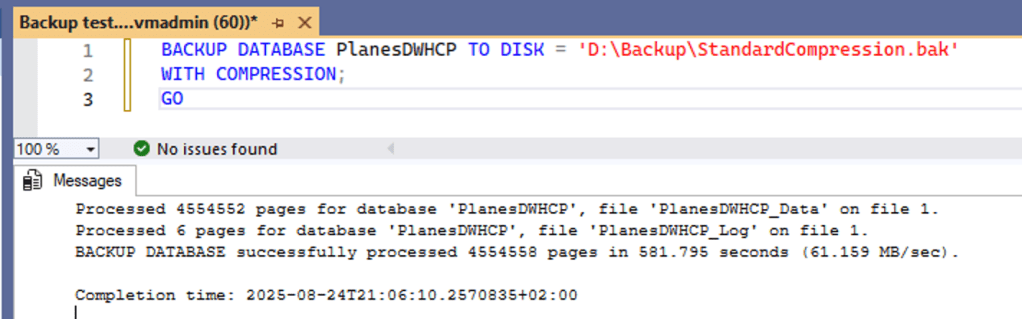

To make it easier for you to compare, I’ve created a table for you.
| Standard HDD | Standard compression | ZSTD compression |
| Size on disk | 9.2 GB | 8.9 GB |
| Duration | 09:41 | 09:03 |
| Average speed | 61 MB/s | 65 MB/s |
This isn’t exactly impressive. Even though the size differences are okay, the increase in speed, well, isn’t. So, I decided to update the VM and set the data disk to premium SSD, allowing for faster reads and writes.
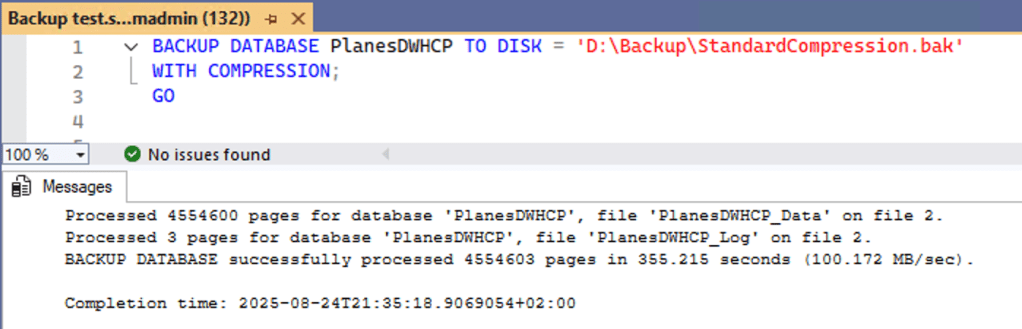
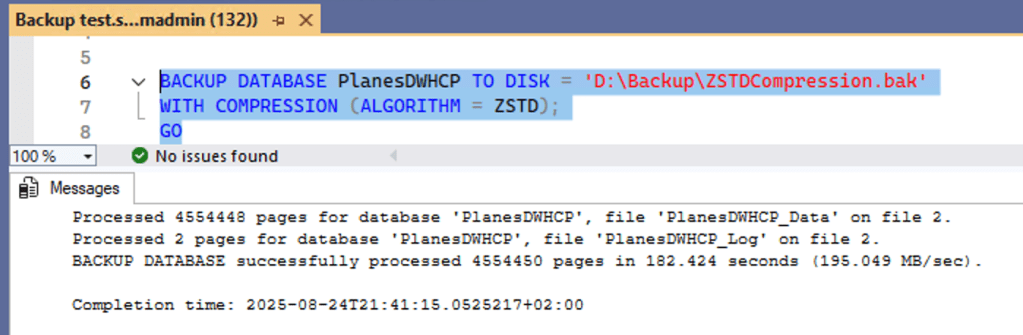
| Premium SSD | Standard compression | ZSTD compression |
| Size on disk | 9.2 GB | 8.9 GB |
| Duration | 05:55 | 03:02 |
| Average speed | 100 MB/s | 195 Mb/s |
Looking at the numbers with better-performing disks, the picture becomes clear. Not only is the process faster, but it also saves a bit on used disk space. Call it a win-win. It also proves that disk IO is still an essential moving part for SQL Server.
I would advise you to look out for blogs by the likes of Hugo Kornelis, Brent Ozar, and Daniel Hutmacher. They are performance specialists and will come up with highly interesting blogs on the subject of SQL Server 2025. And don’t forget to watch the scripts from Ola Hallengren, he’ll make sure the latest and greatest options will be included in the industry default backup and maintenance scripts.
Security
There are several security features added to SQL Server 2025. For me, the most essential one is the support of Transport Layer Security (TLS) 1.3 with Tabular Data Stream (TDS) 8. It was already introduced in SQL Server 2022, but has been expanded further.
Final words
As mentioned at the start of this blog post, I’m not going through every option that’s new in SQL Server 2025, but I focused on the new options that make sense in my line of work. Your work, especially if you’re working with Online Transaction Processing (OLTP) databases, will most likely be different. But just like mine, it will be changing. So, the technology you don’t need today can be essential tomorrow.
Currently, the two most notable features for me are the enhanced backup technology and the ability to directly call an external endpoint (API).
You’re welcome to add your views in the comments, but it would be even better if you’d create your own blog post, video or whatever medium suits you best.
 Reitse's blog