
We’re almost used to SQL Server Management Studio (SSMS) 21, and now 22 is already in preview. So, let’s see where it’s available for download, install it and see what’s different.
Download and release notes.
The most important part, of course, is the download of the binaries.
Click here for the release notes.
As you’re now used to, SSMS is installed through the Visual Studio installer. Your primary installer is a few megabytes in size, and after running it, it will upgrade your local Visual Studio Installer.
When you start the installation, you may notice something different.
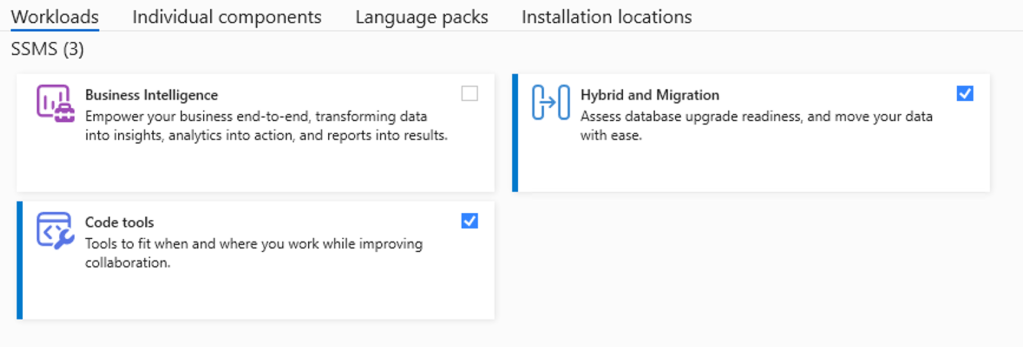
The option for the AI Assistant (Copilot) is missing. Why? That’s really easy; based on all of your feedback, Microsoft is moving from an Azure-based Copilot integration to an integration with GitHub Copilot. More on this a bit later.
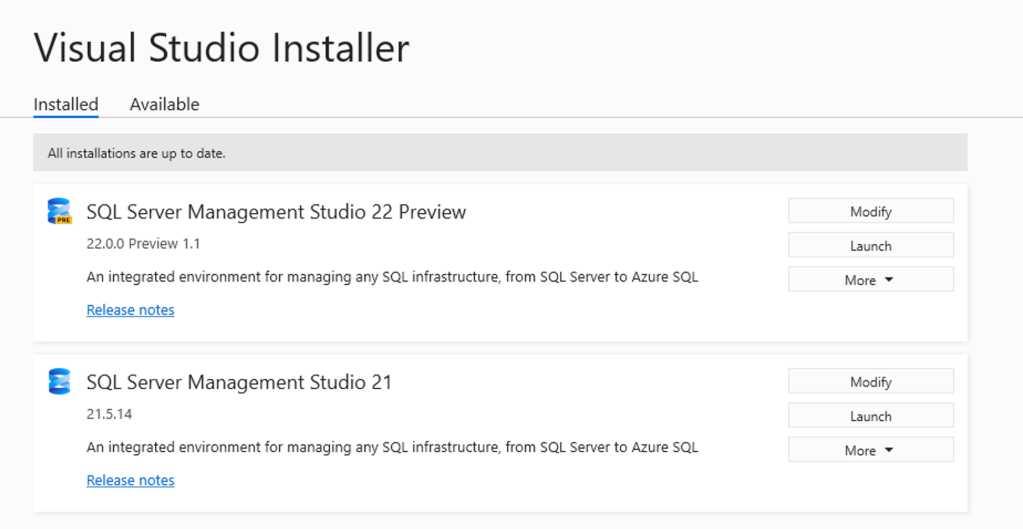
After installing, and if you have SSMS 21 as well, your Visual Studio Installer can look like this. If you have other Visual Studio-based programs installed, they will appear as well.
The differences
When you start SSMS 22, you’re greeted with a new splash screen.
Next, you’ll see the new connection dialogue.

In SSMS 21, you had the option for this new one; now it’s the default. I quite like this new dialogue, so for me personally, this is identical to SSMS 21.
The most visually significant change is this:
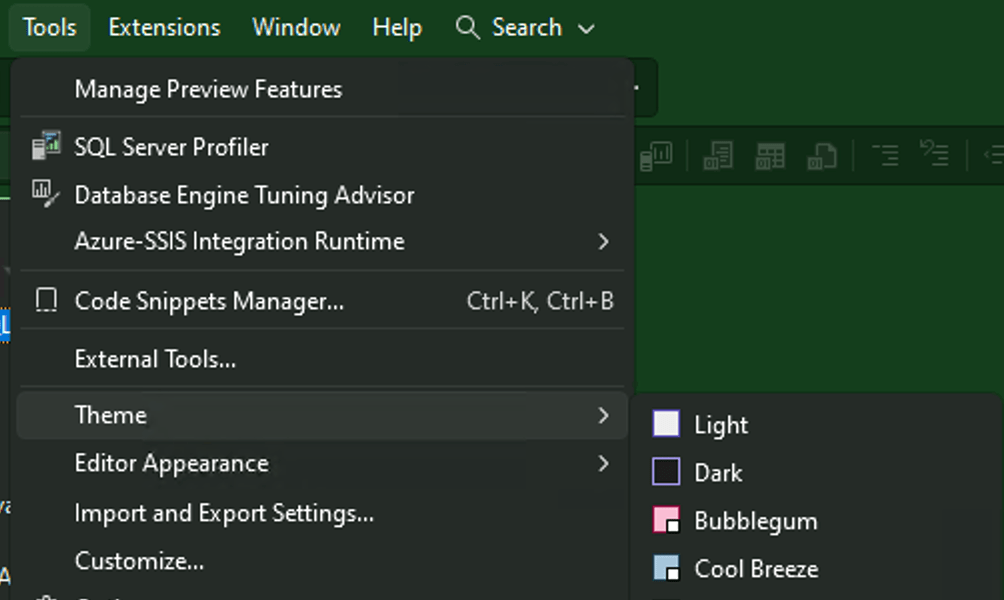
You can now choose from several colour themes to fit your personal preference.
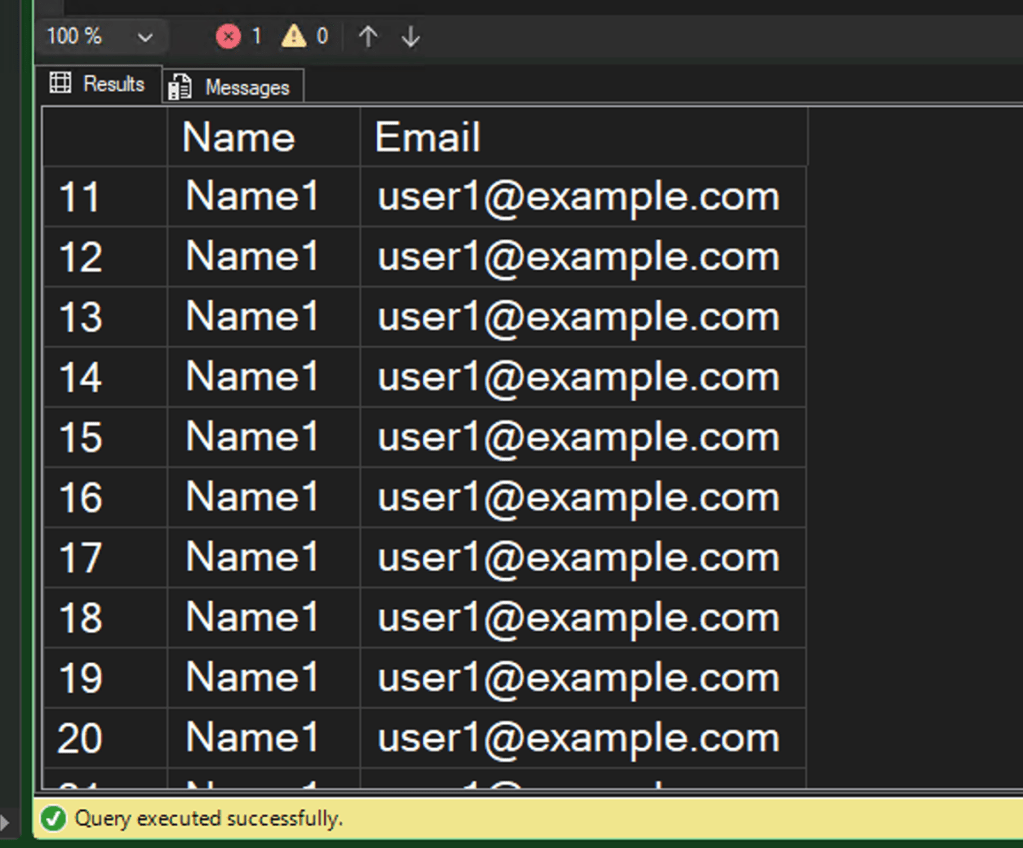
Finally, you can now zoom in on the results grid. When you look at the result grid, you won’t see an indication of how much you’ve zoomed in; it shows 100% as the default and using your mouse scroll wheel and the control button, you can zoom in (or out). In this first preview, you won’t see the percentage of how much you’ve zoomed in. But it’s very cool that we can zoom in; not only can results be easier to read, but also with presentations.
Well? Is that all?
For now, yes. Of course, when you read the release notes linked above, you will find several other bug fixes; however, these are the major fixes in this preview. BUT! And this is a huge but, check the announcement blog!
As mentioned above, SSMS is moving to GitHub Copilot integration. This removes the option to deploy your own model in Azure OpenAI and, with that, the control over the region where the model resides. GitHub Copilot is available on GitHub, but only on GitHub Enterprise are you offered control of where the servers live. This feels a bit weird, on the one hand, using GitHub Copilot is a step forward as it offers more models and, in general, has some better results. On the other hand, GitHub Enterprise isn’t very cheap, and I can see customers moving away from the integration when they do not wish to use a model outside of their GDPR zone or even country borders. With a price of 21 dollars per user per month, it’s not a huge cost, but still an extra fixed cost compared to the pay-as-you-go model in Azure.
The other significant change that should be coming is the support for ARM64. In the blog post, it’s mentioned as Windows ARM64; I’m hoping this also extends to Parallels Windows emulation on macOS. There is a lot of feedback online on this missing feature in SSMS 21.
Finally, there will be more Fabric integration; I’m very curious to see how this will work out. I have continuous issues with the Fabric web interface (mainly time-outs), so moving work to SSMS could solve a lot of these, as I’ve never seen SSMS run into a time-out.
What’s next?
As mentioned and linked above, the GitHub Copilot integration and ARM64 support are two features to look forward to. Until then, let’s try out SSMS 22 and don’t forget to provide feedback! Click here to go to the feedback site.
 Reitse's blog
Themes can be enabled in SSMS 21.
Tools -> Options -> Environment -> Preview Features: uncheck “Use classic UI control styles”.
LikeLike
Nice! I missed that checkbox, thanks!
LikeLike