
I got a new laptop this week, and one of my default steps is installing SQL Server. This has always gone without issue until yesterday. I ran into an error message when my Bing skills (for some reason, my company defaults to Bing instead of Google) failed me.
The error message
When I started installing SQL Server, I just went for it, not even checking the disk. During installation, I saw this warning.
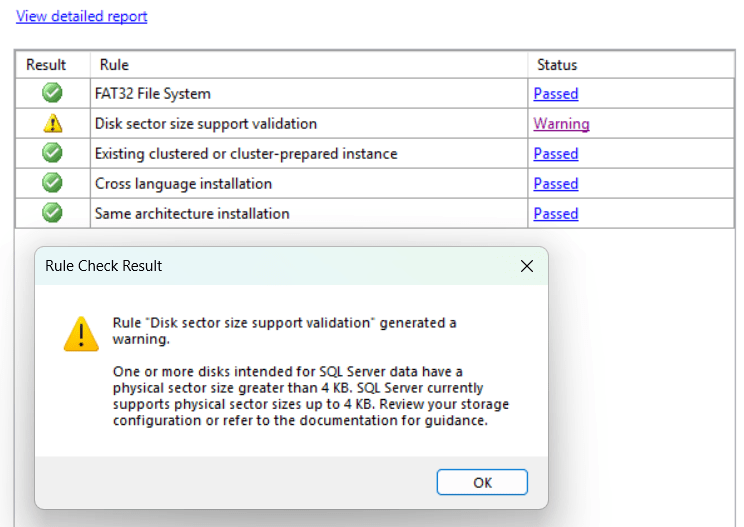
This warning felt benign; more like you can run into errors. Well, as I found out, this lets you run into an SQL Server installation that just fails.
The error logs fill up with stack dumps and a fatal error that makes no sense. The installation log, however, shows you a more meaningful error.
Scenario config specific rules:
Warning LargeSectorSizeCheck One or more disks intended for SQL Server data have a physical sector size greater than 4 KB. SQL Server currently supports physical sector sizes up to 4 KB. Review your storage configuration or refer to the documentation for guidance.
It’s more or less the same as the warning. Only this causes the installation to break and show a red cross on the screen, or causes the entire installer to crash. I’ve seen both happen.
Solution that didn’t work
My first assumption was that the good people who supplied me with my laptop had made a mistake formatting the disk. So I went into Disk Management, shrunk a disk, and created a new drive. I made sure I formatted it to 4Kb sector sizes and tried again. And failed.
I learned that it’s not the drive sector size that counts, but the actual disk. And NVME’s have a large sector size. And you can’t change that.
Working solution
But you can ‘trick’ SQL Server into thinking the sector size is 4 Kb. The great Glenn Berry sent me a link to a Microsoft Learn page where it actually shows this problem and provides the solution.
What you need to do is add a line to your Windows registry and reboot your machine. This line lets SQL Server (and other applications that can check on sector size) think it’s a 4Kb sector size. I would strongly advise you to ensure your disk is formatted with a 4Kb sector size.
After following the steps in the docs, the installation of SQL Server went very smoothly, and when I opened SSMS 22, I could connect to the database and start having fun!
I hope this short blog helps you when figuring this out; it took me way too long, and thanks again to Glenn Alan Berry for the help!
 Reitse's blog
One thought on “SQL Server 2025 and disk sector size”