
Maybe you’ve read my blog post in the DP-700 certification series about mirroring data. You can find that one here. This blog will be longer and more technical. And involve SQL Server. To make reading a little easier, I’ve listed the Microsoft Learn pages at the end of this blog post.
While writing the DP-700 post, I realised I wanted to dig a little deeper. Not only because I’m presenting a session on this subject, but also to learn more about the processes behind it. And, there’s SQL Server involved, something I still have a soft spot for in my heart. Or maybe even more than that.
The basics
If you want to familiarise yourself with the basics, go to the other blog post first. Also, you can read more about SQL Server mirroring in Meagan Longoria’s blog posts. The first one will give you a good overview of the differences between SQL Server 2016-2022 and 2025. You need to understand these differences when building your solution to mirror in Microsoft Fabric.
Let’s go!
Welcome back! Or, if you just kept reading, cool! In any case, let’s dig into what’s happening under the covers.
And this poses a small problem. How can we find out what’s happening under the covers of Fabric? As you probably know, it’s Software as a Service (SaaS), which means Microsoft (in this case) controls all the code, hardware, and related resources. Monitoring in Fabric is somewhat limited compared to your own, on-premises server and SQL Server instance.
But now that you mention it, we can see what’s happening on the SQL Server side.
The moving parts
But before we get into that, let’s quickly discuss the different moving parts to get this running.
- Your database needs to be in full recovery model for the change feed to read from it
- You can’t run this on a read-only database
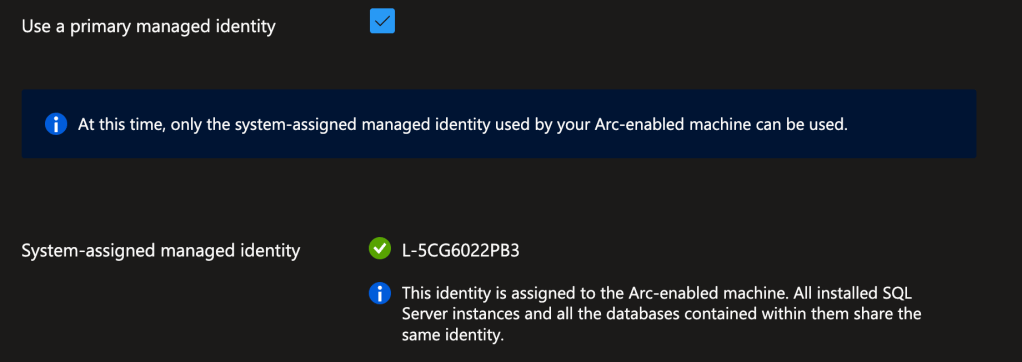
- Your server needs to be Arc-enabled; mirroring in Fabric relies on a system-assigned managed identity to connect to both the local database and Fabric.
- You need the ports for Azure Arc to be open to allow the data to be pushed out
- When enabling the service, you need to have elevated permissions; when it’s all done, you can resume normal permissions
- If you want to see what’s going on, you need access to DMVs, sys.running_processes and/or OneLake explorer to see the data go out and come in
There are several extended events available to help you see what the server is doing. You can check the server, database, table, and column properties to see if anything has changed.
So, to find out what’s happening, I created a new database on my laptop (SQL Server 2025, CU3), connected SSMS 22.4.1, and what do you do when you want to see what’s happening? Yes, you go into the extended events.
Remember, moving parts
One thing you have to be aware of is that mirroring does not work on read-only replicas, or databases running on Managed Instance using the Managed Instance link technology. I would love to have a magic wand to make that possible, though. In any case, you have to be on the primary to activate the change feed.
SQL Server 2025
I found that the first steps in setting it all up, configuring the connections and seeing what is happening, are not really hard, but a lot of moving around between SQL Server and Azure. This next part may reflect that. Take your time reading this and planning before you start executing everything. Also, make sure you have the correct permissions in Azure to spin up the Arc resource and in SQL Server to start mirroring.
Because you need to add logins to the master database and users to the mirrored database, you’ll quickly see you need elevated permissions. Your DBA (if that’s not you) and you need to have a word.
The same goes for Azure; to enable Arc, you also need to register some resource providers, and again, these need elevated permissions.
Here’s some code you can run to create an extended event that logs the info for you. I’ll get to the results of this session later. Also, remember to turn it off on a busy system, as it can create overhead. Microsoft has Learn pages on this and advises using it only when issues arise. Then again, if you’re like me and want to see what’s happening, this is a neat way to get some insights. Remember, I ran this on a demo database. Running this on your development environment is fine.
CREATE EVENT SESSION [sqlmirroringxesession] ON SERVER
ADD EVENT sqlserver.synapse_link_addfilesnapshotendentry,
ADD EVENT sqlserver.synapse_link_db_enable,
ADD EVENT sqlserver.synapse_link_end_data_snapshot,
ADD EVENT sqlserver.synapse_link_error,
ADD EVENT sqlserver.synapse_link_info,
ADD EVENT sqlserver.synapse_link_library,
ADD EVENT sqlserver.synapse_link_perf,
ADD EVENT sqlserver.synapse_link_scheduler,
ADD EVENT sqlserver.synapse_link_start_data_snapshot,
ADD EVENT sqlserver.synapse_link_totalsnapshotcount,
ADD EVENT sqlserver.synapse_link_trace
ADD TARGET package0.event_file(SET filename=N'sqlmirroringxesession')
WITH (MAX_MEMORY=4096 KB,EVENT_RETENTION_MODE=ALLOW_SINGLE_EVENT_LOSS,MAX_DISPATCH_LATENCY=30 SECONDS,MAX_EVENT_SIZE=0 KB,MEMORY_PARTITION_MODE=NONE,TRACK_CAUSALITY=OFF,STARTUP_STATE=ON)
GO
With these events running, I can see what activity there is on my database; the script above is your starting point, change the settings where necessary. As always, do not just copy a script and run it without reading it carefully.
Setting up Azure Arc
Basically, setting up Azure Arc isn’t particularly difficult; the complexity lies in the permissions required. In all honesty, I would love for Microsoft to “switch back” to the solution they have with SQL Server 2022 and earlier: the On-Premises Data Gateway. It’s much easier to install, is often already in place, and requires fewer privileged permissions to get it running. Lowering the bar to get people into using mirroring can only be a good thing, in my opinion.
If you want to set up Azure Arc, please follow the instructions on the Microsoft Learn site.

One thing you need is the System Assigned Managed Identity, and it needs permissions. And to give the SAMI these permissions, you need them. Talk to your domain admin or tenant admin when it fails.
# Set your Azure tenant and managed identity name
$tenantID = '[YourTentant]'
$managedIdentityName = "YourIdentityName"

# Connect to Microsoft Graph
try {
    Connect-MgGraph -TenantId $tenantID -ErrorAction Stop -Scopes "Application.ReadWrite.All","Directory.ReadWrite.All","AppRoleAssignment.ReadWrite.All"
    Write-Output "Connected to Microsoft Graph successfully."
}
catch {
    Write-Error "Failed to connect to Microsoft Graph: $_"
    return
}

# Get Microsoft Graph service principal
$graphAppId = '00000003-0000-0000-c000-000000000000'
$graphSP = Get-MgServicePrincipal -Filter "appId eq '$graphAppId'"
if (-not $graphSP) {
    Write-Error "Microsoft Graph service principal not found."
    return
}

# Get the managed identity service principal
$managedIdentity = Get-MgServicePrincipal -Filter "displayName eq '$managedIdentityName'"
if (-not $managedIdentity) {
    Write-Error "Managed identity '$managedIdentityName' not found."
    return
}

# Define roles to assign
$requiredRoles = @(
    "User.Read.All",
    "GroupMember.Read.All",
    "Application.Read.All"
)

# Assign roles using scoped syntax
foreach ($roleValue in $requiredRoles) {
    $appRole = $graphSP.AppRoles | Where-Object {
        $_.Value -eq $roleValue -and $_.AllowedMemberTypes -contains "Application"
    }

if ($appRole) {
        try {
            New-MgServicePrincipalAppRoleAssignment   -ServicePrincipalId $managedIdentity.Id -PrincipalId $managedIdentity.Id -ResourceId $graphSP.Id -AppRoleId $appRole.Id -ErrorAction Stop

Write-Output "Successfully assigned role '$roleValue' to '$managedIdentityName'."
        }
        catch {
            Write-Warning "Failed to assign role '$roleValue': $_"
        }
    }
    else {
        Write-Warning "Role '$roleValue' not found in Microsoft Graph AppRoles."
    }
}
Agent install
Here’s the code I used to install the agent on my machine:
$global:scriptPath = $myinvocation.mycommand.definition

function Restart-AsAdmin {
    $pwshCommand = "powershell"
    if ($PSVersionTable.PSVersion.Major -ge 6) {
        $pwshCommand = "pwsh"
    }

    try {
        Write-Host "This script requires administrator permissions to install the Azure Connected Machine Agent. Attempting to restart script with elevated permissions..."
        $arguments = "-NoExit -Command `"& '$scriptPath'`""
        Start-Process $pwshCommand -Verb runAs -ArgumentList $arguments
        exit 0
    } catch {
        throw "Failed to elevate permissions. Please run this script as Administrator."
    }
}

try {
    if (-not ([Security.Principal.WindowsPrincipal] [Security.Principal.WindowsIdentity]::GetCurrent()).IsInRole([Security.Principal.WindowsBuiltInRole]::Administrator)) {
        if ([System.Environment]::UserInteractive) {
            Restart-AsAdmin
        } else {
            throw "This script requires administrator permissions to install the Azure Connected Machine Agent. Please run this script as Administrator."
        }
}

    $env:SUBSCRIPTION_ID = "[YourSubscription]";
    $env:RESOURCE_GROUP = "[Your RG]";
    $env:TENANT_ID = "[YourTentantID]";
    $env:LOCATION = "westeurope";
    $env:AUTH_TYPE = "token";
    $env:CORRELATION_ID = "[YourCorrelationId]";
    $env:CLOUD = "AzureCloud";
    $env:GATEWAY_ID = "/subscriptions/[YourValues]";


    [Net.ServicePointManager]::SecurityProtocol = [Net.ServicePointManager]::SecurityProtocol -bor 3072;

    $azcmagentPath = Join-Path $env:SystemRoot "AzureConnectedMachineAgent"
    if (-Not (Test-Path -Path $azcmagentPath)) {
        New-Item -Path $azcmagentPath -ItemType Directory
        Write-Output "Directory '$azcmagentPath' created"
    }

    $tempPath = Join-Path $azcmagentPath "temp"
    if (-Not (Test-Path -Path $tempPath)) {
        New-Item -Path $tempPath -ItemType Directory
        Write-Output "Directory '$tempPath' created"
    }

    $installScriptPath = Join-Path $tempPath "install_windows_azcmagent.ps1"

    # Download the installation package
    Invoke-WebRequest -UseBasicParsing -Uri "https://gbl.his.arc.azure.com/azcmagent-windows" -TimeoutSec 30 -OutFile "$installScriptPath";

    # Install the hybrid agent
    & "$installScriptPath";
    if ($LASTEXITCODE -ne 0) { exit 1; }
    Start-Sleep -Seconds 5;

    # Run connect command
    & "$env:ProgramW6432\AzureConnectedMachineAgent\azcmagent.exe" connect --resource-group "$env:RESOURCE_GROUP" --tenant-id "$env:TENANT_ID" --location "$env:LOCATION" --subscription-id "$env:SUBSCRIPTION_ID" --cloud "$env:CLOUD" --gateway-id "$env:GATEWAY_ID" --tags 'Datacenter=Laptop,City=Groningen,StateOrDistrict=Groningen,CountryOrRegion=NL' --correlation-id "$env:CORRELATION_ID";
}
catch {
    $logBody = @{subscriptionId="$env:SUBSCRIPTION_ID";resourceGroup="$env:RESOURCE_GROUP";tenantId="$env:TENANT_ID";location="$env:LOCATION";correlationId="$env:CORRELATION_ID";authType="$env:AUTH_TYPE";operation="onboarding";messageType=$_.FullyQualifiedErrorId;message="$_";};
    Invoke-WebRequest -UseBasicParsing -Uri "https://gbl.his.arc.azure.com/log" -Method "PUT" -Body ($logBody | ConvertTo-Json) | out-null;
    Write-Host  -ForegroundColor red $_.Exception;
}
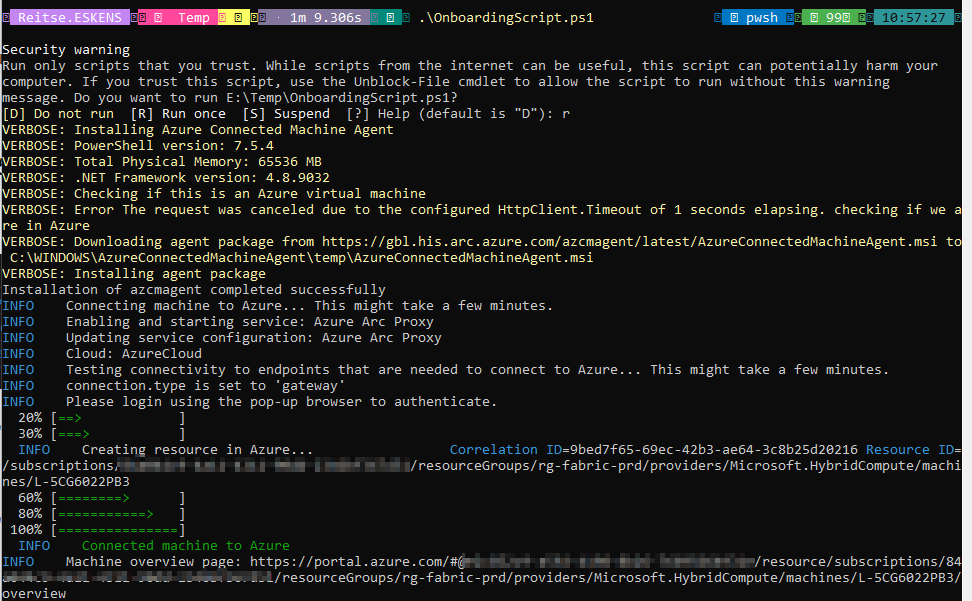
When I first ran the code, I got an error: the Arc gateway deployment did not finish in Azure. The error states that the provisioning wasn’t successful. I’d disagree with that as it just wasn’t done yet. Or maybe that isn’t a successful one. Semantics!

When the script finishes correctly, you will see something like this.
If you want to check if it all worked, try to add a new login from Entra, something you also need to do to give Fabric access to your data.
CREATE LOGIN ... FROM EXTERNAL PROVIDER
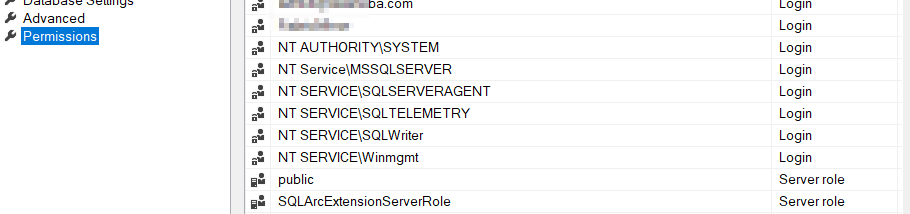
You can also check the Server Properties. Go to permissions, and you should see the SQLArc Extension server role.
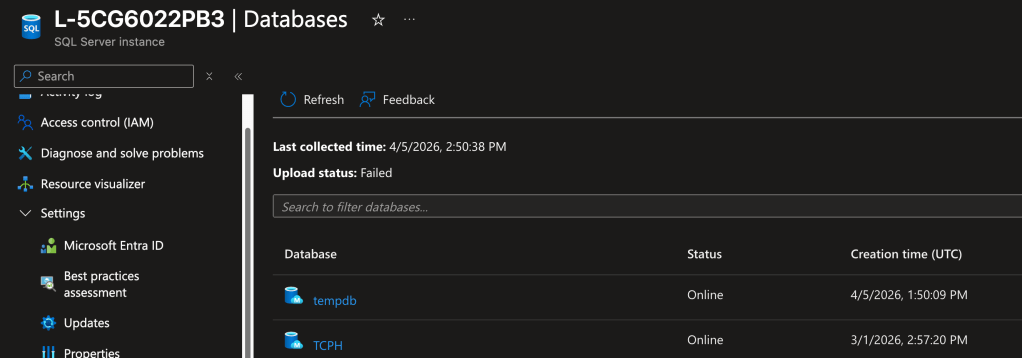
You can also see your SQL Server in the Arc resource in Azure.
And you need to check the settings for the managed identity, found at the Microsoft Entra ID menu option.
How does it work?
To find out how this tech works, I had the privilege of speaking with the Microsoft engineering team. On a sidenote, this is the best perk of being an MVP. Anyway, the team was kind enough to explain how the tech works in the background. Let me start with the image. I’ll explain the details below.
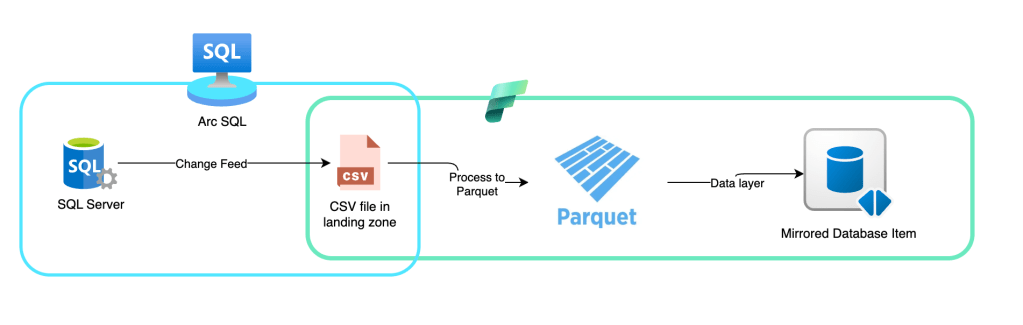
So, how does this work? This was my main question when I started digging into the mirroring process.
At first, when you initiate mirroring, SQL Server will create an initial snapshot. This might be something you’re familiar with if you use any sort of high-availability or disaster-recovery technique. The goal is to ensure the target has the current dataset so you can work with all the changes.
After the snapshot is taken, SQL Server will start a process that reads the log file every 5 seconds. It will check the changes and push them all to a landing zone in your OneLake as CSV files. Once the file is there, Fabric will take over, transform the CSV into parquet, and ensure the data is made available in the Mirrored database item within Fabric.
And that’s all there is to it. Part of the process is SQL Server pushing out data, which is run locally. As far as I could tell, the load on the local instance isn’t all that much. I can imagine that a very busy server can have a higher load, but there’s only so much I can test. Also, when you’ve chosen to replicate data, you know the system will need some CPU cycles to do the work.
When the data lands in Fabric, it must be converted from CSV to Parquet. Because doing this on the SQL Server side would require both additional software and extra CPU cycles, it makes perfect sense to run it in Fabric. And the best thing is that, even though it uses capacity units, they are non-billable. This supports the statement that mirroring into Fabric is free. Only when you start querying the data do you begin paying capacity units.
Let me make one thing very clear: when you start mirroring databases into Fabric, you’re not leveraging the Fabric SQL Database. The created item is an SQL “shell” connected to Parquet files. Yes, the delta kind. But it’s not a real database with the MDF, LDF, and NDF files.
Seeing it in action
So, after the initial sync, I decided to add a row of data to my table.

This is a small airport with little entertainment and short wait times. Anyway, when you add data, and you’re like me, you want to know if you can see where the data actually lands. We know there’s a process that picks the log file for changes.
EXEC sys.sp_help_change_feed
When you run this code, you get the output of all the mirrored tables in your database. And there is some very important information there:

File structure
The highlighted table_id corresponds to the ID you can find in your OneLake explorer. Because you can open OneLake explorer, connect to the workspace your mirrored database is in and find the following directory structure:
OneLake – Microsoft
\ws fabag 2CU
\PlanesDWH.MountedRelationalDatabase
\Files
\LandingZone
\52d29931-e1b2-47e5-aa13-c1bbca6d082e
\Tables
\b82ae400-6436-4864-a957-159a27aa7326
\TableData_0000073900002c780002
When you open Storage Explorer, first find the workspace where you created the mirrored database. Then find the database name. In my case, the database is called PlanesDWH, and the MountedRelationalDatabase is added by Fabric. In this folder, you can navigate to either Files or Tables. I want to go to the landing zone to see the incoming files. Therefore, I choose Files, then LandingZone. From the GUID, you can go to the tables (which represent the tables on your local machine). In this folder, you get a list of GUIDS (marked blue in the list above), that correspond with the table_id column sp_help_change_feed output. Next, you can move to the TableData folder, where the GUID matches the value from the version column in the output.

The folder contains the following:

Files
The folder with the initial snapshot of the data, in parquet format, the table schema in json and a folder with the Change data; these are your updates.
Let’s start by peeking into the TableSchema.json. It contains data like this:
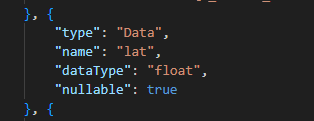
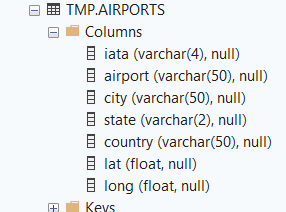
It echoes the column structure of my database.
The ChangeData folder contains representations of data changes, saved as CSV files.

File contents
These are CSV Files, and therefore easy to open.
The content:
0x00000739000030400003,
0x00000000000000000001,
2,
0x00,
"GRQ",
"Groningen Airport Eelde",
"Groningen",
"GR",
"Netherlands",
5.3119199999999999e+001,
6.5793999999999997e+000,
-5943280361554304256
What’s in there? The first line is the LSN (Log Sequence Number). The second line appears to be an internal row identifier if the rest of the data is the same. The third number (2 in this case) indicates that the process is an insert. 1 is a delete, 4 is an update. The 0x00 appears to be the logical database ID (which is also zero in the event file). Next are the values from my query. The value at the bottom, the huge negative number, is the MSSQL_System_Uniquifier. This one, you can even see when running a query on the table:
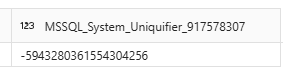
Let’s see what happens when I run multiple insert queries on the same table.

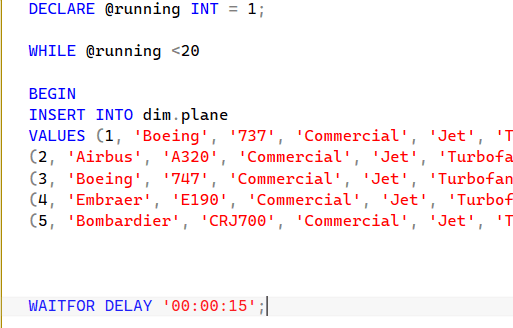
Let’s look at the query that created these rows.
The start:
And the end:
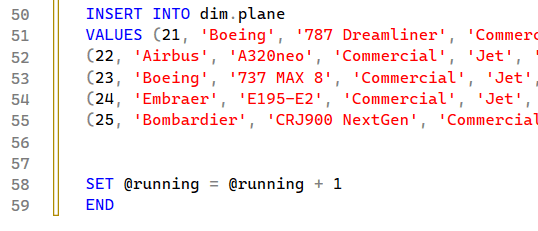
This leads me to believe that the mirroring process picks up two different commits, with each row having an identifier and the row count reset for each commit. I’ve inserted five rows in one commit. And because one set was at the end of my script and the other at the top, it didn’t wait 15 seconds to ensure it skipped the mirroring interval check.
Table files
If you can find the file structure, you can also locate the table structure, which shows the actual table data.
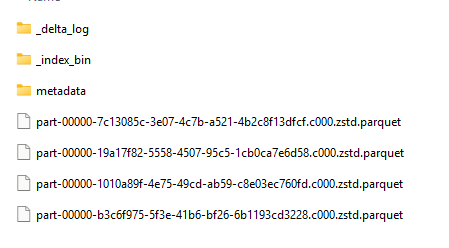
This is the only thing that I have questions about. Because every change is now in a different file. And if you know the Spark engine, it has some issues with many small files; it prefers them to be large so it can quickly scan the data it needs.

There is an easy fix for this: run an Optimize command to clear it all up. The fun thing is, this is built in. After 50 transactions, there will be an Optimize process that packs all the files into one to prevent the potential issue.
Speed?
Or, how often does it check?
Well, again, we look at the greatness that is Extended Events. And you can see how often it tries to read data.
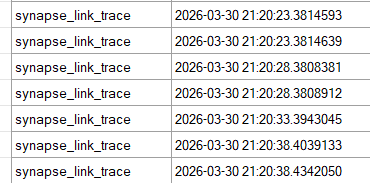
You can see it checks every 5 seconds. Yes, there are differences behind the comma, but if you want blazing-fast, instant, real-time data replication, you might want to look at Fabric Real Time Intelligence instead of this process. Also, a 5-second delay is very good, as it can keep up on a busy system without too much overhead from pushing large transactions. And be honest, a five-second delay, combined with a direct lake or direct query option to read the latest data into your report. How much faster do you want your management info refreshed?
I’ve also noticed that there is next-to-zero delay between the transaction being pushed and the data becoming visible in the mirrored database in Fabric. This leads me to believe the item isn’t using the SQL Endpoint, but it’s connecting directly to the parquet files. This may seem like an open door, but too often I’ve been tricked by the SQL Endpoint and its related items, rather than by the parquet files. I’m a sucker for speed; I like to see changes reflected immediately.
Is it free?
One thing I’ve read everywhere is that mirroring is basically free. You need to provide the SQL Server (with the license), of course, and the machine it runs on. But data transfer is free, including conversion from CSV to Parquet. You pay for storage and for reading the data.

The above screenshot shows the number of CU’s used; this includes the initial snapshot, processing around 30 Gigabytes of data and processing a large number of updates and inserts. All of that doesn’t show up in the capacity metrics app. It only shows me running a few small test queries. Which means that, from this point of view, it’s all free.
Now that we know what happens in Fabric, so what?
Good question, now that you know, what can you do with it? Well, for me, it’s just a nice rabbit hole to dive into and see how far I can go before I hit the wall. There’s nothing you can really do with these files, other than check the contents.
There are many more files you can find, including system files that support the process. As these can change over time, it is fun to explore their use cases, but, like Windows, system files can come, go, and change without prior notice.
Which does pose one question. What if there’s sensitive information in there? Because the database transactions are logged as CSV files without encryption.
First, make sure only users who need access can access this part of OneLake. In my opinion, only engineers with clearance are allowed to access the raw ingested data. All other people should only have access to the modelled data.
Second, if you have sensitive data, use Always Encrypted on the source to ensure only encrypted data travels to Fabric. And yes, this implies that you can’t un-encrypt the data, but isn’t that the point? An alternative would be to use a reversible data masking or pseudonymisation process. Again, this would defy the purpose of ensuring data security.
When it breaks
As with all software, all ingestion processes and even life, things break every now and then. The trick is knowing how to repair things when they break. On the one hand, you can run to Fabric, stop the replication, restart it and move on. This can trigger an initial snapshot process.
If your transaction log starts to fill up, it may indicate that the mirroring process is stuck. One thing you can try is to reseed this and monitor progress. Read the documentation at the link carefully before you run any commands.
But before you go there, check the different DMVs available to you. There can be an error message hidden in there that will help you determine the course of action. As mentioned at the top of this blog post, Meagan Longoria has already written about this, so it doesn’t make sense to replicate it here. Go check out those blogs!
I am mentioning ETL on purpose because I would recommend using Azure SQL databases for your regular replication. If you need a relatively simple process to get data into Fabric for your specific reporting needs, this is a viable route to explore.
Links
Overview of Mirroring in Microsoft Fabric
SQL Server 2025 mirroring tutorial
Setup Entra authentication with managed identity
 Reitse's blog