
Some of you might recognise database projects from either Synapse Analytics or SQL Server. Yay for the latter ;). A long story, very short, database projects are a way to develop and deploy your databases using a CI/CD (Continuous Integration/Continuous Development) approach.
For each database, the code you’ve written is saved in a specific project file and when you need to deploy a database, you don’t have to go find all the scripts from the database that’s running, but all you need is (yes love, that too) the project file that should be up to date with the latest code.
A code file contains the scripts to create the tables, keys, indexes, procedures, functions and all the other cool stuff that you need. And you can leverage this code in Microsoft Fabric as well!
Create a database project
Suppose you’ve never created a project before. Here’s a simple example. And no, it’s not based on AdventureWorks, even though it would be a good fit in this example. This code will create a database with some schemas, tables and a function.
CREATE DATABASE DB_DatabaseProjectDemo;
GO

USE DB_DatabaseProjectDemo;
GO

CREATE SCHEMA Demo;
GO
CREATE SCHEMA Prod;
GO
CREATE SCHEMA Test;
GO

CREATE TABLE Demo.DemoTable1
(
	ID INT Identity(1,1) Primary Key,
	Description Varchar(50) NULL
);
GO

CREATE TABLE Prod.ProdTable
(
	ID INT Identity(1,1) Primary Key,
	ImportantProductionDescription Varchar(100) NULL,
	MoreImportantNumbers DECIMAL(10,3) NULL
);
GO

CREATE FUNCTION Test.TestFunction(@Input int)
RETURNS  INT
AS
	BEGIN
		RETURN @Input*2
	END
;
GO
The above code will create a database with some objects in it. Nothing special or things you have to worry about. The thing is, this will set you up to create a database project.
Using VS Code
In this case, I’m using VS Code to create the database project, with the SQL Database Projects extension installed.
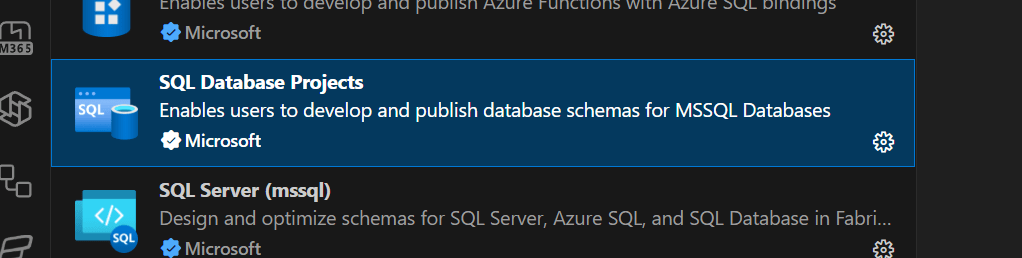
This extension helps me create the project.
When you open the command palette, you can search for a SQL Database Project and open an existing one, or create a new one.

In this case, I’m going to create a new one, based on the database I created using the code above.
If you haven’t already created a connection from VS Code to your database, you can do so by creating a new connection.
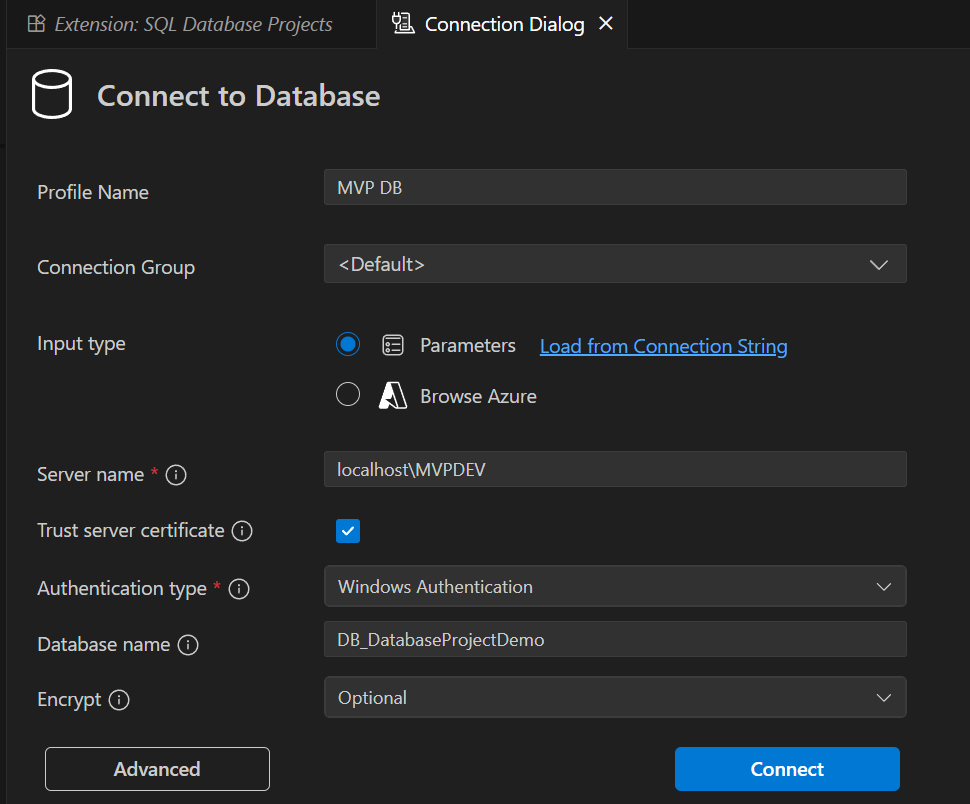
Click on connect, and in the left window, you’ll see a list of items that sort of looks like SSMS.
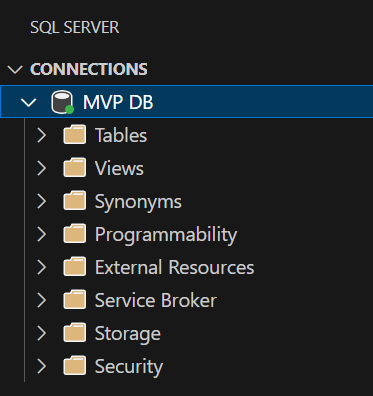
If you already have a connection, you can now choose the database you want to create the project from.

Next, you need to select a location to save the project files

After finding your favourite folder, you can choose the way the subfolders are structured.
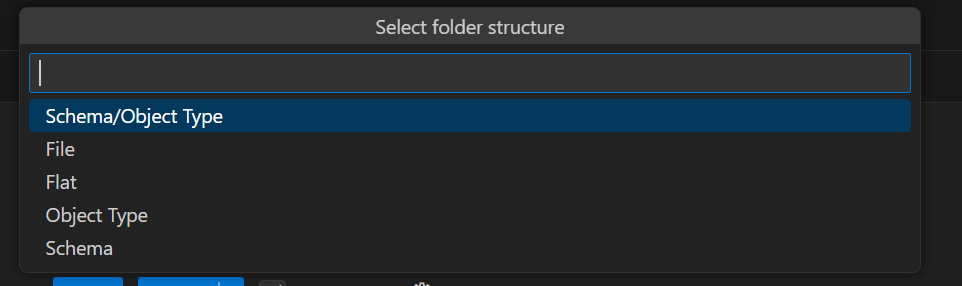
To create a nice overview, I’ve stuck with the first one, Schema/Object Type
The next option is a tricky one: Do you want to include permissions or not?

This really is up to you what you think is best, but I’d go with the default of no and set permissions afterwards.
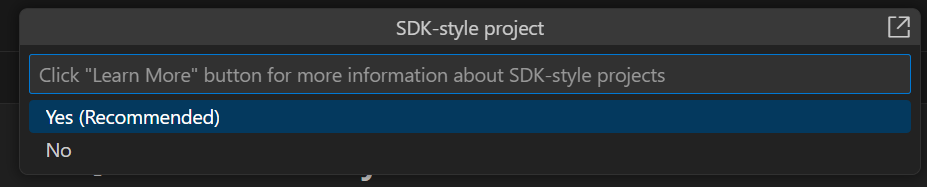
Keep the default SDK Style.

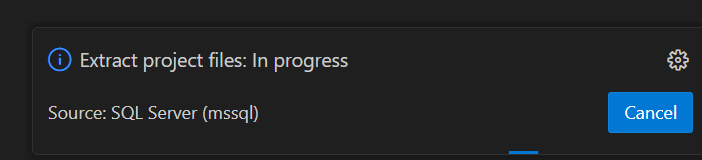
After clicking yes on this option, you’ll see this in the bottom left corner:
And after some time (depending on your database complexity), you’ll see this in your file explorer.
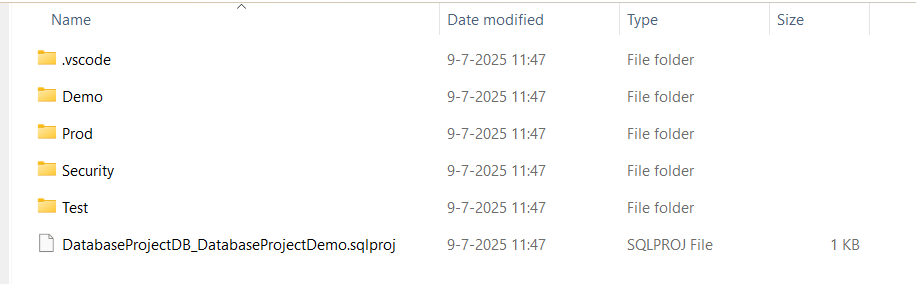
Now I have the code that I can save into my GitHub or Azure DevOps Repository. And work on it in either VS Code or SSMS. Now you can also use this code to share the database structure with other developers. They can change things, create pull and merge requests and make it all better. But to do that, you have to use a Git repository.
Save the database project in a repository
So, now that you’ve created the project, save it in a repository. This involves either saving the data into a repository folder that is already linked to your Git environment or building a new one. You can use Azure DevOps or GitHub for this. I know there are other suppliers like GitLab, but they lack a direct integration with Fabric.
Deploy the project to Microsoft Fabric
Now that the code is in place in our repository, let’s deploy it in Fabric. And here’s the trick. To use this code, you can’t just select the folder and let Fabric figure it out. You need to upload a compressed file.
Simply go into the folder (shown in the screenshot above) and add all the files into one ZIP file. If there have been updates to the code, make sure the folder on your disk contains the latest version.
Next, go to your newly created Fabric Warehouse, and in the main panel, find the SQL database project option.

Click on the Icon, and the following window opens.

Find the zip file to get started.
When the process starts, you’ll see something like this.
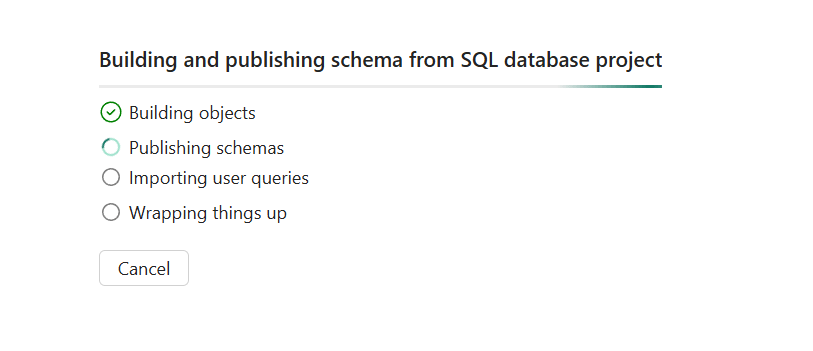
If all goes well, you’ll end up with a Warehouse matching your expectations. Or, you’ll run into an error.
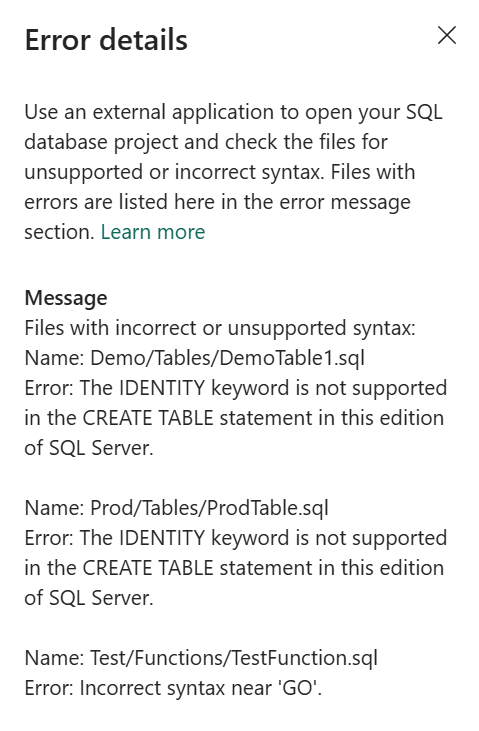
Although I appreciate the effort, the lack of support for identity columns still bothers me. When I edited the tables and removed the identity column, it threw the following error.

I understand this, as a Warehouse uses parquet files in the background; indexing these makes no sense. The point I’m trying to make here is that you need to switch from ‘old school’ SQL scripting to Fabric Warehouse limited SQL scripting. And that’s a different dialect. It’s too easy and incorrect to say it’s bad; it’s different. And you have to be prepared to go for workarounds.
Fabric SQL database?
Fabric SQL Database should fix all these limitations as it’s, by and large, an Azure SQL Database representation within Fabric. This means it should have all the functionalities of SQL. If you want to deploy a database project there, you can use a different method. You could go the Azure DevOps way, as described in this blog post by Kevin Chant.
As an alternative, you can use SqlPackage to deploy the Dacpac to Fabric.
First, download and install SqlPackage as described here. Please make sure you’re running the latest version. During testing, I encountered an issue where I received old code instead of the newest version. So when you download the code, please check for the version by running the following command.
SqlPackage /Version
This will return the version you’re running and should be the same as advertised on the website.
Next, you have to get the connection details from the database. You can do this by selecting the database and clicking on Open in.
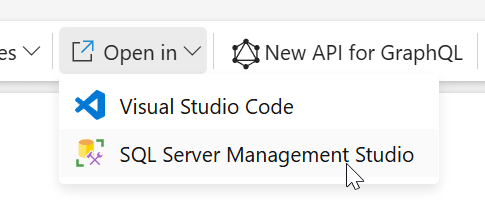
Clicking on the SSMS icon will display the whole connection string for the database and server. Don’t forget to include the GUID-style part as it’s essential for the connection.
Next, you can run the code either in the command prompt or in PowerShell. As I like PowerShell, the code shown here is in this beautiful language. Make sure you’re in the correct directory where the binaries live. As I used the MSI installer, SqlPackage.exe was in C:\Program Files\Microsoft SQL Server\170\DAC\bin
.\SqlPackage.exe  /Action:Publish /SourceFile:"D:\Temp\DB_DatabaseProjectDemo.dacpac" `
    /targetconnectionstring:"Data Source=tcp:<Your Server>.database.fabric.microsoft.com,1433;Initial Catalog=<Your DB>;MultipleActiveResultSets=False;Connect Timeout=30;Encrypt=True;TrustServerCertificate=False;ConnectRetryCount=6;ConnectRetryInterval=10;Authentication=Active Directory Interactive" `
    /p:AllowIncompatiblePlatform=True
When you run this code, a small window should pop up to allow you to log into the correct environment. As a small sidestep, if your company uses another type of authentication, you might run into issues. One customer uses a passkey where I had to authenticate my device to run the code shown above. To do this, change the Active Directory Interactive to Active Directory Device Code Flow.
Next, this should be shown:
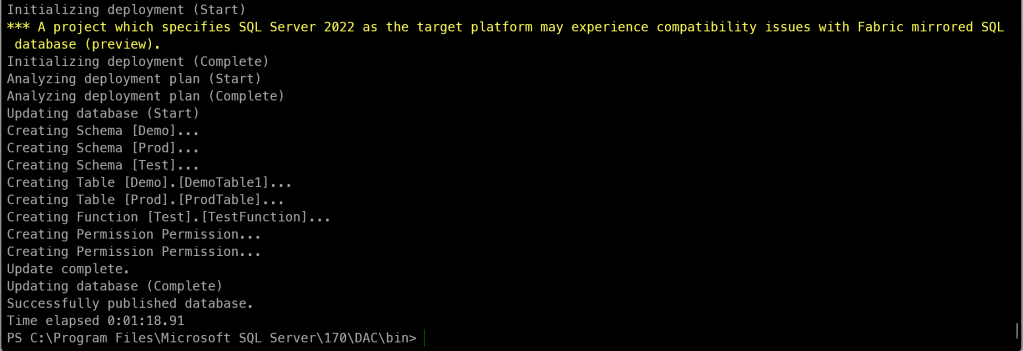
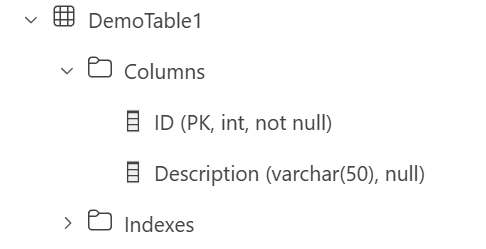
When you refresh the interface in the Fabric Portal, this should come up.
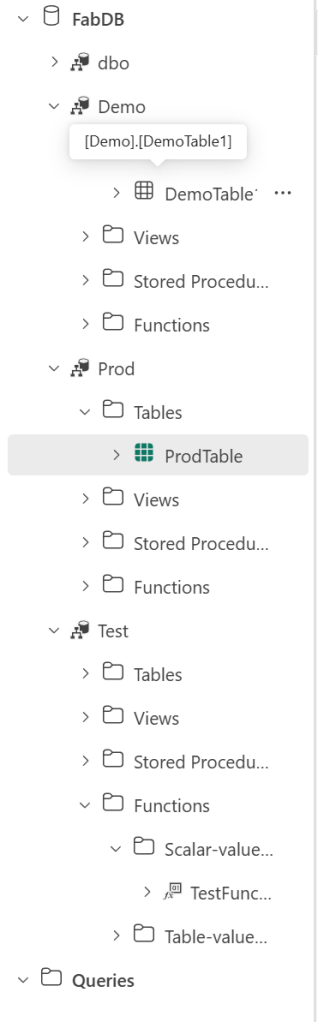
The schemas, tables, and function are correctly deployed. And yes, including the identity column and index.
Done!
Now that you have the knowledge, you can deploy your database project from either Azure DevOps or the command line to Microsoft Fabric Warehouse or SQL Database. This will make your life easier, especially if you’re working for a larger organisation or consultancy company.
Video!
Now, let’s move over to the ever-amazing Valerie and see her take on this subject!
 Reitse's blog
One thought on “DP-700 training: implement database projects”