
This three-part series of blog posts will take you along my first experiments, trials and errors using the MCP Service for SQL.
This first blog will focus on the technology behind it; part 2 will focus on Azure SQL options; and the last part will dig a bit deeper into running this on your local database. There will be a little delay between publishing these posts, more like days than weeks though.
This blog will take you through my first steps, including getting to know the Data API Builder, which now supports the MCP (Model Context Protocol). It has been in preview for some time, so it’s high time to start playing with it. The Data API Builder has been around for some time now; the MCP part is new.
To start, I followed the Microsoft Learn tutorial. Make sure you have PowerShell, DotNet 9 and the Az commandlets installed on your machine. There is quite a lot of code involved in this process. In this blog, I’ll show you most of it. If you want the full listing, go to my GitHub and get the Ps1 file. The only reason I’m not showing all the code is that it doesn’t really help you read. At the bottom of this blog, I’ll also include the links to the Microsoft Learn pages that will really help you to get started.
This also leads to a first observation: setting up MCP (and using it for that matter) is not something I’ll see C-level people do very soon. It’s not a dig at them; I’d just expect data professionals to set this up, maybe create a nice shell around it, and offer it to the organisation.
Alright, enough of the opinions, let’s get into the tech!
What is MCP (Model Context Protocol)?
In essence, it’s your USB-C hub for your data. It works with any agent and can connect to most data types. I could try to write more about it, but you can also follow this link to read more.
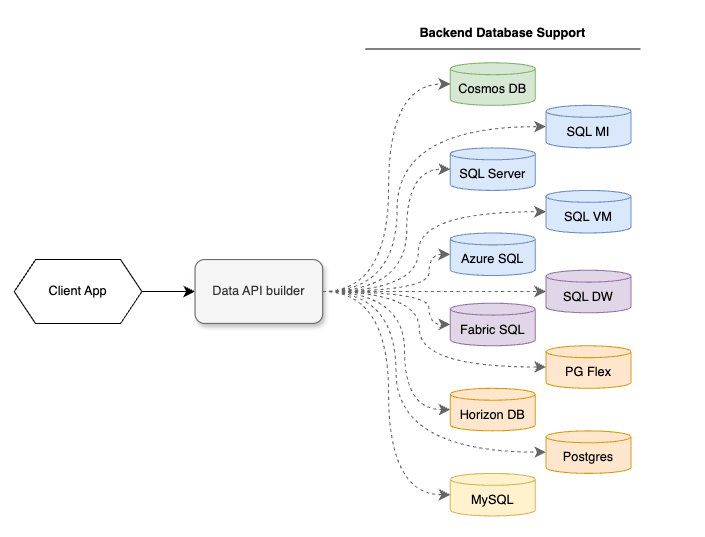
It’s more interesting to look at use cases. Because why get a tool when you don’t have a use case? For that, I feel it’s logical to look at the Data Api Builder use case. And there’s not just one, but multiple. As the name suggests, Data API Builder lets you create an API for your database. Websites like to connect to APIs, and data extraction tools do as well. It also has cross-platform capabilities, making it easier to offer a single API while using different databases in the background.
When creating an API (regardless of what it is or does), security is paramount nowadays. You really do not want your company name on the front page of the newspaper (or, for you modern people, news websites). So, think about authentication! The DAB offers four options.
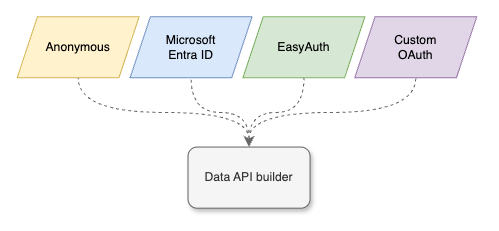
Let’s make things easy, really quick, and say that there are only three ways shown here. In my opinion, Anonymous isn’t authenticating; it’s opening your front door to everyone. In general, a bad idea, unless you want to share something with the world.
As most of my work revolves around Azure, I’d love to stick with Entra ID (or, when you run your database locally, and you’re not using Azure Arc-enabled magic, Active Directory). It’s easy to manage, proven, well-documented and just works. If you want to use EasyAuth or something you’ve created or leveraging from a different supplier, you do you. Zero judgement, as long as you’ve verified it’s secure.
And now, the Data API Builder includes the MCP as well. But why would you do that?
Why the MCP and not an agent?
There are a few differences. For one, when you use an agent (like Copilot or ChatGPT), they have a so-called cut-off point on their knowledge. The models (GPT for instance) are trained on data up to a certain date. From that point on, they don’t ‘know’ what has happened but have to infer. You can provide context manually in the shape of documentation, web-links etc. But that won’t work when you want it to return data on your database. For instance, when was the last time customer X logged in and placed an order. For this, it needs access to your database. And a model can’t do that, it needs an agent. But most agents have no support for database access. There is a reason Microsoft created the Copilot for SSMS functionality, where the agent runs inside SSMS and leverages that route to access your database. The thing is, not everyone will have access to your database. Or even have SSMS installed.
But, by connecting MCP to your agent, it suddenly has the context of the database, it can have the MCP execute queries on the database and return the result in understandable language. Or, you can leverage it as an API, having it return data to a website or even insert or update data.
A main difference between, for instance, Copilot for SSMS and the MCP is that the MCP service runs under its own account. As a user of this service, you do not need any database credentials. You will access it using the MCP account and be able to do what the MCP account is allowed to do. You do not need access to the database. To clarify, you can create a connection string for instance with a user and password. This account is being used by the MCP to access the database.
This is something to be really aware of. If the MCP can read all the data, so can the user who has access to the MCP.
Read this again.
Make sure the MCP has the permissions you want the general user to have. Or the website that uses this. Or whatever external toolset will connect to your MCP. You can use it not only to read data, but you can also leverage all Create, Read, Update and Delete (CRUD) operations. Of course, make sure you have the permissions set correctly, as you do not want a bad actor to ‘clean your database’.
Conversely, when you use an agent like Copilot in SSMS, it can only do what your account has been permitted to do on the database. You have to log in; your permissions are shared with that agent, and from that point on, the agent can do what you can do.
So, please make a good note of these things; it is your data you’re going to expose. And when you’re not sure, or you want to try it (like me), take a harmless database, restore it outside your company’s network and see how you have to configure it to meet your needs, without the risk of data leaks.
Now, enough of scaring you, let’s get started!
Get Data API Builder
The first step is to get the Data API Builder on your machine. It’s a simple command, but for some reason Microsoft Learn only shows it in Bash; here’s the PowerShell command.
dotnet tool install --global Microsoft.DataApiBuilder --prerelease
For this specific exercise, you’ll need the pre-release version, as the MCP part is still in preview. It’s up to you to decide what data you want to feed into this resource.
This command looks quite simple, but it has some requirements. For instance, I needed not only Dotnet 9, but also some Dotnet 8 SDK’s. I’ve found that it works better with PowerShell 7. When you go with the Azure container apps route, you’ll need the Azure command-line toolset as well.
When you work on your company’s laptop, you might run into errors around folder access, or even the ability to install the mentioned SDK’s.
When you’re going to deploy the Data Api Builder in Azure, you have to make sure you have the correct permissions to do that.
The steps you’ll be going through (and that will be explained in more detail in the next blog post) are:
- Create a config file
- Add the tables and views you want to expose
- Add the columns available in the tables
(the documentation shows you it’s optional, but in my experience, it doesn’t work without column descriptions)if your table lacks a primary key. Add this as a field in the config file - Create a local Docker file (just a PowerShell command, no Docker necessary)
- Push the image to your Azure tenant/subscription/workspace
- Create the container app environment
- Create the container app
- Connect a model to your MCP in Microsoft Foundry
This may seem like a lot of work. And when you walk through them for the first time, they are. I wasn’t really surprised it took that much time, because I had to find things out, misread steps, and ran into some issues with my work laptop. And I was trying to see what was happening under the covers too. Which was quite hard as my knowledge of container apps is minimal.
Time investment
When I’m taking all the steps together, it took me around 3 hours to get it all going. Apart from the local machine issues, most of the time was spent creating the table and column definitions. This is something you need to factor in when creating a solution like this. If you have a document describing your database or its metadata, I can see ways to automate this process. At least to save you all the time lost by typing all the things.
And yes, more on this in the detailed posts on Azure SQL and SQL Server.
Cost
There are several cost drivers in this solution.
- The Azure SQL Database. It’s already there, but, depending on the number of queries, may need an upgrade. From what I’ve seen, the MCP seems quite efficient at preparing queries before they’re sent to the database. Remember that to get data, this MCP reverts to paging quickly, meaning if you have to query a large number of rows, there will be multiple queries.
- The hours you’re investing. It’s up to you how to calculate that.
- AI Foundry: manages your model(s) and endpoints. It’s the portal where all the moving parts come together. To get a good grip on how this works, I’d suggest you dig into the documentation added below.
- Azure OpenAI: hosts your model for a few cents per set of tokens. When this process proves to be successful in your organisation, the costs may add up.
- Azure Container Apps: also next to free, depending on your usage
Running this locally, there are hardly any costs involved. Running the Data API Builder on your machine is free, as is Visual Studio Code. Your database is already running, and I’m assuming the license has been paid for. The one thing you need is Github Copilot. This may cost some money, but when you have a 4 euro a month subscription, you get a free Github Copilot. It is limited in how much tokens you can use, but may be good enough for you to get going. As things progress, you may need more and find the best fit for your use case.
Remember, the SQL MCP service is in preview; costs may apply as you use it more intensively. But still, it feels like a very cheap and interesting solution!
Concluding
The main points:
- Use DAB MCP if you do not want users, websites or data extractors to have direct access to your database
- Think hard about permissions, implement them, and review regularly
- Keep an eye on costs and usage in the Foundry portal
- Train users in prompting
- Upgrade your knowledge on container apps (when running in Azure)
But also, give it a go to see if it fits your organisation.
Links
Dotnet SDK 8
Install Azure CLI
Install Data API Builder
DAB Container Apps
DAB Microsoft Foundry
DAB in Visual Studio Code
Microsoft Foundy
 Reitse's blog
2 thoughts on “SQL, Azure SQL and MCP, the Introduction”