
In the previous blog posts, I’ve written about installing MCP and how it works, followed by how to use it with an Azure SQL Database through an Azure Container Instance and Microsoft Foundry. But, you can also use your favourite local database (SQL Server ;)) and Visual Studio Code. The reason Visual Studio Code is my toolset is that it has a whole slew of plug-ins and can leverage GitHub Copilot.
At the end of this post, I’ll show some code to get you started with PowerShell. Other languages are available.
DAB Local
You can run your MCP service locally by using the DAB toolset. You have to create your dab-config file with an environment file that connects to your database.
The DAB start command will make your service available. From Visual Studio Code, you can start the MCP service (that will auto-shut down after 2 hours), and you can get to work. You do this by pressing Ctrl-Shift-P, finding the MCP List, and clicking the one you created. Next, select this MCP, then click Start. You’ll see a message that the connection has succeeded, and then you can move on with your quest.
When creating the config file, I found that using the AdventureWorks2019 database has some incompatible data types. When you create a full table definition (where you describe all the fields in the entity) and choose to exclude the fields with unsupported data types, the following error will still come up.

When I googled, I found this link where a poster shares that creating a view works. So, I removed the table from the definition and replaced it with a view, casting the unsupported data type to a supported one. And then, it all magically works. Creating a view is a valid workaround for these cases.
The list of unsupported data types isn’t very long, and they are somewhat exotic. At least in my line of work, types like hierarchyid aren’t the ones I run into that often.
This has been identified as a bug and will hopefully be fixed in the near future.
When I start running things in VS Code with GitHub Copilot, and the agent starts executing statements, you have to allow them. It does get a bit boring to keep allowing it to do stuff, but it works. You can allow the session’s statements, which helps with new requests.
What it’s doing
The fun part now, unlike the Azure container, is that you can see what it’s doing in your terminal.
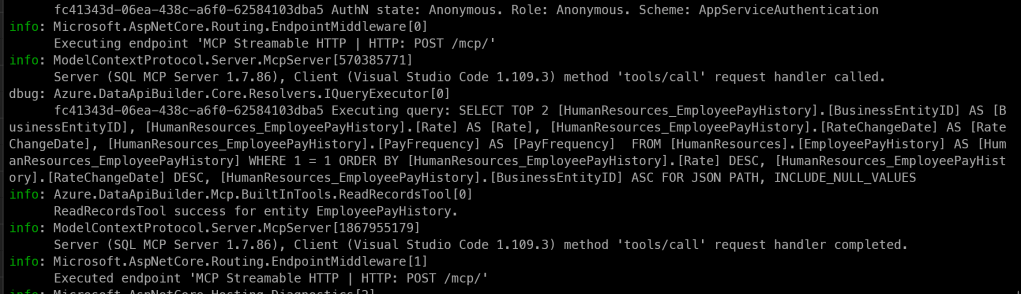
In this screenshot, you can see one of the queries the MCP executed against the database to generate an overview of salaries by month. It returned a table that I wanted to check, because I found a few of these queries:
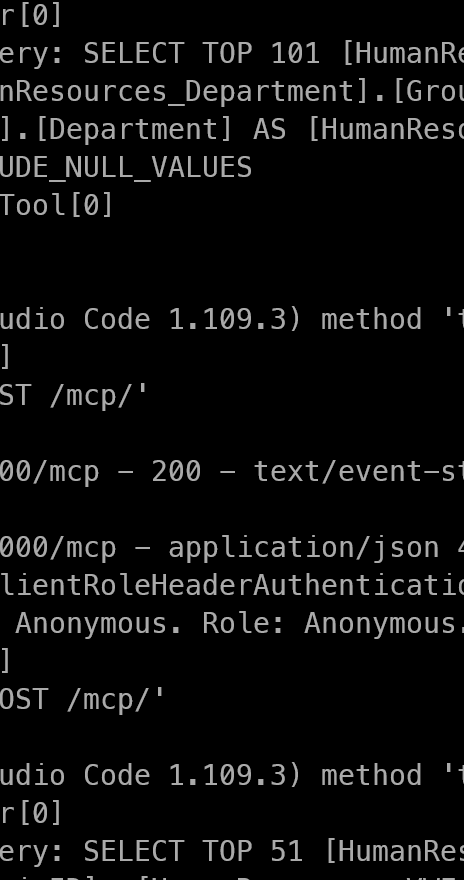
As you can see, there is a SELECT TOP 101 and, at the bottom, a SELECT TOP 51. I know the database, and I know that there are more records than 101. Maybe not many more, but if I’m asking for a full overview, I want the MCP to read all the records, not a subset.
The numbers, I’ve learned, are not arbitrary, but something you can configure in the runtime.pagination.default-page-size in dab-config.json. MCP enforces pagination with a default of 100. The extra record is to check if there are more records to be found. If so, it adds a next link so it can move to the next page. An agent can choose a different page size, hence the 51 (actually 50, but MCP added one to check for next pages), but I’ve also seen 1001.
If your use case demands large result sets, increase the default page size in the config, and make sure your agent has the instruction to work through all the pages using the nextLink/$after continuation tokens. Just make sure it doesn’t assume that one page has all the information it needs.
Fun use case
One of the more fun things you can do in Visual Studio Code is create a mermaid diagram. I’ve asked it to create a mermaid diagram of the organisation.
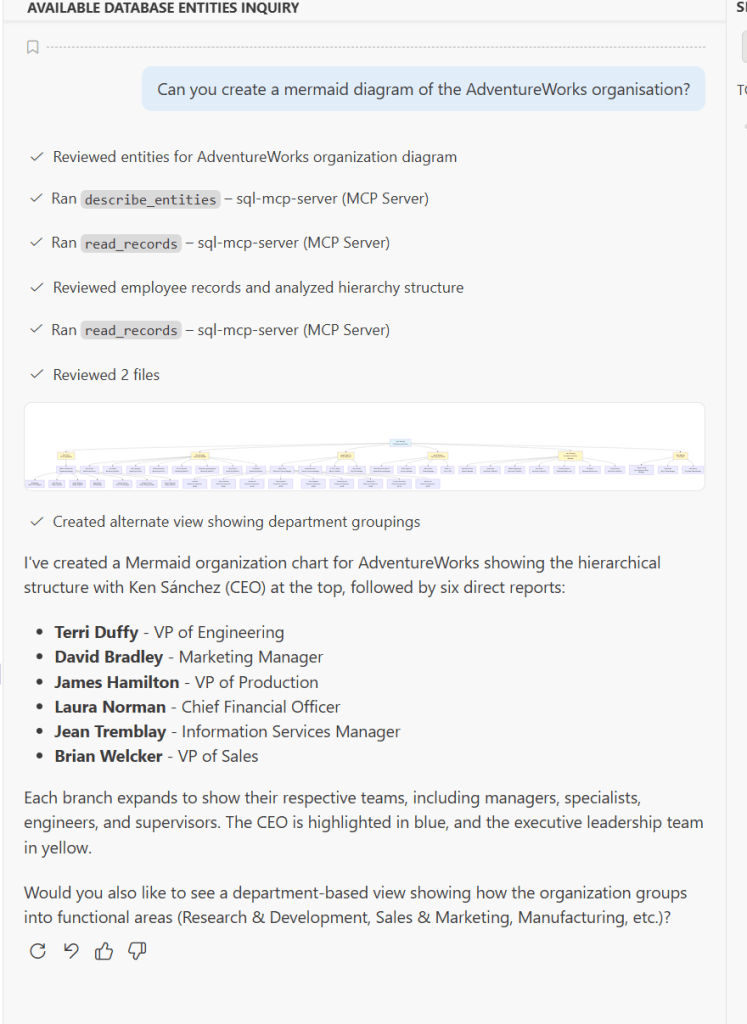
To do this, it went through a few steps.
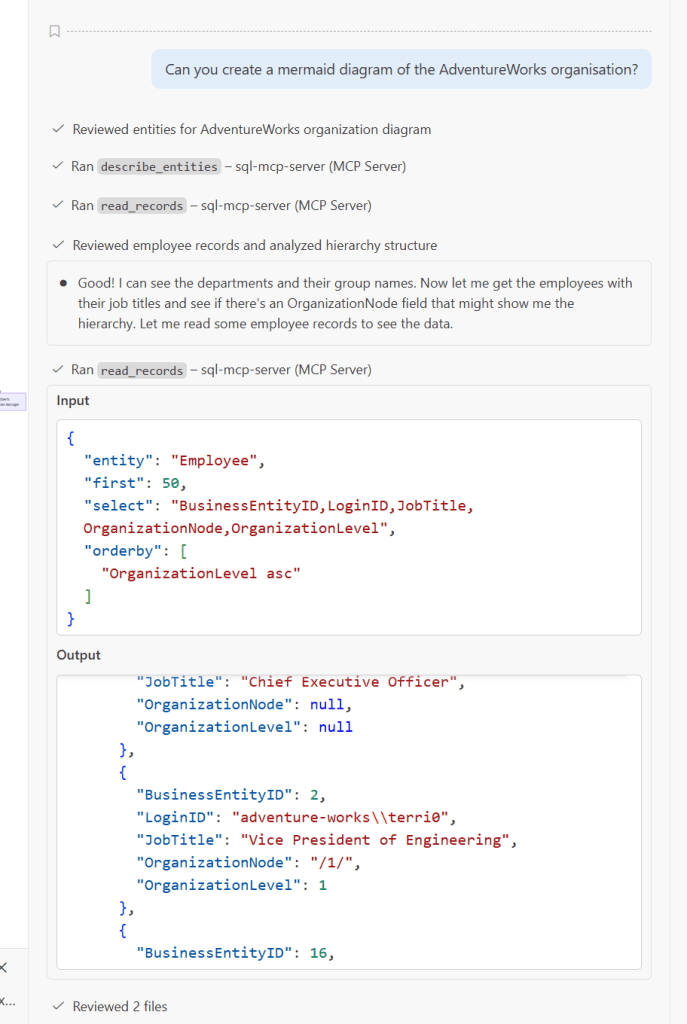
Now, the organisation node contained the hierarchyid, a datatype not supported by DAB. But I’ve exposed it in the view by converting it to the varchar data type. Apparently, that was enough to generate the layers in the mermaid diagram.
Giving it a run for its tokens
Another fun question to ask is about the people who have bought the most articles.
When it ran, I could see different files being created:
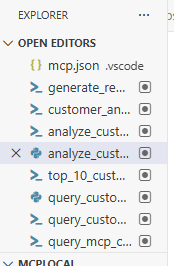
What surprised me was that VS Code, or the GitHub Copilot Agent used, didn’t connect to the MCP directly but instead wrote PowerShell scripts. And it kept writing code, second-guessing itself, rewriting code, trying it out, fixing errors. It was almost like I was looking at myself writing code and finding solutions for issues. Just a bit faster and without the need to get a coffee.
As an example, it created this script:
# Query actual customer data using correct MCP protocol

$baseUrl = "http://localhost:5000/mcp"
$headers = @{
    "Content-Type" = "application/json"
    "Accept" = "application/json, text/event-stream"
}

# The correct method should be tools/read_records or similar
$body = @{
    jsonrpc = "2.0"
    id = "1"
    method = "tools/call"
    params = @{
        name = "mcp_sql-mcp-serve_read_records"
        arguments = @{
            entity = "SalesOrderHeader"
            first = 100
            orderby = @("TotalDue desc")
            select = @("CustomerID", "TotalDue")
        }
    }
} | ConvertTo-Json -Depth 10

Write-Host "Querying database for top customers..." -ForegroundColor Cyan

try {
    $response = Invoke-WebRequest -Uri $baseUrl -Method Post -Body $body -Headers $headers -ContentType "application/json" -UseBasicParsing

    if ($response.Content) {
        # Parse Server-Sent Events format
        $lines = $response.Content -split "`n" | Where-Object { $_ -match "^data:" }
        foreach ($line in $lines) {
            $jsonData = $line -replace "^data:\s*", ""
            if ($jsonData) {
                try {
                    $parsed = $jsonData | ConvertFrom-Json
                    if ($parsed.result -and $parsed.result.value) {
                        Write-Host "Retrieved $($parsed.result.value.Count) orders" -ForegroundColor Green

                        # Calculate customer totals
                        $customerTotals = @{}
                        $parsed.result.value | ForEach-Object {
                            if (-not $customerTotals.ContainsKey($_.CustomerID)) {
                                $customerTotals[$_.CustomerID] = 0
                            }
                            $customerTotals[$_.CustomerID] += [decimal]$_.TotalDue
                        }

                        Write-Host ""
                        Write-Host "TOP 10 MOST ACTIVE CUSTOMERS BY SALES" -ForegroundColor Cyan
                        Write-Host ("=" * 60)
                        Write-Host ""

                        $rank = 1
                        $customerTotals.GetEnumerator() |
                            Sort-Object Value -Descending |
                            Select-Object -First 10 |
                            ForEach-Object {
                                $custId = $_.Name
                                $total = [math]::Round($_.Value, 2)
                                Write-Host "$rank. Customer ID: $custId"
                                Write-Host "   Total Sales: `$$total USD"
                                Write-Host ""
                                $rank++
                            }

                        # Export to file
                        $top10 = $customerTotals.GetEnumerator() |
                            Sort-Object Value -Descending |
                            Select-Object -First 10 |
                            ForEach-Object {
                                [PSCustomObject]@{
                                    Rank = 0
                                    CustomerID = $_.Name
                                    TotalSales = [math]::Round($_.Value, 2)
                                }
                            }

                        $top10 | Export-Csv -Path 'C:\temp\MCPLocal\top_10_customers_real.csv' -NoTypeInformation
                        Write-Host "Data exported to: top_10_customers_real.csv" -ForegroundColor Yellow
                    }
                } catch {
                    # Skip non-JSON lines
                }
            }
        }
    }
} catch {
    Write-Host "Error: $($_.Exception.Message)" -ForegroundColor Red
}
As you can see, it is using the REST endpoint via Invoke-WebRequest. If you see different messages around not being able to connect, check if your local firewall allows traffic on port 5000. In my case, it was blocked, and I had to add a rule to open this port.
As always, check the output of agents, MCP services and models. Always verify before placing any trust in a model. Maybe this is an old man shouting at a cloud, but I like to be sure before I share things with customers, management or support.
When I checked the results by writing my own query, they were wrong. They were wrong because the agent (GitHub Copilot, using Claude in this case) decided that checking the first 100 rows would suffice. This has nothing to do with MCP, everything to do with the way I’m using the MCP. When I told the agent to review its work, it went off and did it (of course, telling me I’m absolutely right). And went on working for ages.
However, I did notice a message from the MCP server that it has a limitation:
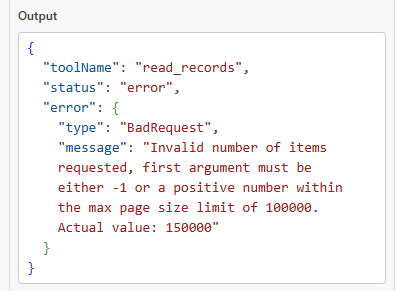
As mentioned before, an Agent can tell the MCP to retrieve a large page size. The default is 100, and now we know the max size is 100.000 records for one page. Make sure your agent has this information so it can build a good call to the MCP.
Logging
When you use Visual Studio Code with the GitHub Copilot agent, your prompts and responses will be saved in the chat editor. This history is tied to the Git workspace you’re connected to. My history is cleaned up every now and then, which may very well be a company policy running somewhere. But you can export the history to save it for later analysis.
Use Ctrl-Shift-P to open the command palette and look for chat: export chat

This will generate and let you save a JSON file containing all the chat history, including self-conversations.
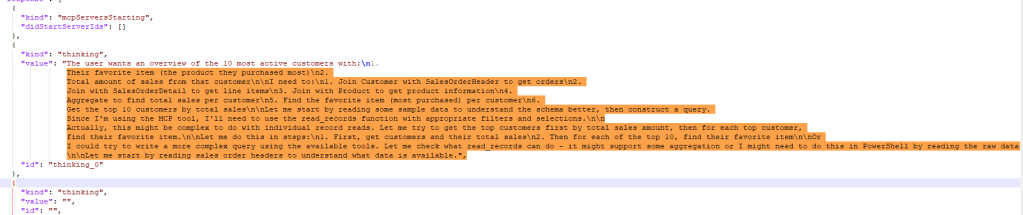
If you like to get some insights into how an Agent works, thinks and acts, these responses are great! Different models and versions will generate different outputs, but I just wanted to show you what can happen.
I’m running the DAB from my Windows terminal window. If you want, you can save all the output yourself or run the DAB command followed by > DAB-Output.txt. This should help save the output to a file for later review. Be warned though, the service is very chatty and your file may grow fast.
DAB lets you tame this through the runtime.telemetry.log-level section in dab-config.json, where you can set log levels per .NET namespace. For example, setting "default" to "Warning" will silence the bulk of informational noise, while you can selectively keep "Debug" or "Information" on specific namespaces like "Azure.DataApiBuilder.Core.Resolvers" if you still want to see the generated SQL queries. In development mode DAB defaults to Debug (which is why it’s so verbose), but switching to "Warning" or "Error" for namespaces you don’t care about will dramatically reduce output.
Write your own code: PowerShell
What’s more fun than writing your own code to talk to your MCP? As you may have figured out, I like PowerShell. It’s great for automating tasks and tinkering with REST services.
It took me some time, but here’s a starting point when using plain PowerShell on your MCP. There wasn’t much documentation my search could find, but with a little trial and error and a peek at the earlier generated code, I got the basics working.
Session ID
First, you need to create a session ID. You only have to do this once; when it’s created, you can reuse it in your session.
$uri = "http://localhost:5000/mcp"

# The session-create request (JSON-RPC)
$createBody = @{
    jsonrpc = "2.0"
    id      = 1
    method  = "session.create"
    params  = @{ }
} | ConvertTo-Json -Depth 10

$createResponse = Invoke-RestMethod `
    -Uri $uri `
    -Method Post `
    -Body $createBody `
    -ContentType "application/json" `
    -Headers @{
        Accept = "application/json, text/event-stream"
    }

$sessionId = $createResponse.result.sessionId

"Created MCP session: $sessionId"
Finding the possible calls
Next, a smart move is to see which calls are available.
$body = @{
    jsonrpc = "2.0"
    id      = 2
    method  = "tools/list"
    params  = @{ message = "Hello again" }
} | ConvertTo-Json -Depth 10

$response = Invoke-RestMethod `
    -Uri $uri `
    -Method Post `
    -Body $body `
    -ContentType "application/json" `
    -Headers @{
        Accept = "application/json, text/event-stream"
        "Mcp-Session-Id" = $sessionId
    }

$response
This code returns a JSON file listing all the calls you can make.
Describing the entities
Now, let’s try one out, describing all the entities. Again, the output will be in JSON format.
$uri = "http://localhost:5000/mcp"          # same endpoint you used for session.create
# assumes you already did session.create and have $sessionId

$body = @{
  jsonrpc = "2.0"
  id      = 20
  method  = "tools/call"                     # if this 404s, try "tools/run"
  params  = @{
    name      = "describe_entities"
    arguments = @{
      nameOnly = $true                       # <-- names + short summaries only
      # Do NOT include "entities" when nameOnly=true (per tool contract)
    }
  }
} | ConvertTo-Json -Depth 20

$response = Invoke-RestMethod -Uri $uri -Method Post -Body $body -ContentType "application/json" -Headers @{
  Accept = "application/json, text/event-stream"
  "Mcp-Session-Id" = $sessionId
}

$response | ConvertTo-Json -Depth 20
And now, on your screen, you’ll see a JSON file with all the entities.

Based on these results, you can move on to doing what you want. The calls are very, very fast. The trick will be to craft the best calls for your use case. And that, dear reader, is all up to you.
Thanks for reading!
 Reitse's blog