

My previous post on load testing Azure SQL covered the General Purpose Edition, let’s move it up to the Business Critical Tier
The Business Critical tier comes in two flavours: General and confidential compute. For my testing, I’ve stuck with the General SKU. I haven’t seen confidential compute with customers, and it has very specific use cases: you want to protect your threads on the processor itself. A lot happens behind the scenes to make that work, and it costs more. There are scenarios where this makes sense, but not in my work. For example, using 8 cores for regular business-critical workloads costs about 3,650 euros each month. Confidential Compute will cost about 6,000 euros each month. So yeah, you need a use case for that.
One thing to keep in mind: Microsoft has a lot going on with its roadmap. If you want to see what’s happening, follow this link: https://aka.ms/sqlroadmap
To make sure you understand the key terms, let me start by explaining them.
Terminology
Tier: the type of database. In Azure, you can choose Standard, Premium, General Purpose, Hyperscale, or Business Critical.
SKU: Stock Keeping Unit. In databases, it’s the number of DTUs or Cores you assign to the database. Database size (GB storage) isn’t part of the SKU, but you can set it separately.
These are the most important terms that keep coming back; let’s move on to the files I’ve used.
The files
I’ve been using a large set of files, and large files within that set. In total, around 500 GB of plain text data. This posed the first problem for the Standard Edition, because the S2 edition has a hard limit on how much data it can hold. This means that the results for this one are somewhat limited. All the other databases I tested could handle the full dataset.
If you want to learn more about the setup, click here!
Just loading files into the database doesn’t help; I need to measure things.
The measurements
The testing consists of two measurements. The first part is timing: how long it takes to load all the data into the database. Because I know the data size, I can get a good measure of that database Tier and SKU’s intake capacity. The second measurement is wait statistics. If you want to know what’s holding up your database, these are your go-to metrics. SQL Server does an excellent job telling you what it’s waiting for.
Another result of these measurements is cost. In the table, I’ll show the compute cost. You also need to pay for storage. I’ll add those costs where possible. To calculate the cost, I chose the West Europe region. If you choose another region, prices will be different.
Now, let’s get into the numbers!
The results.
I’ll start with the Customers files: 9 GB of data.
| Tier-SKU | Duration | MB/s | Cost (Euro) |
| BC Gen 5 4 Cores | 0:05 | 31,61 | 0,19 |
| BC Gen 5 8 Cores | 0:03 | 52,68 | 0,11 |
| BC Gen 5 16 Cores | 0:02 | 79,02 | 0,15 |
This is what I like to see: more cores, more speed. And you can even see the speeds jump up, though not completely in sync with the number of cores. But the process speeds up nicely from 4 to 8 to 16. 8 cores have the best price/performance balance in this scenario.
Moving on to the PartSupp files, 46 GB of data.
| Tier-SKU | Duration | MB/s | Cost (Euro) |
| BC Gen 5 4 Cores | 0:21 | 37,47 | 0,39 |
| BC Gen 5 8 Cores | 0:12 | 65,56 | 0,47 |
| BC Gen 5 16 Cores | 0:11 | 71,52 | 0,78 |
The pattern from the Customers file repeats in PartSupp: more cores, more speed. Funny thing is, the 4 and 8 cores are actually increasing speed, the 16 cores database is losing some of its speed.
Let’s move to the big files!
| Tier-SKU | Duration | MB/s | Cost (Euro) |
| BC Gen 5 4 Cores | 2:14 | 38,59 | 2,65 |
| BC Gen 5 8 Cores | 1:11 | 72,83 | 2,59 |
| BC Gen 5 16 Cores | 1:06 | 78,35 | 5,08 |
Now, with much more data, you can see that the 4-core database isn’t much faster than in the previous test; it’s hit its limit. Scaling up from 4 to 8 almost doubles the speed while also getting cheaper. Going to 16 cores has little effect on speed, but costs double.
Looking at these tables, the 8-core Business Critical is the clear winner for me. It just has the best price/preformance balance. But again, this is my test scenario! Make sure you do your own comparisons before deciding.
Coming back to the storage part. Just like The general-purpose tier has no free storage like the Premium Tier, Business Critical also charges you for storage. If you want to store the Customers, you pay about 2,5 euros per month. The PartSupp will set you back 12, and the LineItem will cost about 80 euros per month. For comparison, regular Azure Storage costs around 7 euros. So yes, Business Critical SQL Storage is expensive.
As promised, I also recorded the wait statistics. Here are the top waits for both SKUs.
BC 4 Cores Waits
| Wait Type | Wait Description | Percentage |
|---|---|---|
| VDI_CLIENT_OTHER | Either spinning up a new replica database or something triggered a database copy | 37,41 |
| PREEMPTIVE_XE_DISPATCHER | A SQL worker is waiting in a preemptive Extended Events dispatcher operation. | 32,26 |
| XE_LIVE_TARGET_TVF | Waiting while reading an Extended Events live target through its table-valued function. | 9,34 |
| HADR_FABRIC_CALLBACK | Waiting for an Azure SQL high-availability fabric callback. | 9,26 |
| PVS_PREALLOCATE | Waiting for preallocation in the persistent version store. | 8,19 |
| PAGEIOLATCH_SH | Waiting for a data page to be read from storage into memory (shared latch). | 1,92 |
BC 8 Cores Waits
| Wait Type | Wait Description | Percentage |
|---|---|---|
| PAGELATCH_EX | Waiting for a page latch in memory (exclusive); this is not a physical disk read. | 37,06 |
| VDI_CLIENT_OTHER | Either spinning up a new replica database or something triggered a database copy | 37,05 |
| PREEMPTIVE_XE_DISPATCHER | A SQL worker is waiting in a preemptive Extended Events dispatcher operation. | 16,05 |
| XE_LIVE_TARGET_TVF | Waiting while reading an Extended Events live target through its table-valued function. | 5,14 |
| IMPPROV_IOWAIT | SQL Server waiting on the Bulk Load to finish | 2,02 |
BC 16 Cores Waits
| Wait Type | Wait Description | Percentage |
|---|---|---|
| PREEMPTIVE_OS_GETQUEUEDCOMPLETIONSTATUS | SQL is letting the OS check on asynchronous IO operations | 30,16 |
| PREEMPTIVE_XE_DISPATCHER | A SQL worker is waiting in a preemptive Extended Events dispatcher operation. | 21,37 |
| PAGELATCH_EX | Waiting for a page latch in memory (exclusive); this is not a physical disk read. | 14,98 |
| HADR_FABRIC_CALLBACK | Waiting for an Azure SQL high-availability fabric callback. | 7,67 |
| RBIO_COMM_RETRY | Resilient Buffer IO; The database is retrying IO operations as somewhere something failed | 7,57 |
| XE_LIVE_TARGET_TVF | Waiting while reading an Extended Events live target through its table-valued function. | 7,57 |
| SQP_STATS_REPORTING | Unknown | 7,54 |
Compared to the earlier tiers I’ve tested, there are interesting differences to be seen. The VDI client is coming back with high numbers now, creating the replica database apparently takes up a lot of wait time in the 4 and 8 core databases. Way less when you’re running on 16 cores. The high availability is prominent with 4 and 16 cores, but less with the 8 cores, where there’s a clear message on the underlying IO (disk) structure. Though the wait types are different, the 16 core database is also spending quite some time waiting on disk.
And this touches on the main issue people tell me when they share experiences with databases in Azure; the IO is slow. Now, I’m not going to defend Microsoft on this; they’re perfectly capable doing that themselves. But think about your local machine running a few databases with a dedicated network connection and a disk, or set of disks, reserved for that database. That will run fast. But a large datacenter is built differently, and will have a much higher load on both network and all the disk arrays. It’s not completely fair to compare both setups, though I’d love to see Microsoft close the gap between on-premises and cloud.
As always, if you want to know more about wait stats, my go-to explanation is the Paul Randall website.
Totals
So, adding it all up, the 4 cores set me back 3,24, 8 cores cost 3,18 and 16 6,02. On the other hand, the 4 cores took 2 hours and 40 minutes, 8 cores used 1 hour and 26 minutes while the 16 cores were done after 1 hours and 19 minutes. So more money leads to better performance. But going from 8 to 16 doesn’t offer that much extra. The query cost is lower than the General Purpose, which may seem like an immediate use case for Business Critical. But hold that thought untill you’ve read about the storage costs.
Remember, these are my own tests; run your own when comparing to ensure the simulated workload matches yours. For instance, these tests didn’t include data processing. That will come later.
Comparison with Standard, Premium, and General Purpose
Let’s round this one up with a comparison between Standard, Premium and General Purpose.
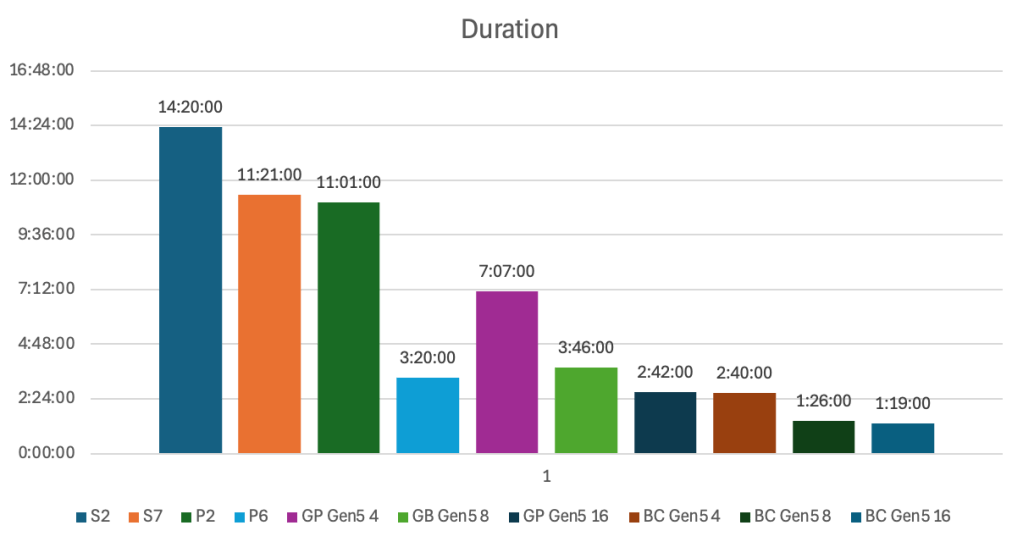
It’s clear that moving to Business Critical will massively improve the runtime of the data ingestion. The cheapest Business Critical is significantly quicker than any of the previous ones I’ve tested.
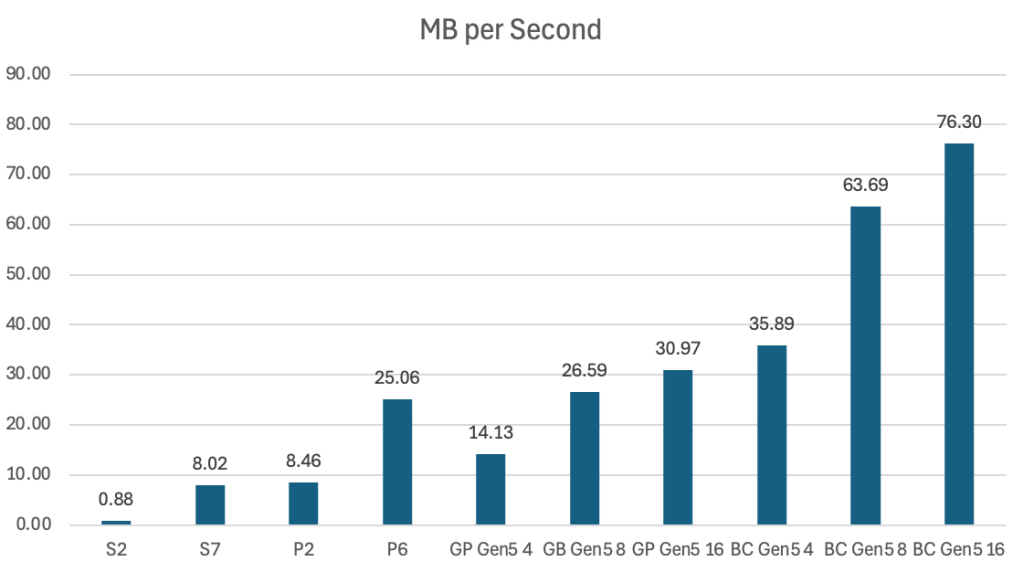
It won’t come as a big surprise that the speed is also a lot better. It’s faster across the board. But, that speed does come at a price.
Let’s look at the cost. I’ve included the storage cost, since it’s something to consider as well. I’ve added the database’s monthly cost and the primary storage. With different tiers, you have several extra options to choose from, each adding to your database cost. To keep me sane, I’ve opted not to include those.
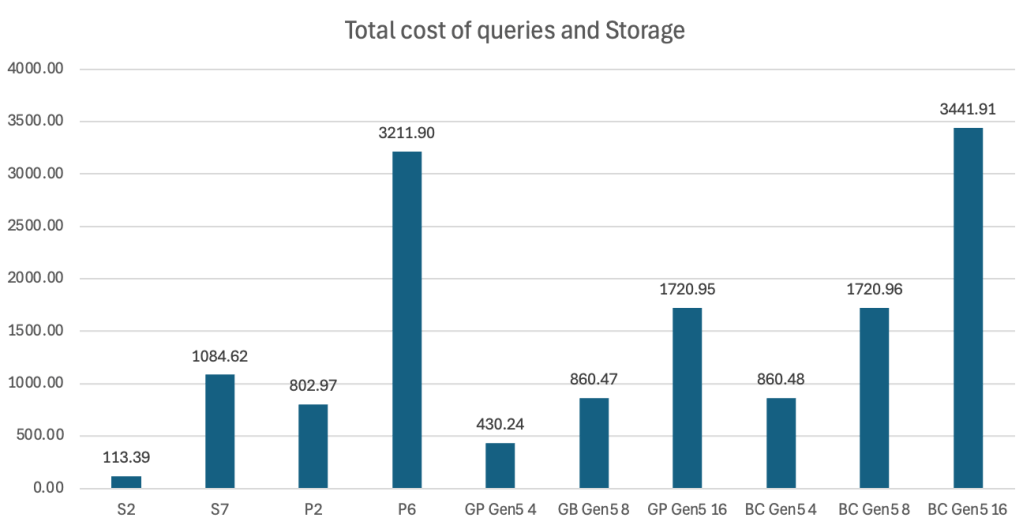
You can see that the prices for Business Critical are quite steep. Doubling the number of cores equals doubling the cost of the database. Depending on your workload, and if you can apply reservations, you could think about scaling the database up and down. This would help you save money when the database is under a lighter load, and adding performance when the stress is higher. A strategy that’s appearing more with other dataproducts as well (like Fabric).
In the end, it all comes down to how much you’re willing to pay for performance. And you’ll run a lot more queries than I do to test the database.
Next up in this series: the Hyperscale database!

