

A three-line title that promises a lot!
So let’s try to simplify this a bit. In essence, this blog will cover how to make OneLake data quicker in an Eventhouse using shortcuts.
The process, at a high level, is quite simple. In your eventhouse, create a shortcut to a Lakehouse, for instance. Enable query acceleration, and you’re done. If you’re not using an Eventhouse, you can stay here just to read more, or take back some of your time to learn something else.
Eventhouse, database and tables
Assuming you have your Eventhouse in place with tables that are populated through some sort of Eventstream, you can run into the situation that you want to enrich that data from a Lakehouse. One option can be to ingest the real-time data into a Lakehouse, or work the other way around. In either case, you’re unnecessarily duplicating data. Not only an anti-pattern in itself, but also a waste of storage and compute.
Creating a shortcut
By creating a shortcut, you’re giving Eventhouse access to the table in the Lakehouse without physically moving the data. I like this kind of efficiency.
In my Eventhouse, I can easily create a shortcut:
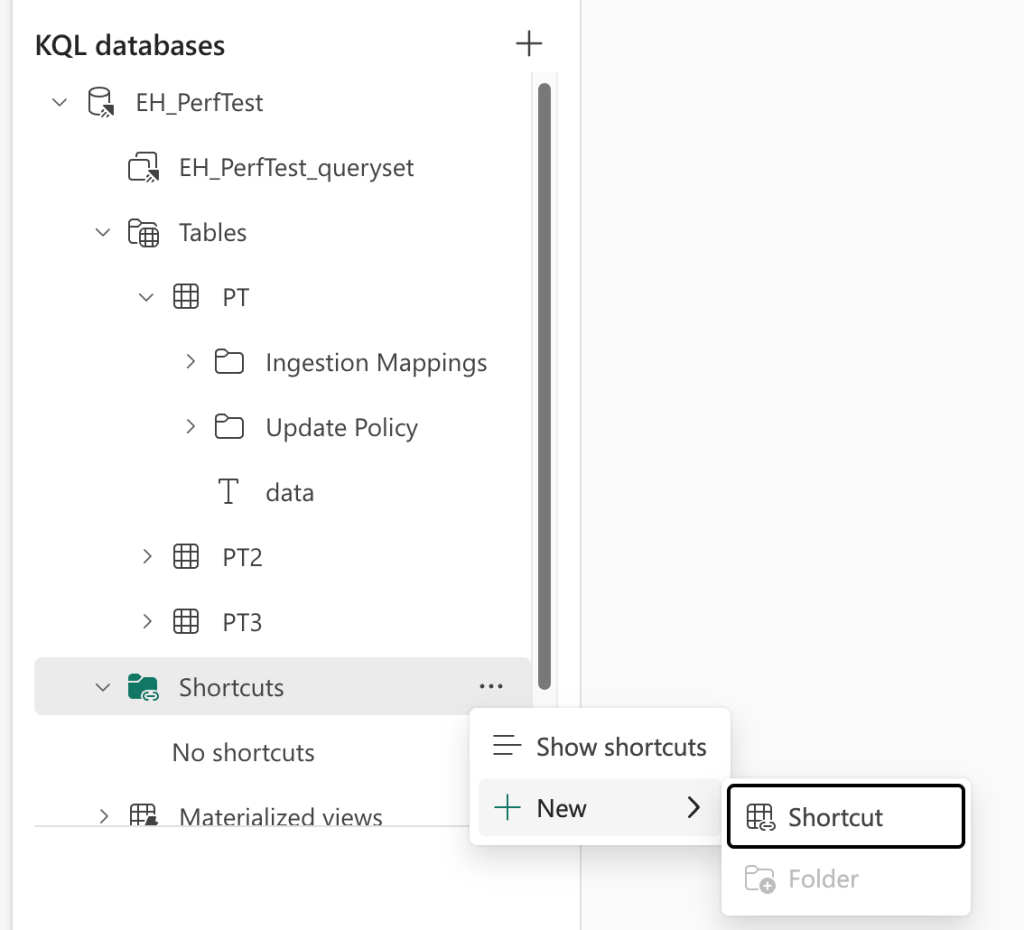
By clicking on the three dots next to the Shortcuts option in the KQL database, the context menu opens, and I can create a new Shortcut.
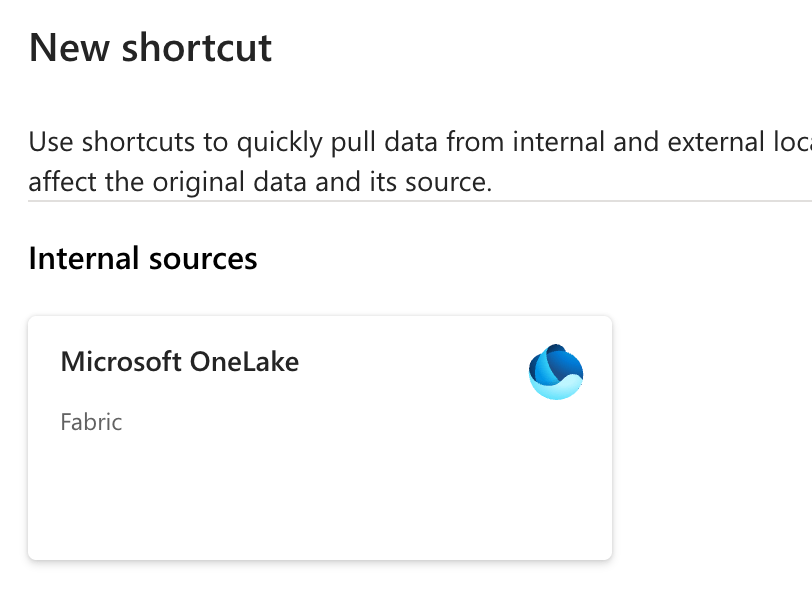
When you open this, you might see a number of external sources, as well as the Microsoft OneLake option. This is what we’re after, as we need data from a Lakehouse.
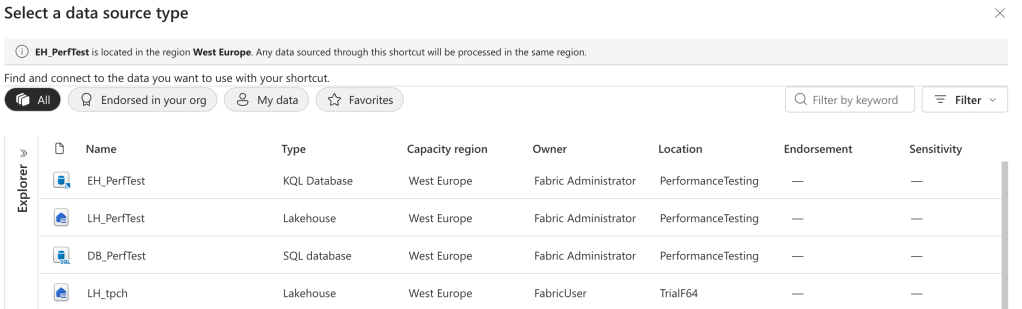
In the next view, you will see an overview of the resources you have access to. If you do not have access to a specific Lakehouse, you will not see it in this list. In this case, I’m going to select the LH_PerfTest Lakehouse.
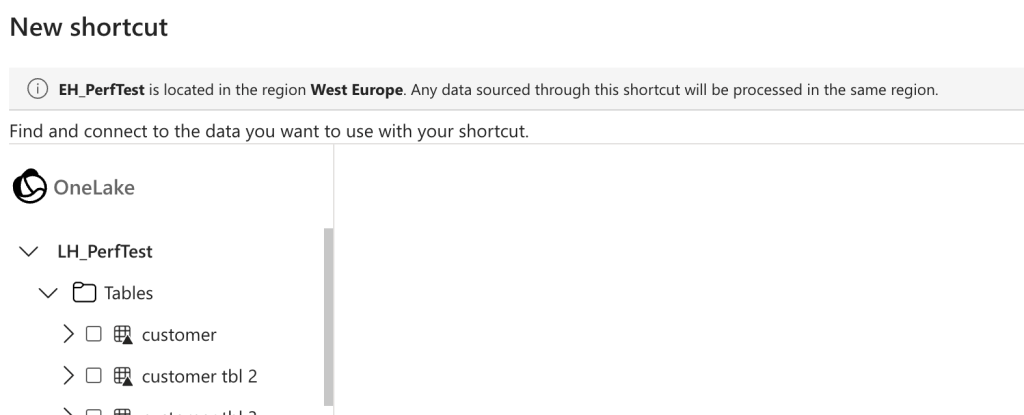
As you can see, the interface closely resembles that of the Lakehouse itself. You can open the folder structure and find the table you’re looking for. When you select a table, nothing happens other than the Next button at the bottom right of the screen turns green. You do not get to see data here.
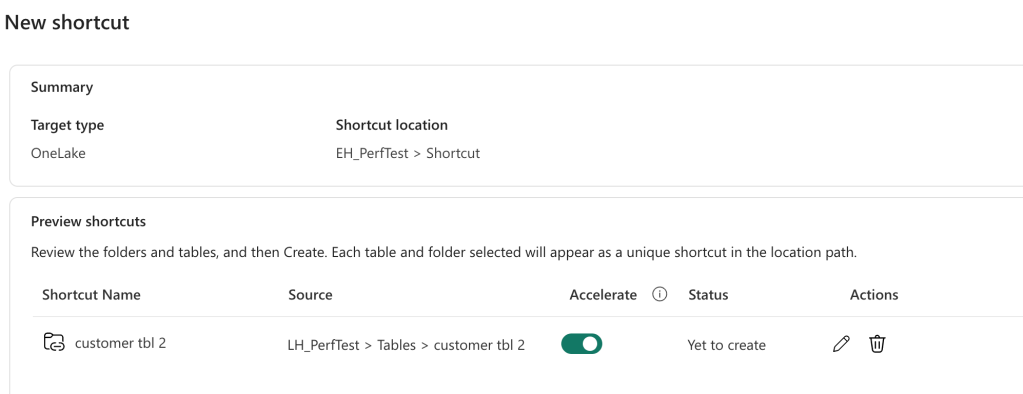
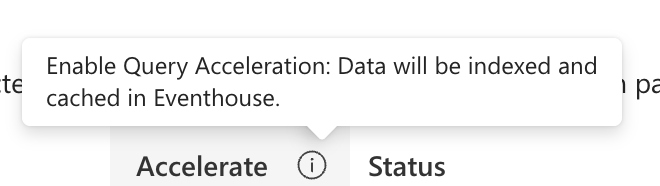
The next screen will show an overview of what’s going to happen: a new shortcut with, at the time of writing, the Accelerate option enabled by default. When you hover over the information icon, this shows up.
When you click Create, it will take a few seconds (with Accelerate off) to create the shortcut.
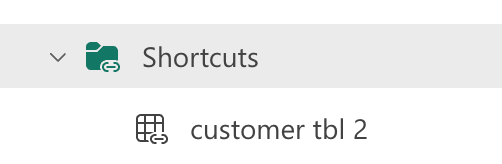
Now we have the data available in our Eventhouse, ready for querying, joining, and enriching.
Accelerate!
Now, why would you want to use this acceleration?
Good question! Well, as you could see in the screenshot earlier, when you use the acceleration, data will be cached in the Eventhouse. This means that queries will run faster. Which is good. But it is not free.
When you read through the documentation, you can see that it will require some compute and storage resources. It might not be the most efficient idea to shortcut huge, fast-changing tables with this acceleration.
Suppose you created the table without acceleration, and you want to enable it.
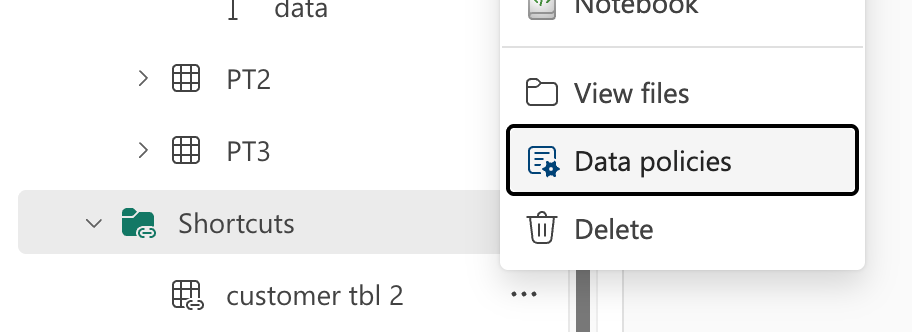
Select the table you’ve created as a shortcut, click on the three dots and select Data policies. You’d expect a whole slew of options? No, just one:
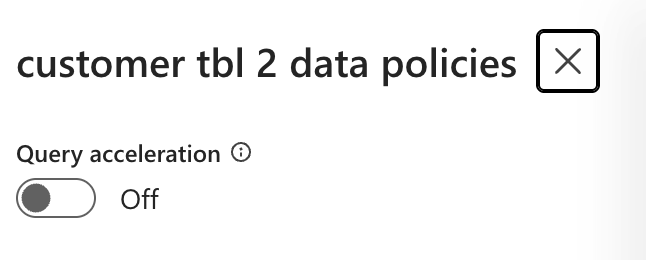
Switch it to on, and you’re done. Or click the shortcut to display data. On the right, you’ll see some details and the same option.
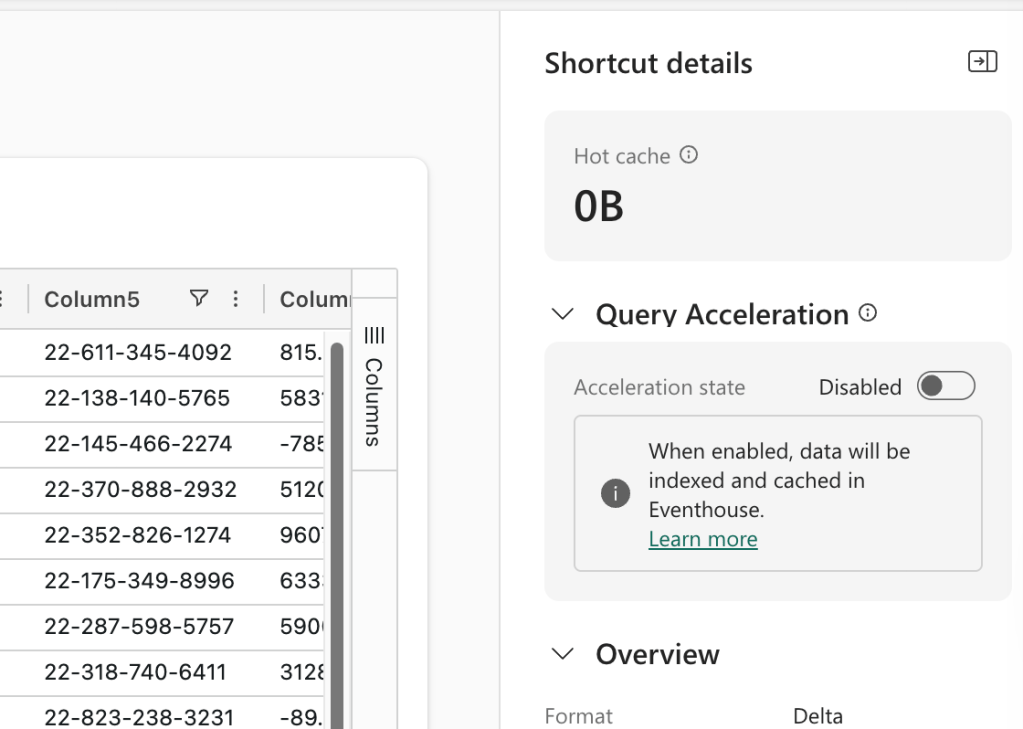
The “Learn more” link will take you to the official Microsoft Learn documentation for this specific option.
Video!
As always, Valerie created an accompanying video on this subject. Enjoy!
 Reitse's blog
One thought on “DP-700 training: Choose between query acceleration for OneLake shortcuts and standard OneLake shortcuts in Real-Time Intelligence”