

This series of posts is much overdue, but with good reason.
When I started hammering Azure SQL again, I had a set of scripts to run and tried to figure out what was happening. For most databases, I could explain the results, but some didn’t make sense. I’ll get back to that later in this series.
A few years ago, I did a similar performance-testing series, where I created the data on the database itself using SqlStress to run a massive load of queries and see what happened. This gave a lot of interesting results, most of which are still valid, but I wanted to try something different.
To make sure you understand the key terms, let me start by explaining them.
Terminology
Tier: the type of database. In Azure, you can choose Standard, Premium, General Purpose, Hyperscale, or Business Critical.
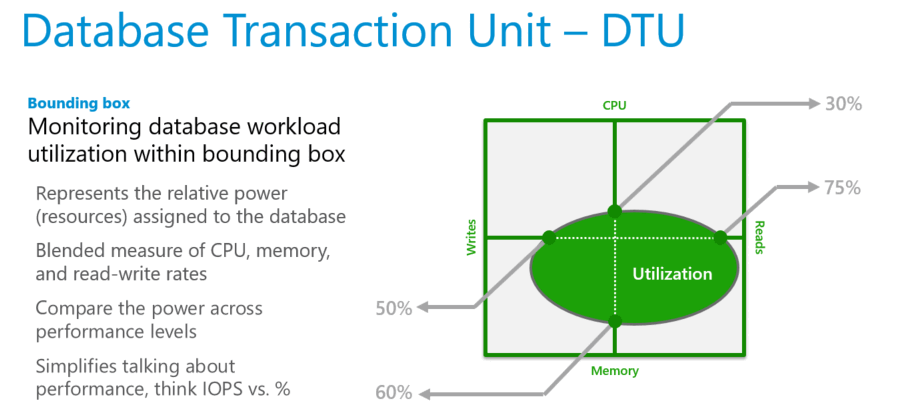
DTU: Database Transaction Units. Azure uses a formula to calculate how many DTUs you can use for a database. This formula is based on CPU cores, Memory, and disk I/O. I haven’t met anyone who can fully explain the formula.
SKU: Stock Keeping Unit. In databases, it’s the number of DTUs or Cores you assign to the database. Database size (GB storage) isn’t part of the SKU, but you can set it separately.
These are the most important terms that keep coming back; let’s move on to the files I’ve used.
The files
I’ve been using a large set of files, and large files within that set. In total, around 500 GB of plain text data. This posed the first problem for the Standard Edition, because the S2 edition has a hard limit on how much data it can hold. This means that the results for this one are somewhat limited. All the other databases I tested could handle the full dataset.
Just loading files into the database doesn’t help; I need to measure things.
The measurements
The testing consists of two measurements. The first part is timing: how long it takes to load all the data into the database. Because I know the data size, I can get a good measure of that database Tier and SKU’s intake capacity. The second measurement is wait statistics. If you want to know what’s holding up your database, these are your go-to metrics. SQL Server does an excellent job telling you what it’s waiting for.
Another result of these measurements is cost. In the table, I’ll show the compute cost. You also need to pay for storage. I’ll add those costs where possible. For instance, the S2 includes 250 GB of storage, but you can’t go over that. This means the S2 cost in my test case is just compute. The S7 also includes 250 GB of storage, but the LineItem files alone are 300 GB in text files and will exceed the 250 GB threshold. This means that I have to configure this database for 500 GB of storage. This will most definitely change the price! To calculate the cost, I chose the West Europe region. If you choose another region, prices will be different.
Now, let’s get into the numbers!
The results.
I’ll start with the Customers files: 9 GB of data.
| Tier-SKU | Duration | MB/s | Cost (Euro) |
| S2 | 1:39 | 1.60 | 1,28 |
| S7 | 0:22 | 7,18 | 0,42 |
As you can see, S2 was slower; S7 was much quicker, and even though it cost more per hour, it was cheaper for this specific process.
Moving on to the PartSupp files, 46 GB of data.
| Tier-SKU | Duration | MB/s | Cost (Euro) |
| S2 | 12:41 | 1,03 | 10,08 |
| S7 | 1:44 | 7.57 | 2,25 |
The trend seen with the Customers file held true with the PartSupp files. S2 is slower and more expensive.
The LineItem files will show a similar effect. Or could, if I could load it. The LineItem just didn’t load because of the sheer size.
| Tier-SKU | Duration | MB/s | Cost (Euro) |
| S2 | N/A | N/A | N/A |
| S7 | 9:15 | 9,32 | 13,04 |
Coming back to the storage part. S7 really looks like the better option here, until you realise the extra 250 GB of data costs a fixed 48,62 euros each month. This may change your mind about S7 versus S2. Or maybe not, because your load matches the S2 profile.
As promised, I also recorded the wait statistics. Here are the top waits for both SKUs.
S2 Waits
| Wait Type | Wait Description | Percentage |
|---|---|---|
| PAGELATCH_EX | Waiting for a page latch in memory (exclusive); this is not a physical disk read. | 35,60 |
| LOG_RATE_GOVERNOR | The transaction log write rate is throttled by the database service tier. | 23,56 |
| PREEMPTIVE_XE_DISPATCHER | A SQL worker is waiting in a preemptive Extended Events dispatcher operation. | 17,68 |
| XE_LIVE_TARGET_TVF | Waiting while reading an Extended Events live target through its table-valued function. | 4,66 |
| HADR_FABRIC_CALLBACK | Waiting for an Azure SQL high-availability fabric callback. | 4,65 |
| PAGEIOLATCH_SH | Waiting for a data page to be read from storage into memory (shared latch). | 3,99 |
S7 Waits
| Wait Type | Wait Description | Percentage |
|---|---|---|
| PAGELATCH_EX | Waiting for a page latch in memory (exclusive); this is not a physical disk read. | 50,46 |
| PREEMPTIVE_XE_DISPATCHER | A SQL worker is waiting in a preemptive Extended Events dispatcher operation. | 14,77 |
| LOG_RATE_GOVERNOR | The transaction log write rate is throttled by the database service tier. | 11,93 |
| XE_LIVE_TARGET_TVF | Waiting while reading an Extended Events live target through its table-valued function. | 5 |
| HADR_FABRIC_CALLBACK | Waiting for an Azure SQL high-availability fabric callback. | 4,94 |
| PAGEIOLATCH_SH | PAGEIOLATCH_SH | 4,11 |
| BACKUPIO | Writing from buffer to backup file | 1,88 |
| BACKUPBUFFER | A thread waiting to write to the buffer that will write to the backup file | 0,78 |
No big surprises here, I think. The database is waiting for locks to be released, and, most interestingly, you can see the Resource Governor at work; it’s limiting database throughput by slowing log writes. I would have expected this to be higher, though. The rest of the wait list is long, but the percentage is quite low, so there are no real blockers or things you can work with.
As always, if you want to know more about wait stats, my go-to explanation is the Paul Randall website.
Totals
So, adding it all up, the S2 set me back 11,36. The S7: 64,33. On the other hand, the S2 (on the files it could load) took 14 hours and 20 minutes, whereas the S7 took 2 hours and 6 minutes for the same files. And for these files, the storage increase wasn’t necessary, making the S7 both faster and cheaper. On the other hand, you pay for the database to be running, so queries are cheaper and faster, but when the database is sleeping for the rest of the time, it can be very expensive. Make sure you understand your workload, the requirements, and budget!
Remember, these are my own tests; run your own when doing comparisons like this to ensure the simulated workload matches yours. These tests didn’t include data processing.

