

Before I get started, yes, I’m going to write about Power BI. If you’re not familiar with my work, the long and short of it is that I tend to keep a healthy distance from anything involving semantic models and reports. Why? In one word, pie charts. Sorry if that triggered you.
But every now and again, I need to do work adjacent to this; specifically, when onboarding new clients or helping them migrate things, I have to touch the Power BI stuff too. But rest assured, a lot needs to happen before I’ll actually start creating reports. Many people are more qualified than me to do that.
So, what’s the problem?
In my company, we deliver a standard report with each new project that shows column-level lineage. This report pulls data from a designated Lakehouse and lets users quickly see where a column from a source system is used, or where data in a dimension or fact column comes from.
We’ve built this report in our own tenant and need to upload it to the client tenant. We do this either by manually exporting the PBIX file and importing it into the client, or by using a combination of Terraform and PowerShell. The latter is my favourite as I can run the code, get some coffee, and when I come back, the work is usually done.
But I keep running into the same issue: the connection from the semantic model to the source is broken. It makes perfect sense that it doesn’t work; it’s a different Lakehouse that acts as the source. And that Lakehouse has a different GUID. It would be very helpful if I could either fix that on import with a pop-up asking me for the correct source, or enable the data store option instead of greying it out.
Is there a solution?
Well, as it turns out, there is! And this is where I’m standing on the shoulders of giants. Vivienne from Microsoft was very helpful in analysing and putting me on the right track. Roy, an excellent coworker, helped me fix it with the report I was struggling with. I’ve also created a Fabric Idea for this.
You need to take a few steps.
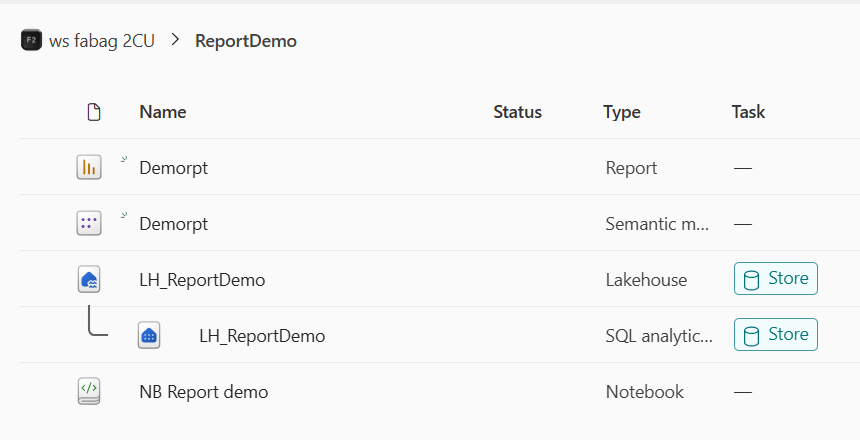
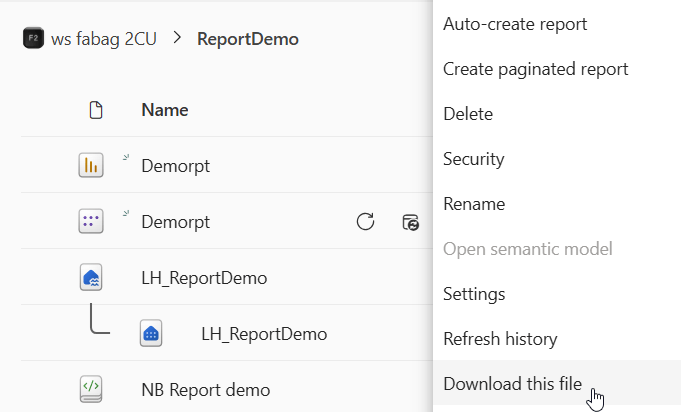
First, export the PBIX file and import it into the new tenant. By the way, the export only works when you have Import or DirectQuery. With Direct Lake, you can’t download your semantic model from the Fabric portal; you can only download the PBIX file when you have the report open.
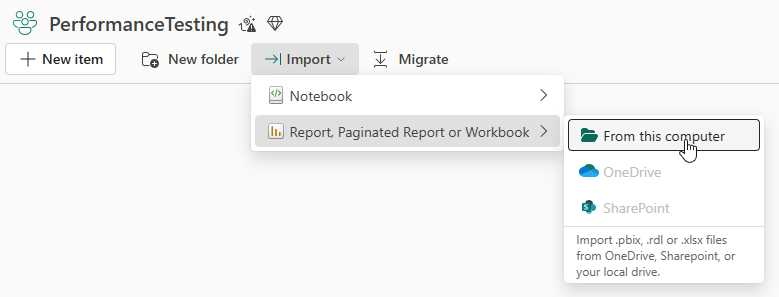
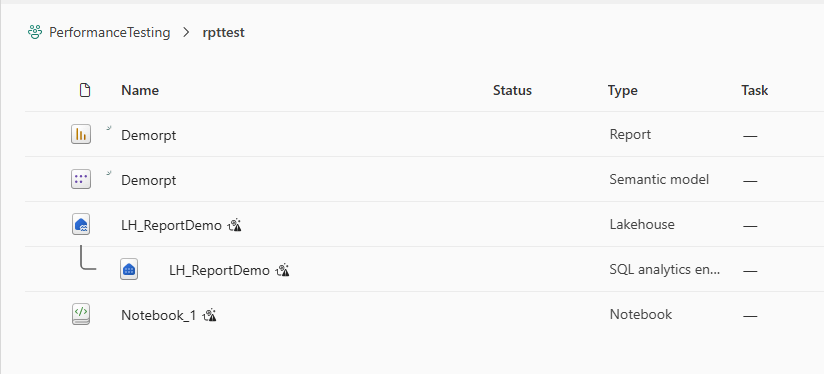
Now, let’s upload it in another tenant.
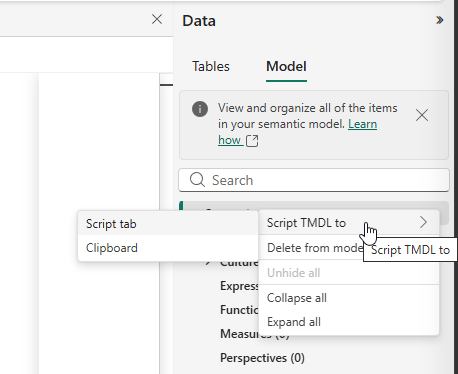
Second, open the semantic model with the TMDL view. Right now, it’s in preview, but it works perfectly for this.

In this view, go to the right of the window and change the active tab from Tables to Model. Then right-click the semantic model to open the pop-up, and select Script to open the TMDL in the Script tab.
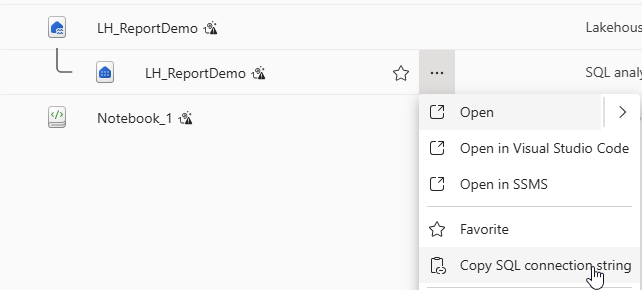
Next, open a new Fabric tab in your browser, go to your Lakehouse and find the connection string. Copy this string.
Paste the string in the TMDL file where it references the source, thereby replacing the old Lakehouse with the correct one. You can see this in the following screenshot.

If needed, update the database and table names, but hopefully they match.
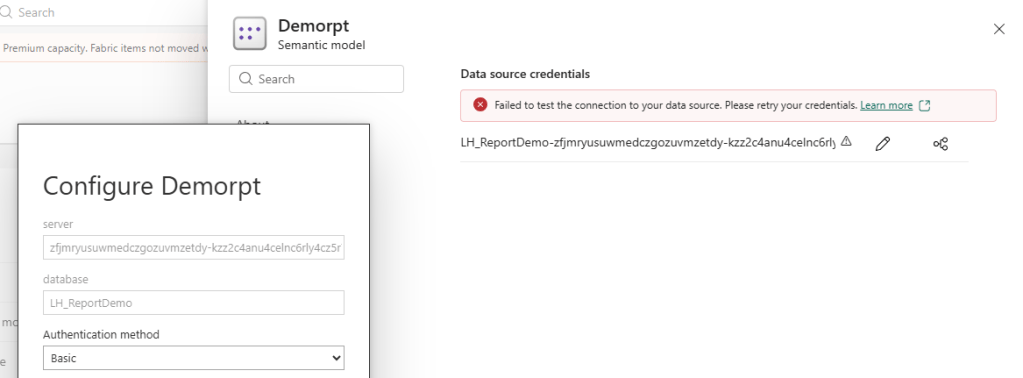
Save the changes and refresh. You will get an error about not being authenticated. To fix this, go to the semantic model settings.
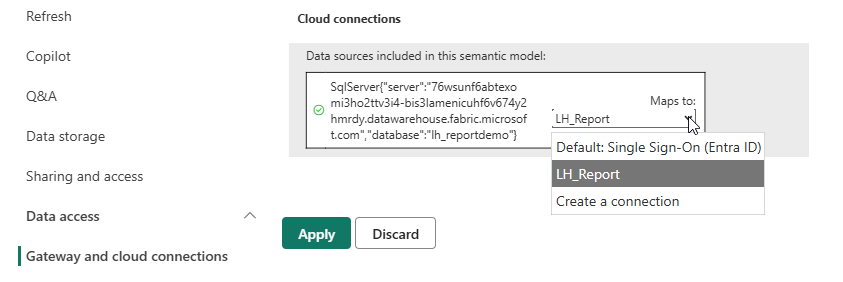
Either create a new connection or reuse one you created earlier. Refresh the semantic model to check this connection’s credentials.
And now, it should work again!
Is it complex? Yes, absolutely. Should this be easier? Also yes. To help Microsoft, I’ve created an Idea; you can vote for it here should you feel the same way.


This is a helpful article for people interested in business intelligence. Learning dashboards, data visualization, and reporting can support better decision-making. Those exploring a power bi and data analytics course bangalore should look for practical datasets and projects.
LikeLike