

This week, I worked for a client using the following setup.
Setup
They’re using SQL Server databases to store their OLTP data. They use a variety of options to authenticate. Fabric isn’t using private links or anything; it connects to the data through the on-premises data gateway. Inside Fabric, we chose the Copy Job activity because it helps the customer maintain the solution and fits the data we need to ingest.

This is a very common setup that usually works just fine.
Yet, I ran into something weird that I wanted to share with you. When I set up this copy job, I could reach the database, preview the data, and create the job. No issues. But when I started the actual data transfer, the job ran for two minutes and thirteen to sixteen seconds before throwing an error. On every table.
The problem
The error: Authentication failed because the remote party has closed the transport stream. When we investigated the SQL instance, it didn’t even show an incoming connection. At least not something that matched with me starting the job. To test a little further, I tried another source and ran into the exact same issue.
To see if it was Copy Job related, I tried a Copy Data activity to see if that would work. Again, I got the same error message. For some reason, I then checked the ‘enable staging’ box in the Copy Data activity and all of a sudden, the data started pouring in.
At that point, the customer shared that they had to use staging in their current Synapse solution.
So, enable staging in the Copy Job? Well, yes, but now we come to the core of this blog post. Where can you find that? I’ve been looking all over the GUI (September 2026) and couldn’t find that checkbox.
The Solution
Now, this blog would be useless without me telling you how to fix this, right? Right.
I’ve built a small demo to show you how to work with this.

This is what a Copy Job looks like; there’s a source and a destination. In the middle, you can see if it will do a full or incremental copy.
What you need to do is move from Home to View inside Copy Job.
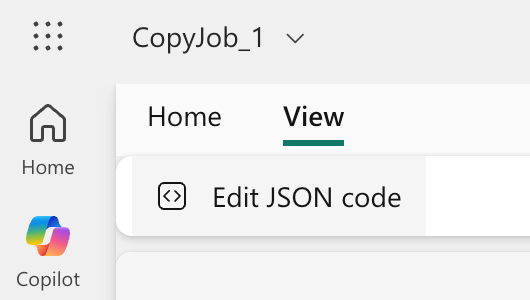
There you can find the Edit JSON option. This opens the underlying JSON code of the Copy Job, and you’re free to mess around with that. Within limits, of course.
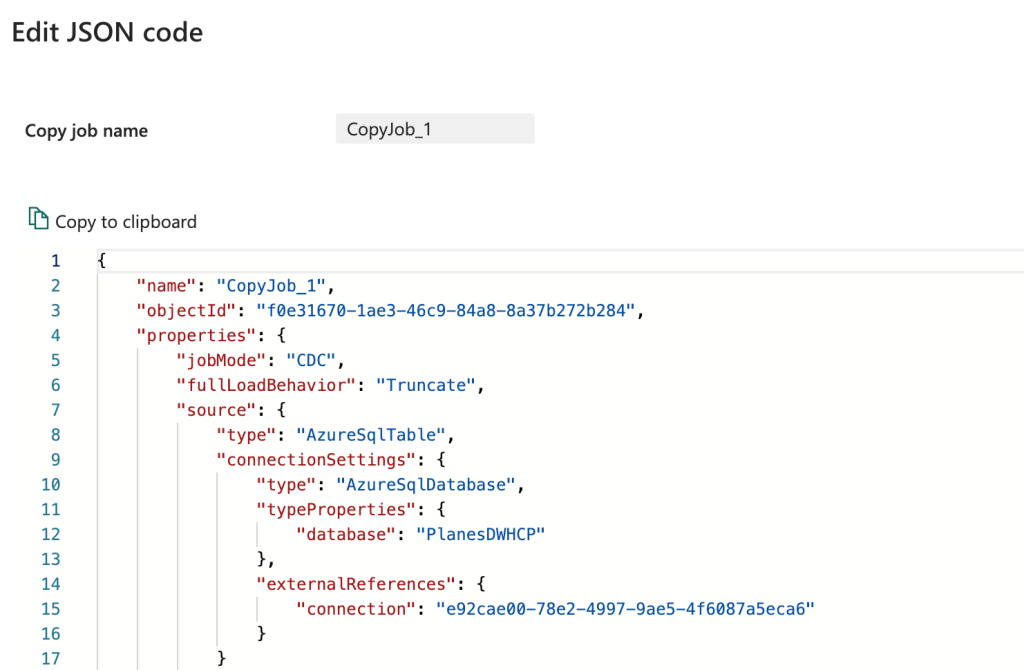
There, if you look closely, you’ll find a line that says enableStaging: false. Change the false to true, save the changes and run the job again.
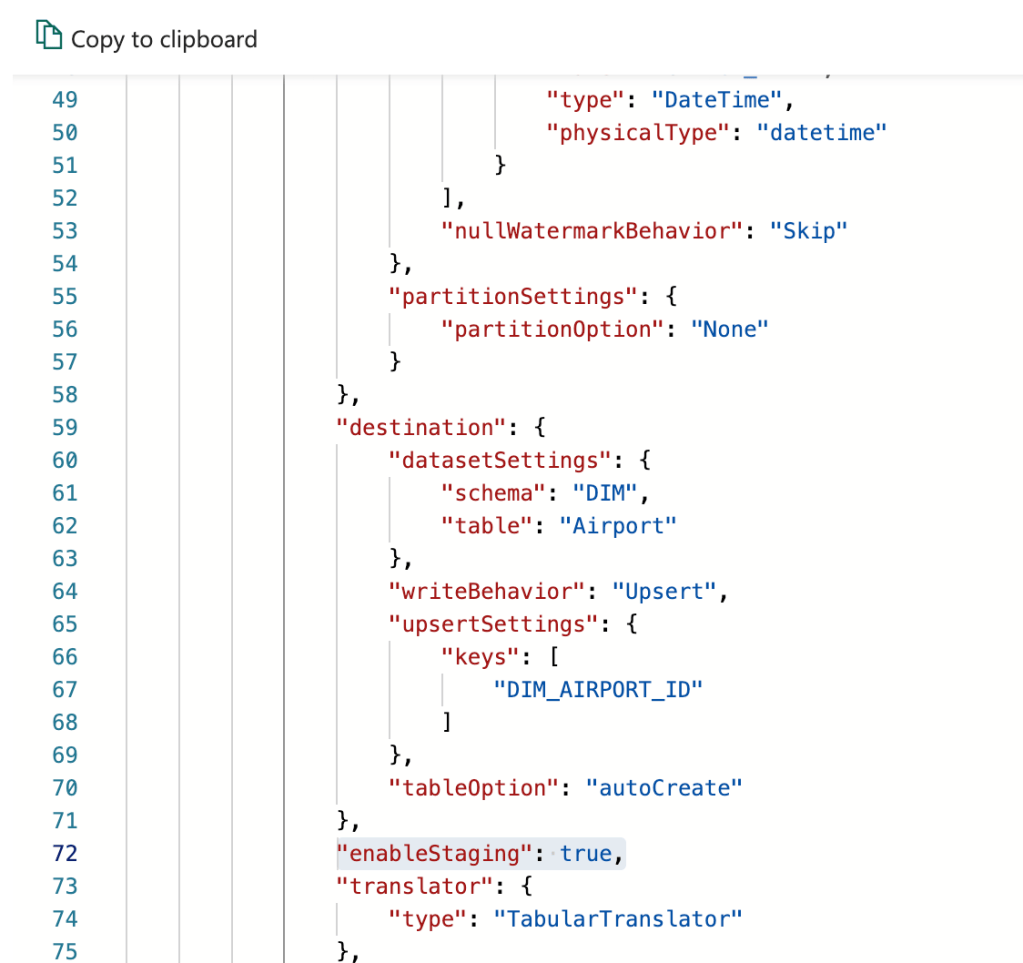
In our case, the problem is solved. The data moves again, and all is well.
What if you change the Copy Job?
Very good question! I’ve had to add a few tables after modifying the JSON. What I’ve found is that your changes are still there; I just had to change the staging option from false to true for the newly added tables.
I’m hoping Microsoft will add this option to the GUI, as it makes more sense to change it there, but it’s good to know you can set the staging in the background when you need it.


One thought on “Fabric Copy Job: Find the staging!”